Installing MoveData
MoveData is a Salesforce managed package that connects fundraising platforms to your Salesforce organisation. This guide walks you through installing the package and verifying it is ready to use. The process takes between 5 and 15 minutes.
Before you begin#
- You need Salesforce system administrator permissions (or the "Download AppExchange Packages" permission) to install managed packages.
Warning
We strongly recommend installing in a sandbox organisation first, then repeating the steps in production once you are satisfied.
Step 1: Open the installer#
You can start the installation in one of two ways.
Option A -- Direct install link (recommended)
Go to https://api.movedata.io/installer/app. This link redirects you to the Salesforce installer with the correct package pre-selected.
Option B -- Salesforce AppExchange
Visit the MoveData listing on the AppExchange. Click Get It Now and follow the prompts to log in to your Salesforce organisation.
Step 2: Configure installation settings#
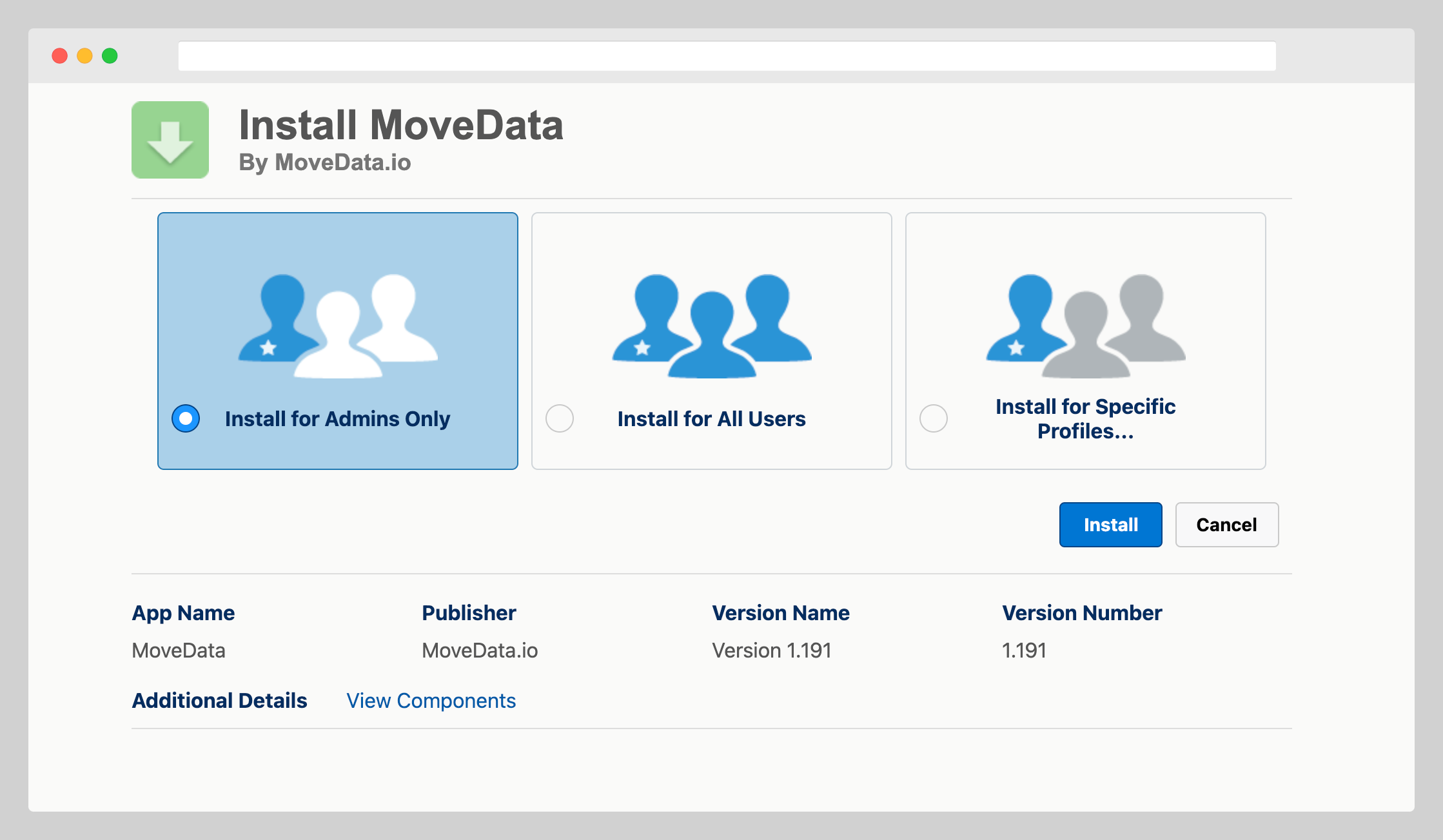
On the installation settings screen, choose who should have access to the package.
- Select Install for Admins Only. This is the recommended option for most organisations.
- Review the component list to confirm you are installing the correct package.
Success
If you need non-admin users to access MoveData later, you can update permissions through Salesforce permission sets after installation.
Step 3: Approve third-party access and install#
Salesforce asks you to approve access to MoveData endpoints before proceeding.
- Tick the checkbox to confirm you grant access to the third-party website.
- Click Continue.
- Click Install to begin the installation.
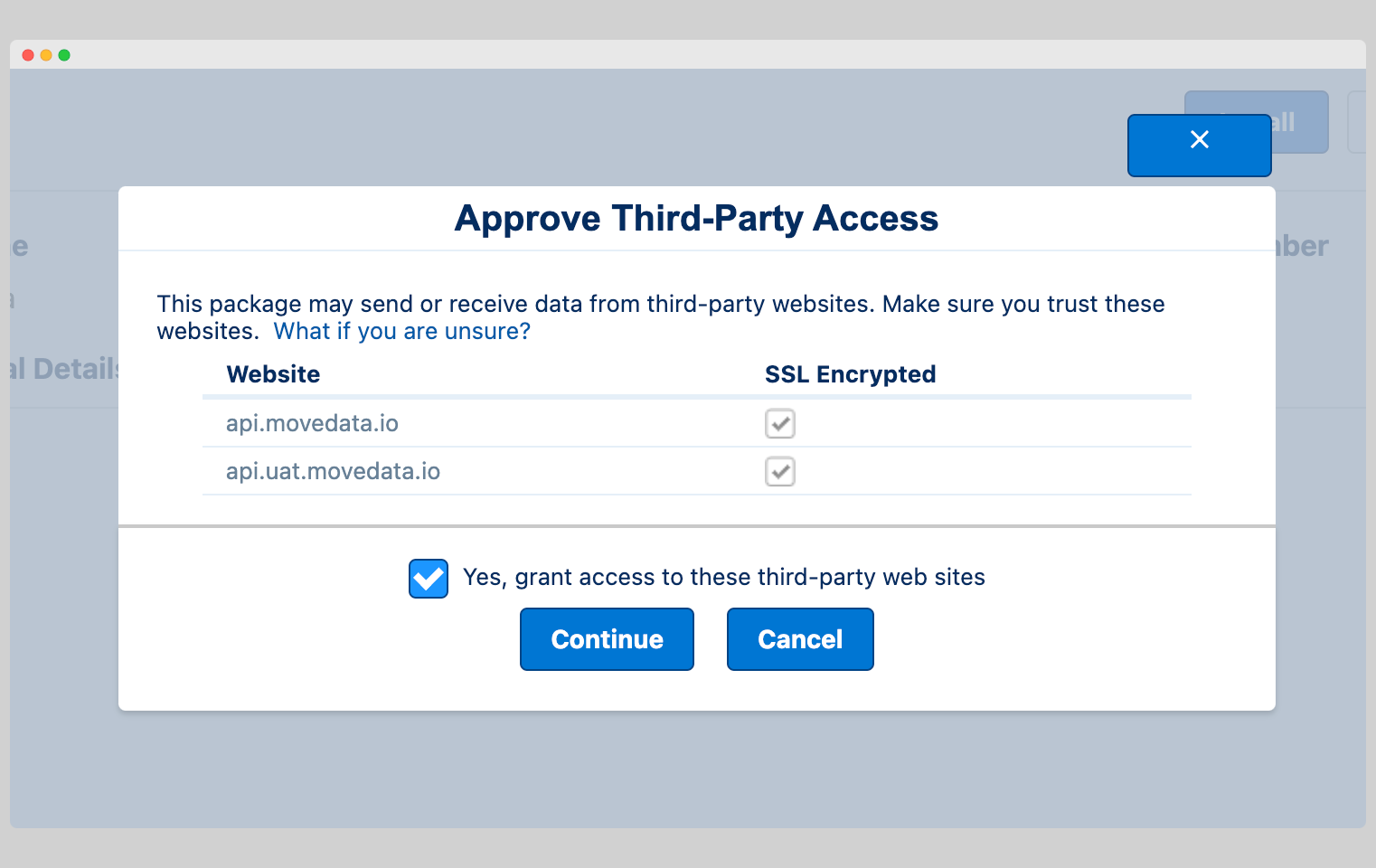
This step allows MoveData to communicate with its cloud services through a remote site setting.
The installation typically takes around 5 minutes. Salesforce sends you a confirmation email once the package is ready.
Step 4: Verify the installation#
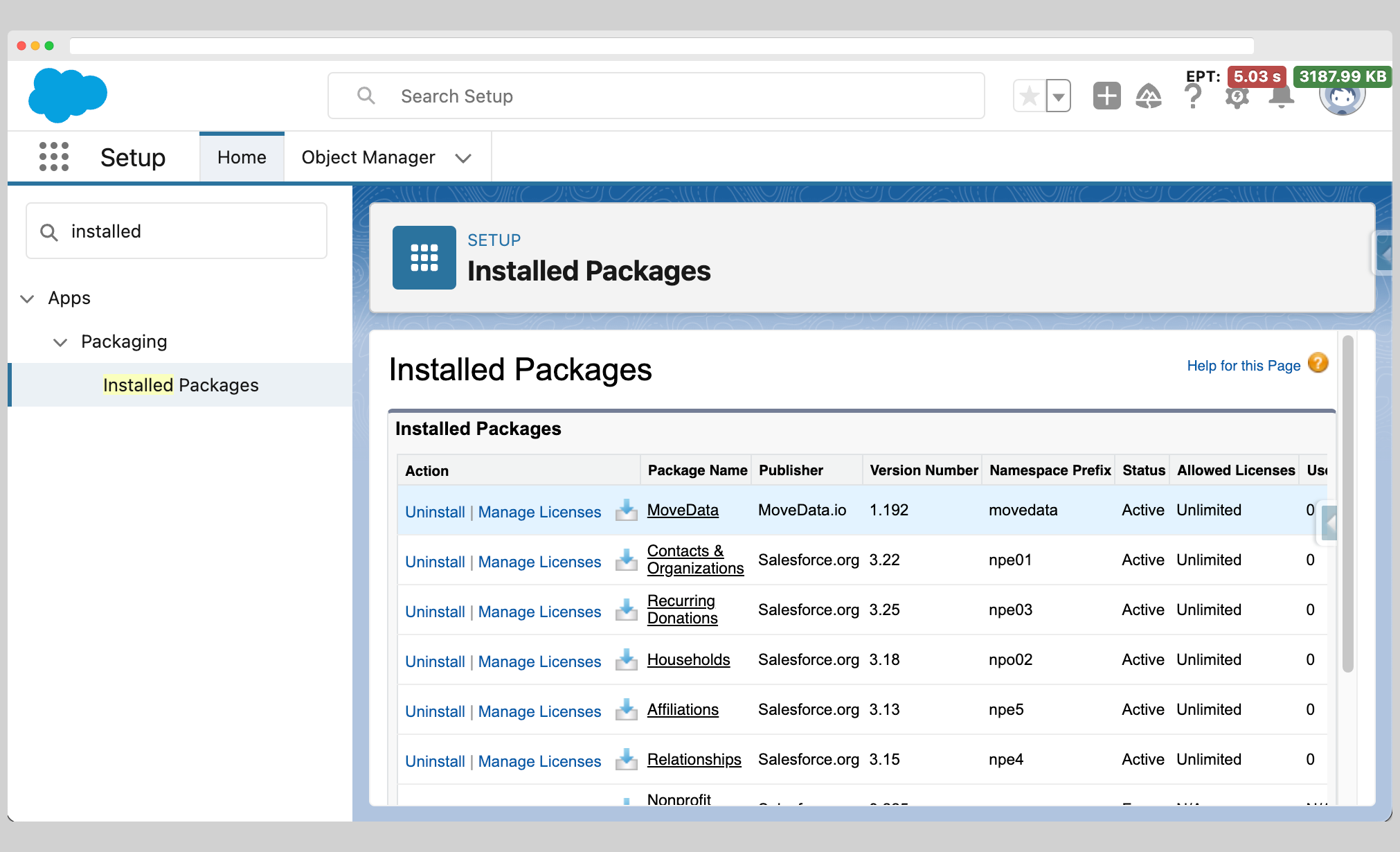
Once you receive the confirmation email, check that MoveData is correctly installed.
- Go to Setup > Installed Packages. Confirm that MoveData appears in the list with a status of Installed.
- Open the App Launcher and search for MoveData. Confirm that MoveData appears as an available application.
Note
If MoveData does not appear in the App Launcher, check that your user profile or permission set grants access to the MoveData application.
Troubleshooting#
I receive a permission error during installation
Confirm that you are logged in as a Salesforce system administrator. Only users with the "Download AppExchange Packages" permission can install managed packages. If you are using a sandbox, ensure your admin credentials are current.
The package does not appear after installation
Installation can take up to 15 minutes. Check your email for a confirmation notification from Salesforce. If the email indicates a failure, try installing again. You can also check Setup > Deployment Status to see if the installation is still in progress. Contact MoveData support if the problem persists.
Third-party access was not approved
If you skipped the approval step, MoveData cannot connect to its cloud services. Go to Setup > Security > Remote Site Settings and verify that the MoveData endpoint is listed and active.