Payment options
This article explains how MoveData subscriptions are billed, what payment methods are available, and how to set up automatic payments. For current pricing, visit the MoveData pricing page.
Billing frequency#
MoveData subscriptions are billed on either a monthly or annual basis.
| Frequency | Payment methods available |
|---|---|
| Monthly | Credit card or direct debit |
| Annual | Credit card, direct debit, or bank transfer |
The default billing frequency is monthly. To change your billing frequency, submit a support ticket to support@movedata.io.
Note
All MoveData pricing is exclusive of applicable sales taxes such as GST. See Sales tax for details on how tax applies in your country.
Payment methods#
MoveData supports three payment methods:
- Credit or debit card — processed securely via Stripe
- Direct debit — processed securely via GoCardless
- Bank transfer — available for annual subscriptions only
Setting up automatic payments#
When you receive your MoveData invoice, it includes a link to view and pay online. From this page, you can set up automatic payments so future invoices are paid on their due date.

Automatic payments via credit or debit card#
- Open the payment link from your invoice email.
- Click Set up Auto Pay in the top right corner of the payment page.
- Enter your card details.
- Select Set up Auto pay and pay future invoices automatically on their due dates.
- Confirm the payment.
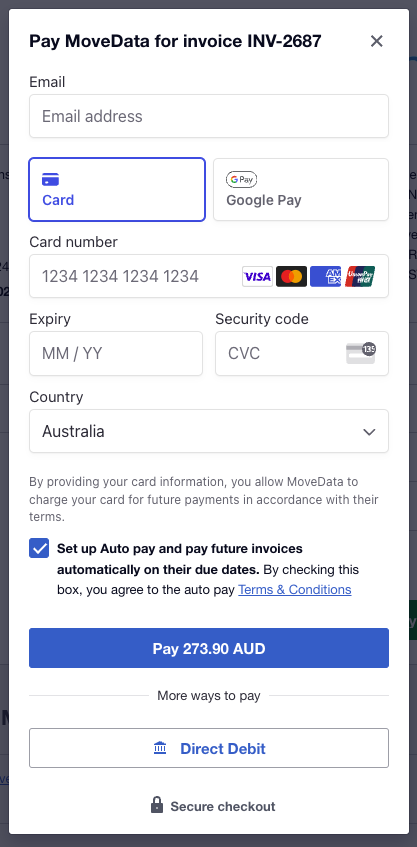
Your card information is stored securely by Stripe and charged when your next invoice becomes due.
Automatic payments via direct debit#
- Open the payment link from your invoice email.
- Click Set up Auto Pay in the top right corner of the payment page.
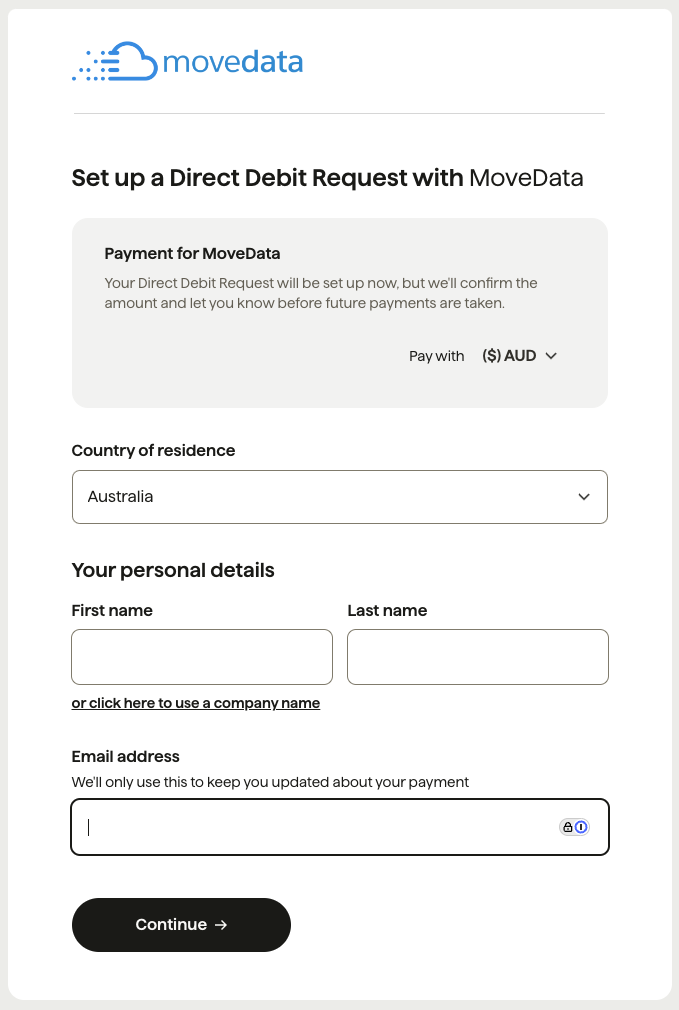
- Click the Direct Debit button at the bottom of the payment interface.
- Follow the prompts to set up your direct debit through GoCardless.
Managing automatic payments#
To update your payment method or cancel automatic payments:
- Open any MoveData invoice (current or past).
- Click the Manage Auto Pay button.
- Update your payment details or cancel automatic payments as needed.

Invoice payment terms#
Invoices are due within 7 days of issue. Late payments may incur interest at 2% above the Reserve Bank of Australia (RBA) base rate, as set out in the Terms of Service.
Refunds#
MoveData's refund eligibility depends on your subscription type:
| Scenario | Eligibility |
|---|---|
| Erroneous charge after cancellation notice | Refund granted |
| Monthly plan — cancellation requested within 5 days of charge, no usage during that period | Refund granted |
| Annual plan — cancellation requested within 30 days of purchase, no bulk loading or data migration activity | Refund granted |
| Professional services (customisation, technical investigation) | Not eligible for refund |
For full details, see the Pricing & Refund Policy.
To request a refund, email support@movedata.io.
Changing the billing recipient#
To change the email address that receives invoices and billing communications, email support@movedata.io with the new billing recipient email address. MoveData will update this for you.
Related articles#
- Sales tax — how sales tax applies to your MoveData subscription
- Legal — terms of service, privacy policy, and data processing
- Security overview — how MoveData protects your data
- Data imports — importing historical data into Salesforce