How MoveData works
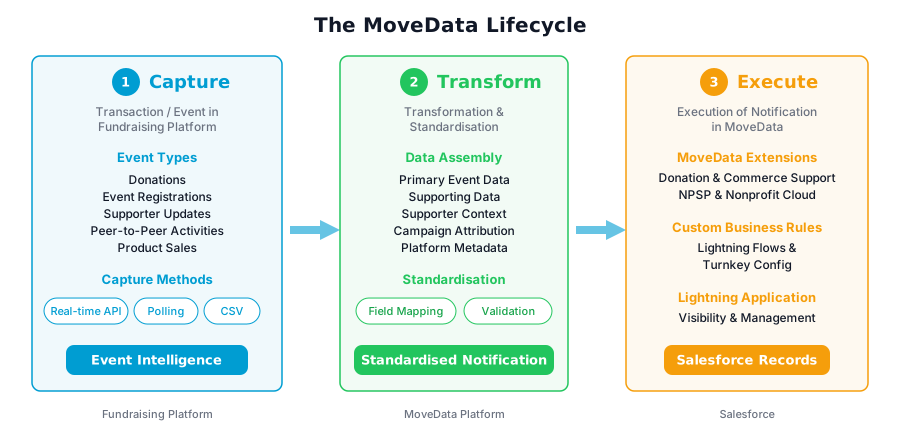
MoveData processes fundraising data through a three-stage lifecycle. Every donation, registration, or supporter update follows the same path from your fundraising platform into Salesforce. This article explains each stage in plain language.
A real-world example#
Before looking at the details, here is a concrete example of the lifecycle in action:
- A donor gives $50 to a campaign on Raisely (or whichever fundraising platform your organisation uses).
- Raisely sends a webhook to MoveData with the transaction details (the delivery method varies by platform).
- MoveData transforms the data into a standardised notification containing the donor's details, the donation amount, and the campaign information.
- MoveData processes the notification into Salesforce, creating or updating a Contact, an Opportunity (NPSP) or Gift Transaction (Nonprofit Cloud), and a Campaign record.
The entire process happens in seconds, with no manual data entry required.
Stage 1: Capture#
The lifecycle begins when something happens on your fundraising platform. This could be a donation, an event registration, a profile update, or a product purchase.
MoveData captures these events using one of three methods:
- Webhooks (real-time) — the fundraising platform sends data to MoveData instantly as events occur. Platforms like Raisely, Grassrootz, and GiveEasy use this method.
- Polling (scheduled) — MoveData checks the platform for new data at regular intervals. Platforms like JustGiving use this method. The polling schedule is predetermined by MoveData based on best practice for each platform.
- File upload (manual) — you upload a CSV or Excel file exported from your fundraising platform. Benevity and Charitable Giving use this approach.
Regardless of the capture method, every event enters the same processing pipeline.
Stage 2: Transform#
Once MoveData captures an event, it transforms the raw platform data into a standardised format called a notification.
Each notification is a self-contained data package. It includes everything needed to create or update records in Salesforce: donor details, transaction amounts, campaign attribution, and any custom fields.
This standardisation step is important because every fundraising platform structures its data differently. MoveData normalises these differences so that your Salesforce business rules work consistently, regardless of which platform the data came from.
Why standardisation matters
MoveData standardises data from all platforms into the same format. You only need one set of business rules in Salesforce. Adding a new fundraising platform does not require rebuilding your processing logic.
Stage 3: Execute#
In the final stage, MoveData processes the standardised notification into your Salesforce org. This is where records are created or updated.
MoveData uses a pipeline to process each notification through a series of phases. For a typical donation, the pipeline follows this sequence:
- Account — find or create the organisation account (if applicable)
- Contact — find or create the donor's contact record
- Campaign — find or create the fundraising campaign
- Recurring — manage recurring giving schedules if applicable: recurring donations (NPSP) or gift commitments and gift commitment schedules (Nonprofit Cloud)
- Donation — create the opportunity (NPSP) or gift transaction (Nonprofit Cloud) record
At each phase, MoveData checks for existing records using platform keys and Salesforce duplicate rules. If a matching record exists, MoveData updates it. If no match is found, MoveData creates a new record. For details on how record matching works, see Duplicate Rules.
Customisation with Flows#
MoveData uses Salesforce Flows for its business logic. This means you can customise how data is processed without writing code.
MoveData extensions provide pre-built flows for common scenarios. You can also add your own flows to implement organisation-specific rules. For example, you could mark high-value donors or route donations to specific record types.
Technical deep dive
For a detailed technical walkthrough, see the Architecture overview which includes a video walkthrough covering the full pipeline processing model with a live demonstration.
What happens when things go wrong#
MoveData includes built-in error handling and monitoring:
- Execution logs record every step of notification processing for troubleshooting
- Error Notifications alert your team by email when a notification fails
- Reprocess lets you reprocess failed notifications after resolving the issue
- Automatic retry handles transient failures without manual intervention
You can monitor all of this from the Notifications tab in the MoveData Lightning application.
Need help debugging?
See How to Reprocess Failed Notifications for a step-by-step guide on investigating and reprocessing failed notifications. For help interpreting error messages, see Reading and Understanding Error Messages.