Understanding unhandled flow faults
An unhandled flow fault is a generic Salesforce error that occurs when a Lightning Flow encounters an unexpected exception. This article explains how to identify the failing flow, find the root cause, and resolve the issue.
Error message#
You will see the following message in the execution log:
An unhandled fault has occurred in this flow
This error means a Lightning Flow — an automated process built in Salesforce — hit a problem that was not caught by error handling logic within the flow.
For help locating this message, see Reading and understanding error messages.
Identifying the failing flow#
Step 1: Open the failed notification#
Navigate to the failed notification in the MoveData app. Click the Execution tab to view the processing log.
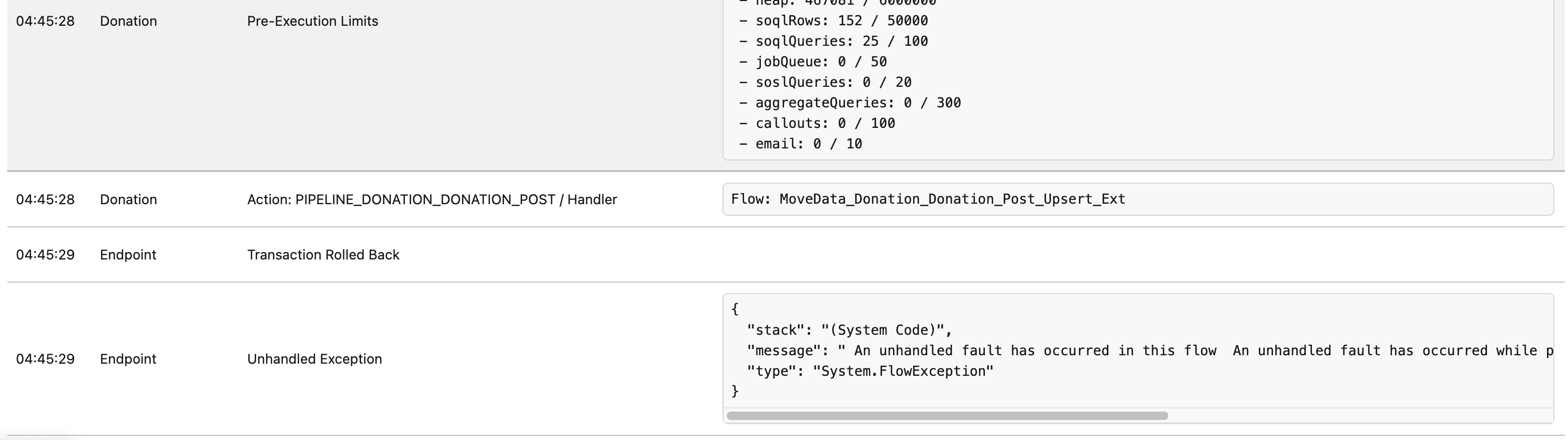
Step 2: Identify where the failure occurred#
Scan the execution log from top to bottom. The entries before the error show which processing phases completed successfully. The error entry tells you which phase and flow failed.
Step 3: View the failed flow in Salesforce Setup#
- Open Setup in Salesforce.
- Type "Paused and Failed Flow Interviews" into the Quick Find box.
- Click Paused and Failed Flow Interviews.
- Toggle the view to show Failed interviews — the list shows only paused interviews by default and appears empty until you switch.
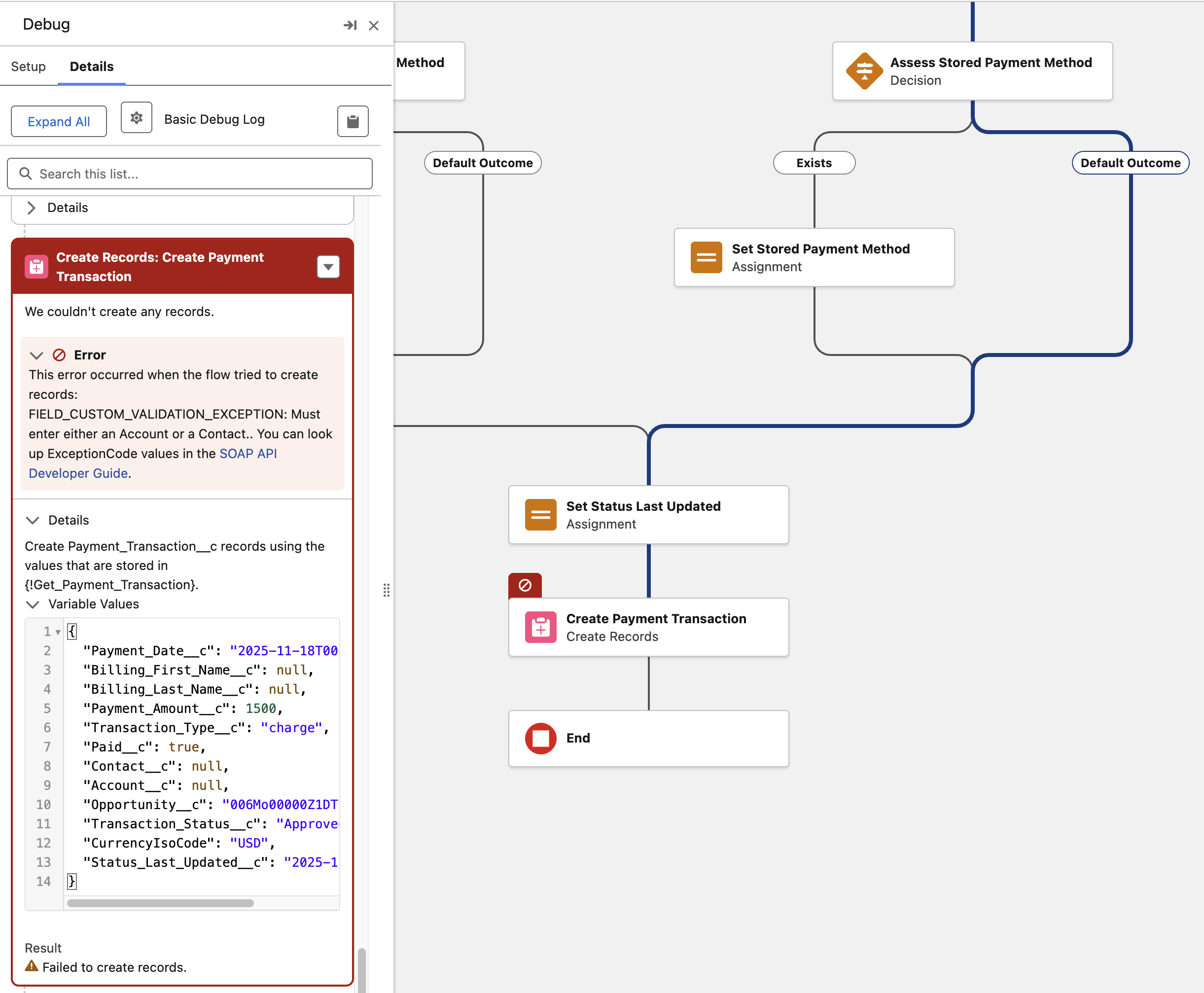
- Click on the failed interview to see a visual diagram of the flow with the failed element highlighted.
Warning
The list shows paused interviews by default. If the list appears empty, make sure you have toggled the view to display Failed interviews.
Common failure reasons#
The table below lists the most common error codes found inside unhandled flow faults.
| Error code | What it means | Next step |
|---|---|---|
FIELD_CUSTOM_VALIDATION_EXCEPTION |
A custom validation rule on the target object rejected the data. | Review the validation rule and either update the rule or correct the source data. |
LIMIT_EXCEEDED: Too many SOQL queries: 101 |
The flow exceeded Salesforce's SOQL query limit. | See Too many SOQL queries: 101. |
CANNOT_EXECUTE_FLOW_TRIGGER |
The flow has been deactivated, deleted, or has a configuration error. | Check that the flow is active and that all referenced elements still exist. |
UNABLE_TO_LOCK_ROW |
Another transaction is modifying the same record. MoveData retries up to three times automatically. | See Unable to lock row. |
CANNOT_INSERT_UPDATE_ACTIVATE_ENTITY |
Related automation (such as a trigger or another flow) failed during the record save. | Investigate the related automation that fired during the save operation. |
Apex CPU time limit exceeded |
The transaction used more CPU time than Salesforce allows. | See Apex CPU time limit exceeded. Review the flow and any Apex triggers for inefficient logic or excessive loops. |
INSUFFICIENT_ACCESS_ON_CROSS_REFERENCE_ENTITY |
The running user does not have access to a referenced record, or the record does not exist. | Verify the record exists and that the MoveData authorised user has the correct permissions. |
Key flow concepts#
The $Flow.FaultMessage variable#
When a flow encounters a fault, Salesforce stores the detailed error information in the $Flow.FaultMessage system variable.
This variable contains the specific error text that caused the fault.
You can reference this variable in fault path elements to log or display the error.
Fault paths#
Fault paths are secondary connector paths on flow elements such as Get Records, Create Records, Update Records, Delete Records, and Action elements. When an element fails, Salesforce follows the fault path instead of the standard path. If no fault path exists, the error becomes an unhandled fault.
Adding fault paths to your flows lets you handle errors gracefully — for example, by logging the error or sending a notification.
Transaction rollback behaviour#
A fault path does not automatically roll back partial DML (data manipulation) operations. If your flow created or updated records before the failing element, those changes may already be saved. Design your fault paths to account for partial commits when needed.
How to fix it#
- Identify the specific error code from the execution log or the failed flow interview.
- Fix the underlying issue — this may involve updating a validation rule, correcting data, adjusting permissions, or modifying the flow.
- Reprocess the failed notification using the Reprocess button.
- Check that the notification status changes to Success.
For full reprocessing instructions, see How to reprocess failed notifications.