Too many SOQL queries: 101 (DLRS)
DLRS (Declarative Lookup Rollup Summaries) is a popular open-source managed package from the Salesforce AppExchange. It calculates rollup summaries across lookup relationships — for example, totalling donations on a Campaign or counting Opportunities on a Contact.
DLRS is widely used in the nonprofit sector alongside NPSP (Nonprofit Success Pack). When configured in its default Realtime mode, DLRS can consume a large number of SOQL queries and trigger the "Too many SOQL queries: 101" error.
Why DLRS causes this error#
In Realtime mode, DLRS installs an Apex trigger on each child object it monitors. Every time a child record is created, updated, or deleted, the trigger fires and recalculates the rollup.
This recalculation runs in the same Salesforce transaction as the record change. When MoveData creates or updates records (Contacts, Opportunities, Campaign Members, etc.), every DLRS rollup on those objects fires at once. Each rollup consumes multiple SOQL queries, and the combined total can exceed the 100-query limit.
Note
The DLRS documentation explicitly recommends Scheduled mode over Realtime mode for this reason.
Example scenario#
MoveData processes a donation that creates a Contact, an Opportunity, and a Campaign Member. You have three DLRS rollups in Realtime mode:
- Total donations per Contact (fires when Opportunity is created).
- Total donations per Campaign (fires when Opportunity is created).
- Member count per Campaign (fires when Campaign Member is created).
Each rollup adds queries to the same transaction. Combined with MoveData's own queries and any other automations, the total exceeds 100.
DLRS calculation modes#
DLRS supports several calculation modes. The mode determines when and how rollups recalculate.
| Mode | When it runs | SOQL impact | Risk |
|---|---|---|---|
| Realtime | Immediately, in the same transaction as the record change | High — runs in shared query budget | High |
| Watch for Changes and Process Later | Records changes, recalculates in a scheduled batch job | Low — runs in its own transaction | Low |
| Invocable by Automation | Only when called from a flow or process | Medium — depends on when invoked | Medium |
| Developer | Only when called from Apex code | Medium — depends on implementation | Medium |
Success
The mode previously called "Scheduled" has been renamed to "Watch for Changes and Process Later" in newer DLRS versions. The behaviour is the same.
How to fix it#
Step 1: Open DLRS#
- Click the App Launcher (the nine-dot grid icon).
- Search for and select DLRS (or Declarative Lookup Rollup Summaries).
- Click Manage Lookup Rollup Summaries.
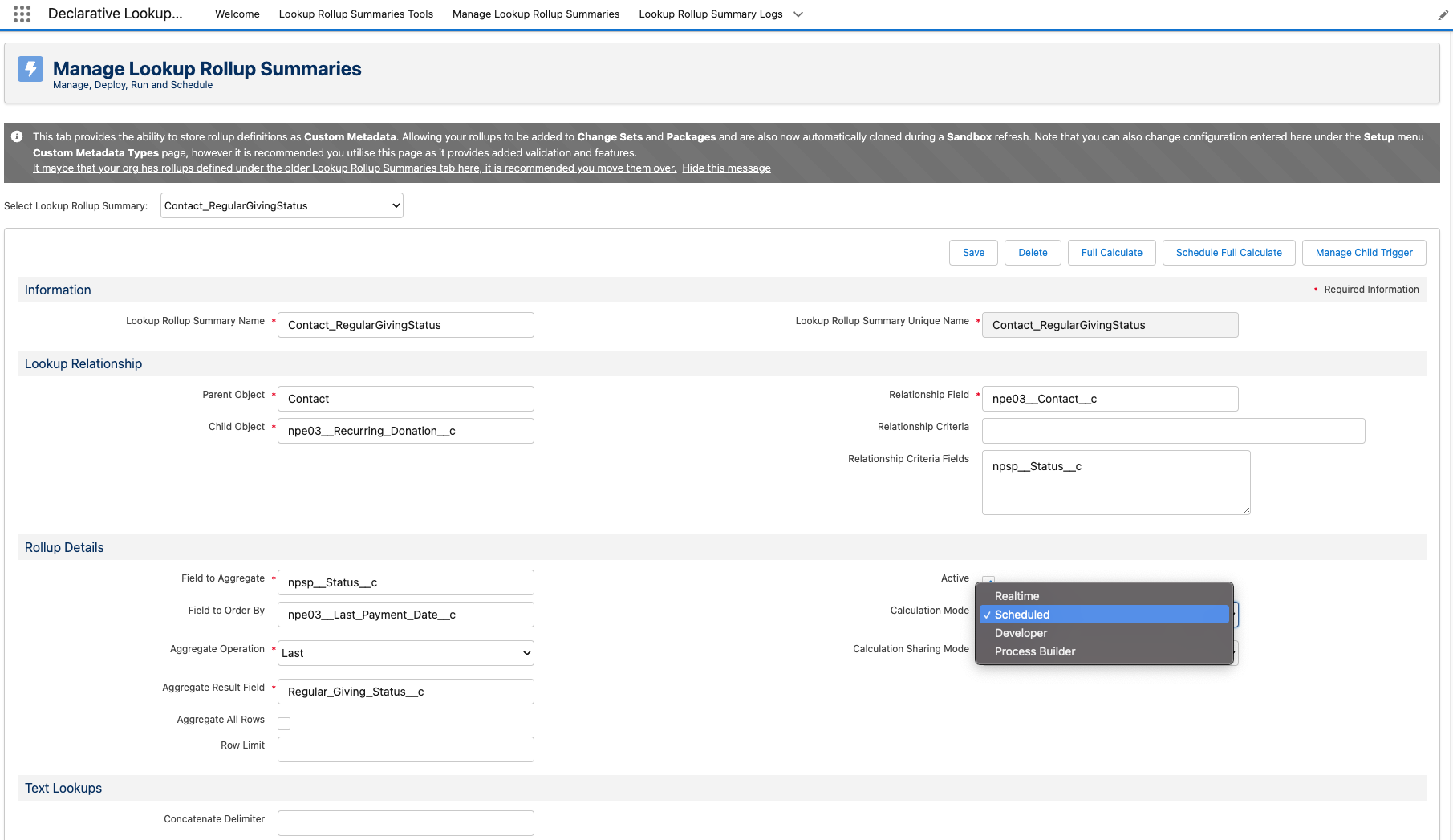
Step 2: Change calculation mode#
- Open each rollup summary that is set to Realtime.
- Change the Calculation Mode to Watch for Changes and Process Later.
- Click Save.
- Repeat for all Realtime rollups.
Step 3: Schedule the DLRS batch job#
After changing rollups to scheduled mode, set up the batch job that processes them.
- In the DLRS app, go to Schedule Calculation Jobs.
- Configure a schedule (such as every 15 minutes or hourly, depending on your needs).
- Click Save.
The rollups will now recalculate in the background on their own schedule, outside the MoveData transaction.
Warning
After switching to scheduled mode, rollup values will not update in real time. They will update when the next scheduled batch runs. For most nonprofit use cases, a short delay is acceptable.
Step 4: Reprocess failed notifications#
- Reprocess the failed notifications using the Reprocess button on each notification detail page.
- Check that the notification status changes to Success.
For full reprocessing instructions, see How to reprocess failed notifications.
Additional optimisations#
If you continue to experience query limit errors after switching DLRS to scheduled mode, consider these additional steps:
- Review other automations — DLRS may not be the only contributor. See Too many SOQL queries: 101 for a full diagnosis guide.
- Adjust batch sizes — if the DLRS batch job itself hits limits, reduce the batch size in the scheduled job configuration.
- Use Custom Metadata records — newer DLRS versions support storing rollup definitions as Custom Metadata. This improves caching and reduces query overhead during batch processing.
How to confirm DLRS is the cause#
If you are unsure whether DLRS is causing the error, check the Salesforce debug logs.
- In Salesforce, go to Setup > Debug Logs.
- Add a trace flag for your MoveData Authorised User.
- Reprocess the failed notification.
- Open the debug log and search for
LIMIT_USAGE_FOR_NS.
If the dlrs namespace shows a high query count, DLRS is a significant contributor.
What to look for in the debug log
Search for these entries:
LIMIT_USAGE_FOR_NS|dlrs— shows how many queries DLRS used.CODE_UNIT|dlrs.RollupService— confirms DLRS triggers fired during the transaction.CUMULATIVE_LIMIT_USAGE— shows the total query count at the end of the transaction.