Setting up GoFundraise
This guide walks you through connecting your GoFundraise fundraising platform to MoveData. Once connected, donation, campaign, team, and fundraiser data flows into Salesforce automatically.
Note
GoFundraise's own Salesforce Connector Managed Package is no longer available for new clients from 2024. GoFundraise now recommends MoveData as the integration path to Salesforce.
| Field | Detail |
|---|---|
| Product | GoFundraise |
| Method | Batch push |
| Frequency | Configured by GoFundraise |
Supported extensions#
This integration requires the Fundraising and Donations extension.
Before you begin#
- You need access to the MoveData app in Salesforce.
- You need a GoFundraise account.
- No API credentials are required from GoFundraise. GoFundraise configures the data push on their end.
Success
Unlike most MoveData integrations, you do not configure polling or webhooks yourself. GoFundraise manages the data push from their side. You only need to provide GoFundraise with your MoveData integration URL.
Setting up the integration#
Step 1: Open the Integrations tab#
In Salesforce, open the MoveData app and click the Integrations tab.
Step 2: Start a new integration#
Click New Integration.
Step 3: Select GoFundraise#
Choose GoFundraise from the list of available platforms.
Step 4: Name your integration#
Enter a descriptive name for your integration (for example, "GoFundraise — Main") and click Save.
Step 5: Copy the integration URL#
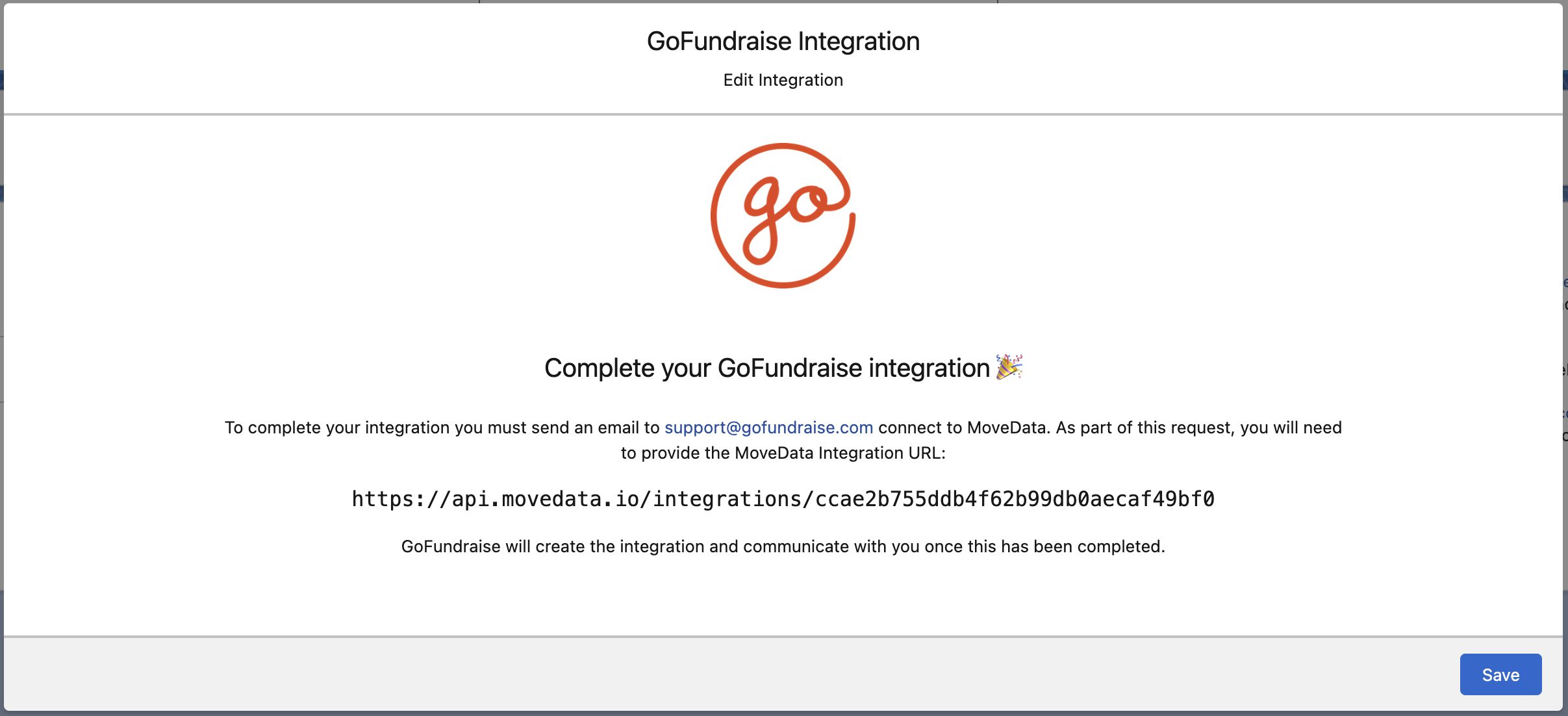
After saving, MoveData displays a unique Integration URL on the integration detail page. Copy this URL to your clipboard.
Step 6: Send the integration URL to GoFundraise#
Email support@gofundraise.com with the following details:
- Your MoveData integration URL (copied in Step 5)
- Your organisation name
- A request to configure the MoveData data push for your account
GoFundraise configures the integration on their end and will confirm when setup is complete.
Warning
Do not skip this step. GoFundraise must configure the data push on their side before any data flows into MoveData. Setup typically takes a few business days.
Step 7: Verify the connection#
Once GoFundraise confirms the setup is complete, check the Notifications tab in MoveData. You should see notifications appearing as GoFundraise pushes data to your integration.
Note
GoFundraise pushes data in batches at intervals they configure. The timing of data delivery is controlled by GoFundraise, not by MoveData or your organisation. This may result in less predictable timing compared to polling or webhook integrations.
Salesforce records created#
MoveData creates different Salesforce records depending on your data model.
| GoFundraise data | Nonprofit Success Pack (NPSP) | Nonprofit Cloud |
|---|---|---|
| Supporter | Contact | Person Account |
| Organisation | Account | Account |
| Event / Campaign | Campaign (with hierarchy) | Campaign (with hierarchy) |
| Fundraiser role | Campaign Member | Campaign Member |
| Donation | Opportunity | Gift Transaction |
| Recurring donation | Recurring Donation | Gift Commitment |
Campaign hierarchy#
GoFundraise campaigns use a three-level hierarchy. MoveData maps this to a Salesforce campaign hierarchy:
- Event (top-level campaign)
- Team (child campaign, if present)
- Individual fundraiser page (child campaign)
- Team (child campaign, if present)
Each level becomes a Salesforce campaign record linked through the standard campaign parent-child relationship.
Integration settings#
You can adjust these settings on the integration detail page in MoveData.
| Setting | Options | What it does |
|---|---|---|
| Donor Information Priority | Billing over Donor (default) Donor over Billing |
Controls which contact information takes priority when donor and billing details differ. Billing over Donor uses the billing address and contact details. Donor over Billing uses the donor's profile information instead. |
Custom field reference#
GoFundraise provides system custom fields and supports custom question fields. MoveData maps all available fields into Salesforce as custom variables that you can use in your extension flows.
System custom fields — Contact
| Field | Description |
|---|---|
fitbitConnected |
Whether the supporter has connected a Fitbit account |
stravaConnected |
Whether the supporter has connected a Strava account |
facebookConnected |
Whether the supporter has connected a Facebook account |
System custom fields — Campaign / Event
| Field | Description |
|---|---|
beneficiaryId |
GoFundraise beneficiary identifier |
eventCampaignParentId |
Parent campaign identifier |
eventType |
Event type code: C = Campaign, I = Individual |
eventDescription |
Event description text |
System custom fields — Fundraiser
| Field | Description |
|---|---|
fundraisingEnabled |
Whether fundraising is enabled for this page |
pageUrl |
URL of the fundraising page |
pageWebTag |
Web tag for the fundraising page |
leadId |
Lead identifier |
fundraisingMetTarget |
Whether the fundraiser has met their target |
System custom fields — Team
| Field | Description |
|---|---|
teamName |
Name of the fundraising team |
teamUrl |
URL of the team page |
teamTarget |
The team's fundraising target |
System custom fields — Donation
| Field | Description |
|---|---|
transactionSource |
Source of the transaction |
transactionProductType |
Product type of the transaction |
settlementDate |
Transaction settlement date |
MoveData uses a composite transaction key in the format {TransactionPaymentId}:{TransactionId} (for example, 7130630:13642918).
Custom question fields
GoFundraise supports custom questions that are mapped to numbered fields:
| Field | Description |
|---|---|
questionName_1 through questionName_5 |
The question text for custom questions 1 to 5 |
questionValue_1 through questionValue_5 |
The answer value for custom questions 1 to 5 |
These correspond to GoFundraise's CustomFormData1 through CustomFormData5 fields.
Warning
GoFundraise maps custom questions to numbered fields (CustomFormData1 through CustomFormData5).
If you do not use custom fields consistently across your GoFundraise account, different questions can be mapped to the same numbered field.
This makes it impossible to determine which question a value relates to.
Ensure your GoFundraise forms use a consistent question structure to avoid ambiguity.
Bulk data import#
MoveData only processes data from the time your integration is connected. If you need historical data imported into Salesforce, MoveData offers a professional import service. For details on how this works, pricing, and how to request an import, see Data imports.
Other resources#
- GoFundraise — the GoFundraise platform for digital fundraising
- GoFundraise Help Centre — GoFundraise support documentation and guides
- MoveData Support — for setup assistance and technical support