Setting up JustGiving
This guide walks you through connecting your JustGiving fundraising platform to MoveData. Once connected, donation, campaign, fundraiser, and payment data flows into Salesforce automatically.
| Field | Detail |
|---|---|
| Product | JustGiving |
| Method | Pull (Polling) |
| Frequency | Every 12 hours |
Note
You only need one JustGiving integration in MoveData, regardless of how many campaigns or events you manage on the platform.
Supported extensions#
This integration requires the Fundraising and Donations extension.
Before you begin#
- You need access to the MoveData app in Salesforce.
- You need an Admin-level JustGiving account for your charity.
- You need API credentials from JustGiving (see below).
Part 1: Obtain your JustGiving credentials#
JustGiving requires five credentials to connect to MoveData. You need to gather these before starting the integration setup.
Data App ID and Consumer App ID#
Contact JustGiving Developer Support at support@justgivingdeveloper.zendesk.com and request access to both the Data API and Consumer API for production data. JustGiving will provide your Data App ID and Consumer App ID.
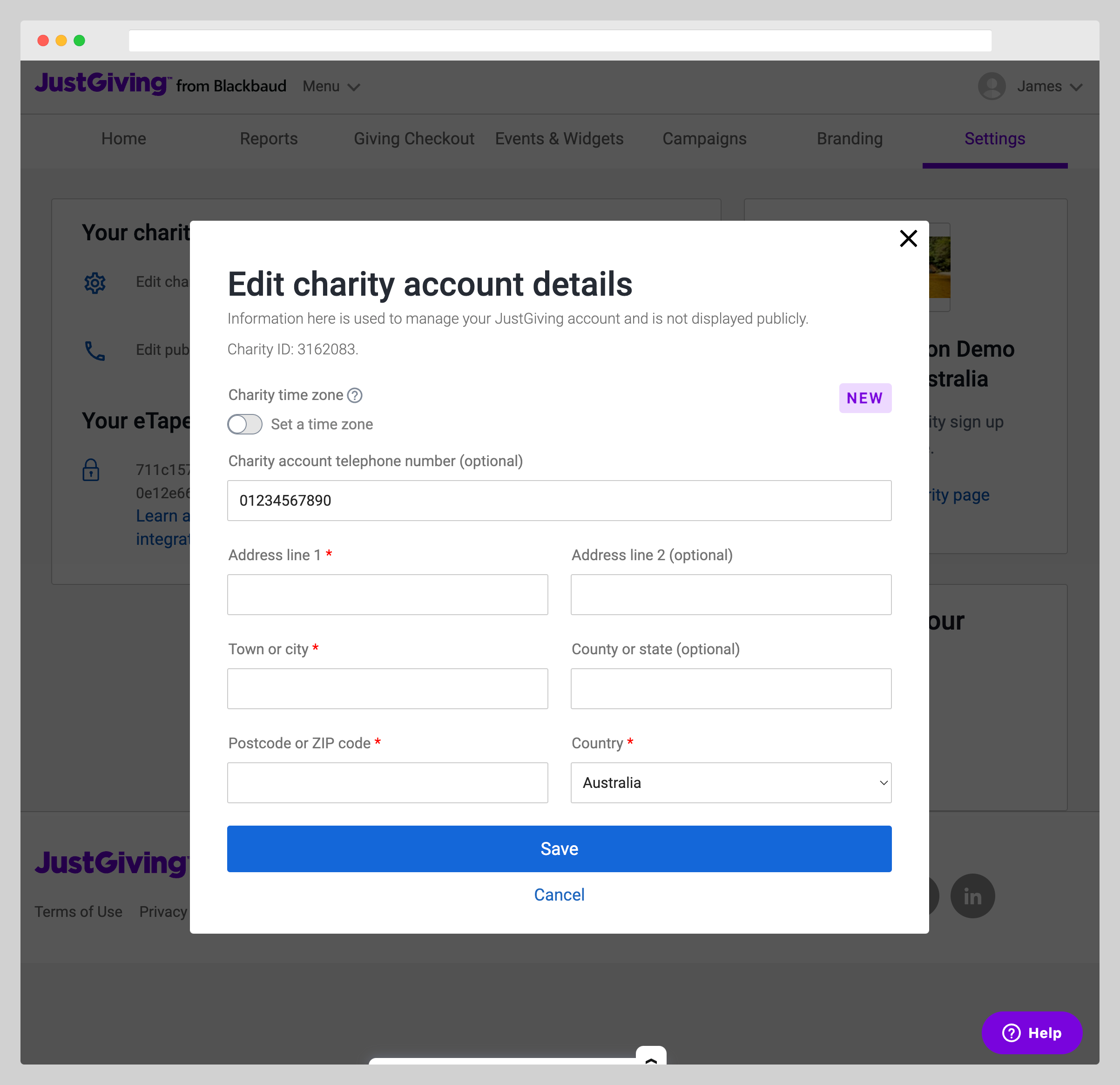
Charity ID#
- Log in to the JustGiving Admin panel.
- Navigate to Settings > Your Charity > Edit charity account details.
- Note your Charity ID displayed on this page.
Username and password#
Use an Admin-level JustGiving account. The connected account must have administrator privileges on the charity account.
Danger
Your JustGiving password must contain only numbers, letters, and full stops. No other special characters are permitted. If your current password uses other special characters, reset it at https://www.justgiving.com/sso/ResetPassword/ before proceeding.
MoveData has no control over your JustGiving account's ability to connect to the JustGiving Data and Consumer APIs. If you experience authentication issues after verifying your credentials are correct, this can only be rectified by raising a support ticket with JustGiving. For a full troubleshooting guide, see Unable to Connect to Data API.
Part 2: Create the integration in MoveData#
Step 1: Open the integrations tab#
In Salesforce, open the MoveData app and click the Integrations tab.
Step 2: Start a new integration#
Click New Integration.
Step 3: Select JustGiving#
Choose JustGiving from the list of available platforms.
Step 4: Name your integration#
Enter a descriptive name for your integration (for example, "JustGiving") and click Next.
Step 5: Enter your JustGiving credentials#
Enter all five credentials:
- Paste your Data App ID into the Data App ID field.
- Paste your Consumer App ID into the Consumer App ID field.
- Enter your Charity ID into the Charity ID field.
- Enter your JustGiving Username.
- Enter your JustGiving Password.
Step 6: Set the notification date filter#
Enter a date in the Notification Date Filter field. MoveData will not process any information — including donations, fundraising pages, and other data — which occurred before this date.
Warning
Always set a notification date filter. JustGiving frequently sends notifications for very old events, and without a filter, MoveData will process historical data that you may not want in Salesforce.
Step 7: Configure integration settings#
Review the remaining integration settings and adjust as needed. See Integration settings below for a full description of each option.
Step 8: Save the integration#
Click Save to finish creating the integration.
After saving, MoveData begins polling JustGiving for data on the configured schedule (default: every 12 hours). Check the Notifications tab in MoveData to confirm the integration is processing correctly.
Note
JustGiving is a complex platform to extract data from. MoveData uses a suite of APIs to piece together a complete view of each transaction. Initial processing may take longer than expected as MoveData builds the full picture of your fundraising data.
How donation information flows through#
Donation information from JustGiving does not arrive all at once. It follows a sequence determined by how JustGiving releases data:
-
Donation notification — When a donation is made on JustGiving, the donation details (amount, donor, fundraising page) typically arrive in MoveData within 24 hours. At this stage, payment settlement details are not yet available.
-
Payment notification — When JustGiving issues a payment report (i.e., when the money is paid into your bank account), a payment notification is sent to MoveData. This contains additional financial information such as the payment identifier, the fees charged by JustGiving, and the net payment amount.
-
Gift Aid notification — If the donation is eligible for Gift Aid, a Gift Aid notification arrives separately, often a week or more after the payment notification. This contains Gift Aid-specific information including the Gift Aid payment identifier, Gift Aid amount, and Gift Aid fees.
Note
It is not possible to receive all of this information at once. MoveData processes each notification as it arrives and updates the corresponding Salesforce records progressively.
Campaign hierarchy#
MoveData organises JustGiving data into a campaign hierarchy in Salesforce. The structure depends on how your fundraisers, teams, campaigns, and events are linked on the JustGiving platform.
| JustGiving page type | Salesforce campaign level | Notes |
|---|---|---|
| Campaign Page | Top-level campaign | Created by your charity for a specific initiative or appeal |
| Charity Event | Top-level campaign | Created by your charity for an organised event (e.g. marathon) |
| Team Page | Child of top-level campaign | Groups multiple fundraisers under one team |
| Individual Fundraising Page | Child of team or top-level campaign | Personal fundraising page created by a supporter |
| Direct donation | Allocated to generic "JustGiving" campaign | No fundraising page involved |
When both a Campaign and an Event are present for the same fundraiser, the Priority for Top-Level Campaign setting determines which takes precedence as the parent.
Fundraising pages that are not linked to any JustGiving campaign or event are allocated under a generic catch-all "JustGiving" campaign in Salesforce.
Salesforce records created#
MoveData creates different Salesforce records depending on your data model.
| JustGiving data | Nonprofit Success Pack (NPSP) | Nonprofit Cloud |
|---|---|---|
| Supporter | Contact | Person Account |
| Campaign / Event | Campaign (with hierarchy) | Campaign (with hierarchy) |
| Fundraiser role | Campaign Member | Campaign Member |
| Donation | Opportunity | Gift Transaction |
| Recurring donation | Recurring Donation | Gift Commitment |
Integration settings#
You can adjust these settings on the integration detail page in MoveData. Each option controls how MoveData processes incoming JustGiving data.
| Setting | Options | What it does |
|---|---|---|
| Priority for Top-Level Campaign | Campaigns (default) Events |
Controls campaign hierarchy when both a Campaign and an Event are present. When set to Campaigns, JustGiving Campaigns take precedence as the top-level parent. When set to Events, Charity Events take precedence. Campaigns are often more reliable than Events for consistent hierarchy. |
| Notification Date Filter | Date (YYYY-MM-DD) | MoveData will not process any information — including donations, fundraising pages, and other data — which occurred before this date. JustGiving frequently sends notifications for very old events. Always set this to avoid processing unwanted historical data. |
| Appeal Campaigns | Ignore Appeals (default) Use Appeals |
Controls whether JustGiving appeal data creates dedicated campaigns in Salesforce. See Appeal campaigns explained below. |
Appeal campaigns explained
For most JustGiving data — events, campaigns, fundraising pages, and donations — JustGiving provides unique IDs for each entity. However, for appeals, JustGiving does not provide IDs.
When Appeal Campaigns is set to Ignore Appeals (the default), donations associated with appeals are allocated to the generic "JustGiving" campaign in Salesforce, just like direct donations with no fundraising page.
When set to Use Appeals, MoveData generates a synthetic ID based on the appeal name and creates a dedicated campaign in Salesforce using the appeal name. This allows you to track appeal performance separately rather than having all appeal donations grouped under the generic campaign.
Use this setting if your organisation runs JustGiving appeals and wants to report on them individually in Salesforce. If you don't use appeals or don't need separate campaign tracking for them, leave this set to Ignore Appeals.
Custom field reference#
JustGiving does not support user-defined custom fields. MoveData exposes the following system custom fields from JustGiving data.
System custom fields — Event Campaign
| Field | Description |
|---|---|
eventId |
JustGiving event identifier |
eventName |
Name of the JustGiving event |
category |
Event category |
customCode1 |
Custom code 1 (set by charity in JustGiving) |
customCode2 |
Custom code 2 (set by charity in JustGiving) |
customCode3 |
Custom code 3 (set by charity in JustGiving) |
isOverseas |
Whether the event is overseas |
isPromoted |
Whether the event is promoted on JustGiving |
isUserCreated |
Whether the event was created by a user (not the charity) |
location |
Event location |
eventType |
Type of event |
System custom fields — Donation
| Field | Description |
|---|---|
processorToken |
Payment processor token |
paymentType |
Payment method used |
transactionType |
Type of transaction |
Bulk data import#
MoveData only processes data from the time your integration is connected. If you need historical data imported into Salesforce, MoveData offers a professional import service. For details on how this works, pricing, and how to request an import, see Data imports.
Troubleshooting#
Connection errors
If MoveData cannot connect to JustGiving, verify the following:
- Admin privileges: The connected JustGiving account must have administrator access to your charity account.
- Password format: Your password must contain only numbers, letters, and full stops. No other special characters are allowed.
- Reset your password: Even if your credentials appear correct, try resetting your password at https://www.justgiving.com/sso/ResetPassword/ and updating it in your MoveData integration.
See Unable to Connect to Data API for more detail.
Foreign currency transactions skipped
When a donor makes a foreign currency donation, JustGiving does not provide the settled currency amount at the time of the transaction. MoveData skips processing these donations until JustGiving issues the payment with the correct settled amount.
This is expected behaviour. The donation will be processed automatically once JustGiving releases the settlement data.
See Skipping Different Currencies for more detail.
Historical notifications appearing
JustGiving frequently sends notifications for very old events. If you see unexpected historical data appearing in Salesforce, check your Notification Date Filter setting. Set or adjust the filter date to exclude data that occurred before your desired cutoff.
See Enable/Disable Notification Date Filter for more detail.
Other resources#
- MoveData JustGiving Integration — overview of supported features and Salesforce record mapping
- JustGiving — JustGiving's main website
- JustGiving Developer Documentation — technical API reference
- JustGiving Salesforce Integration — JustGiving's overview of their Salesforce integration
- JustGiving Unauthorized Error — troubleshooting authentication issues after Blackbaud ID migration
- Case Study: The Fire Fighters Charity — how The Fire Fighters Charity integrated JustGiving with Salesforce
- Case Study: PSPA — how PSPA integrated JustGiving with Salesforce
- Case Study: War Child UK — how War Child UK upgraded from CSV files to API integration