Understanding notifications
A notification is a standardised data package that represents a single event or transaction from one of your connected platforms. Every donation, registration, or update that arrives in MoveData creates a notification. Understanding notifications is key to monitoring your data flow and spotting issues early.
What is a notification?#
When a fundraising platform sends data to MoveData, the app wraps that data into a notification. Each notification tracks the full lifecycle of that data — from arrival through processing to the final outcome in Salesforce.
Think of a notification as a receipt for every piece of data MoveData handles.
Notification statuses#
Every notification has one of four statuses.
| Status | Meaning |
|---|---|
| Success | MoveData processed the notification and created or updated records in Salesforce without errors. |
| Failed | Something went wrong during processing. The notification needs your attention. |
| Skipped | MoveData intentionally did not process the notification, usually because of a filter condition or configuration rule. |
| Processing/Queued | The notification is waiting in the queue or currently being processed. |
Success
A Skipped status is not always a problem. MoveData skips notifications for a variety of reasons, such as filter conditions or configuration rules. This is normal and expected behaviour.
Warning
A Failed status means something needs fixing. Check the error message on the notification and refer to Reading and understanding error messages for guidance.
Using the Notifications tab#
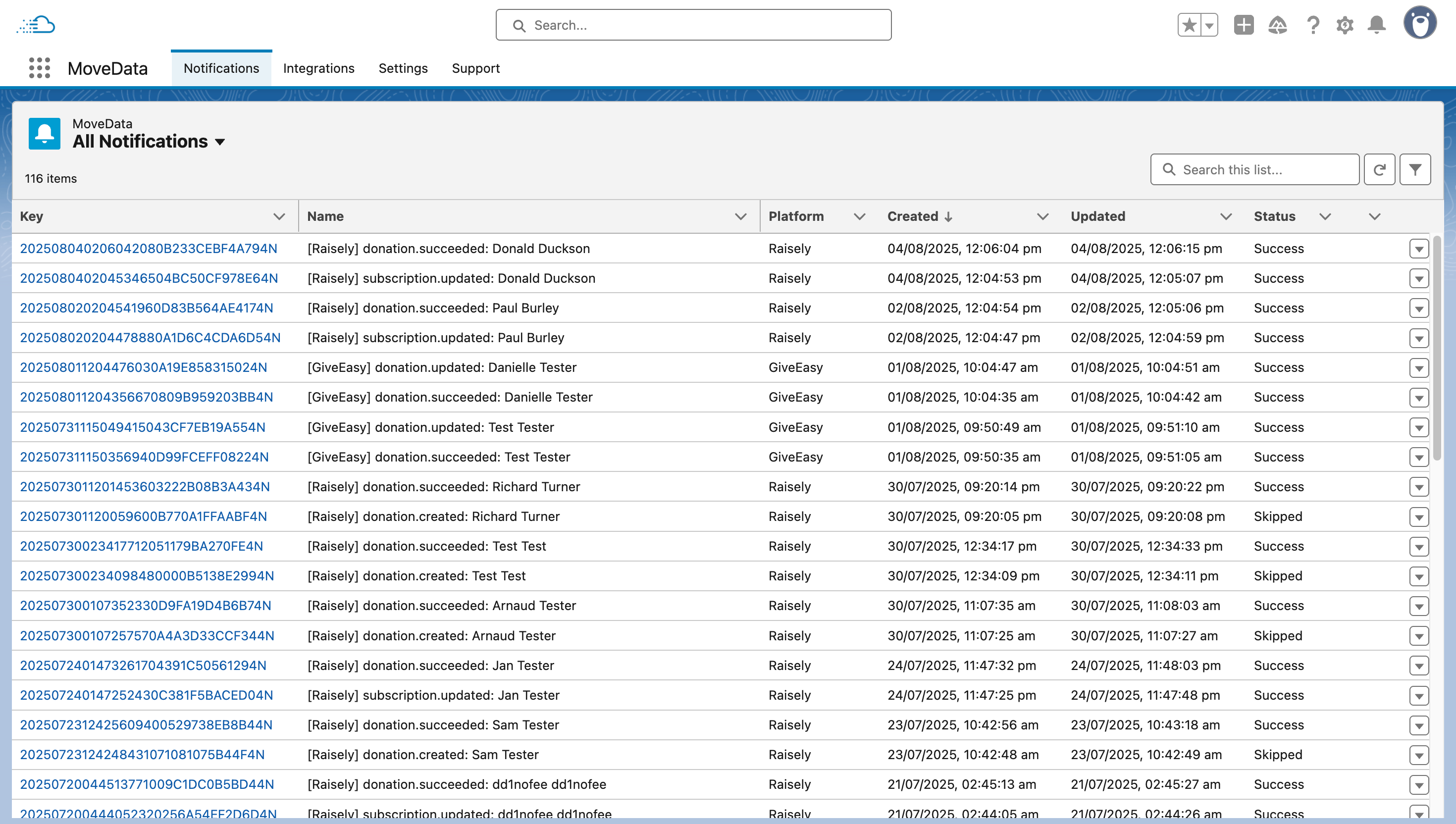
The Notifications tab displays a list of all notifications in your org.
Note
Notifications are retained for 90 days on a rolling basis. After 90 days, notification data is automatically deleted from the MoveData system.
List view columns#
The default list view shows these columns:
- Key — the platform-specific identifier for the notification.
- Name — the unique notification identifier.
- Platform — which platform sent the data.
- Created — when MoveData received the notification.
- Updated — when the notification was last modified.
- Status — the current processing status.
Filtering and sorting#
You can filter notifications to focus on what matters:
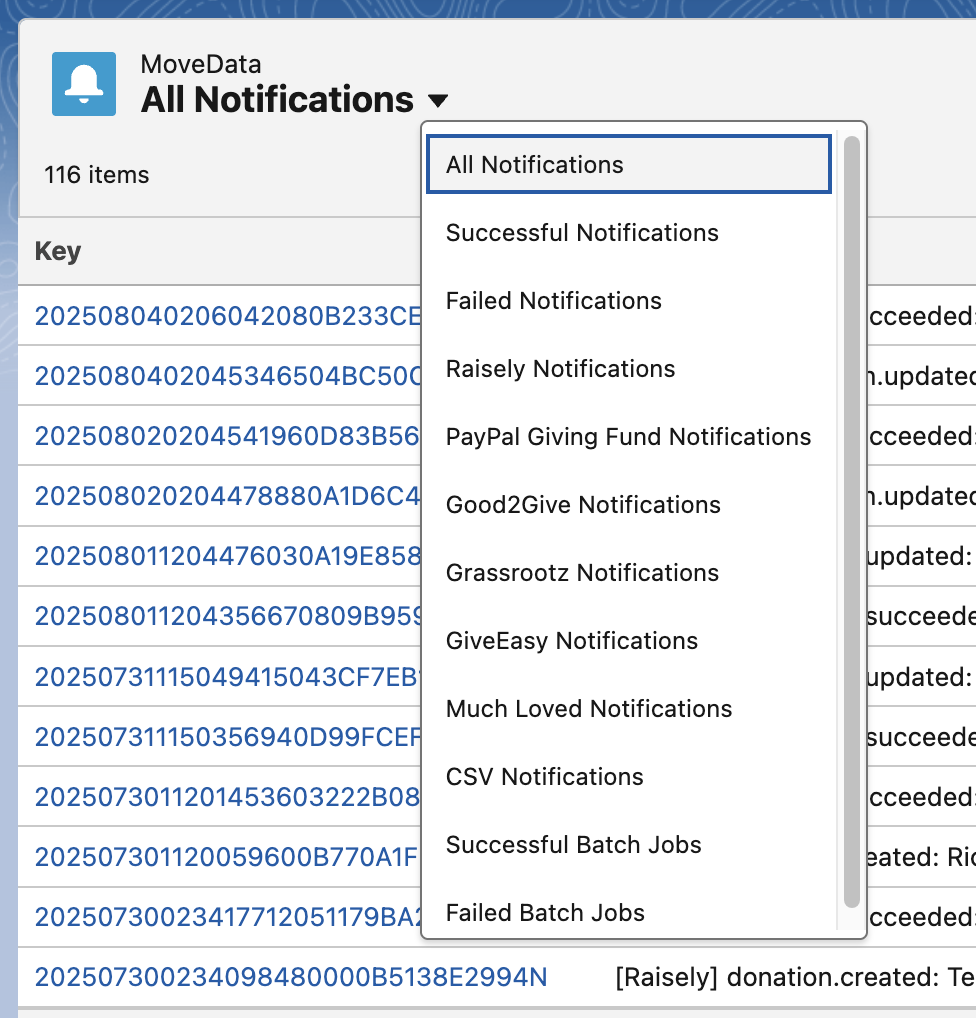
- Use the pre-built list views (such as Failed Notifications) from the list view dropdown.
- Click any column header to sort by that column.
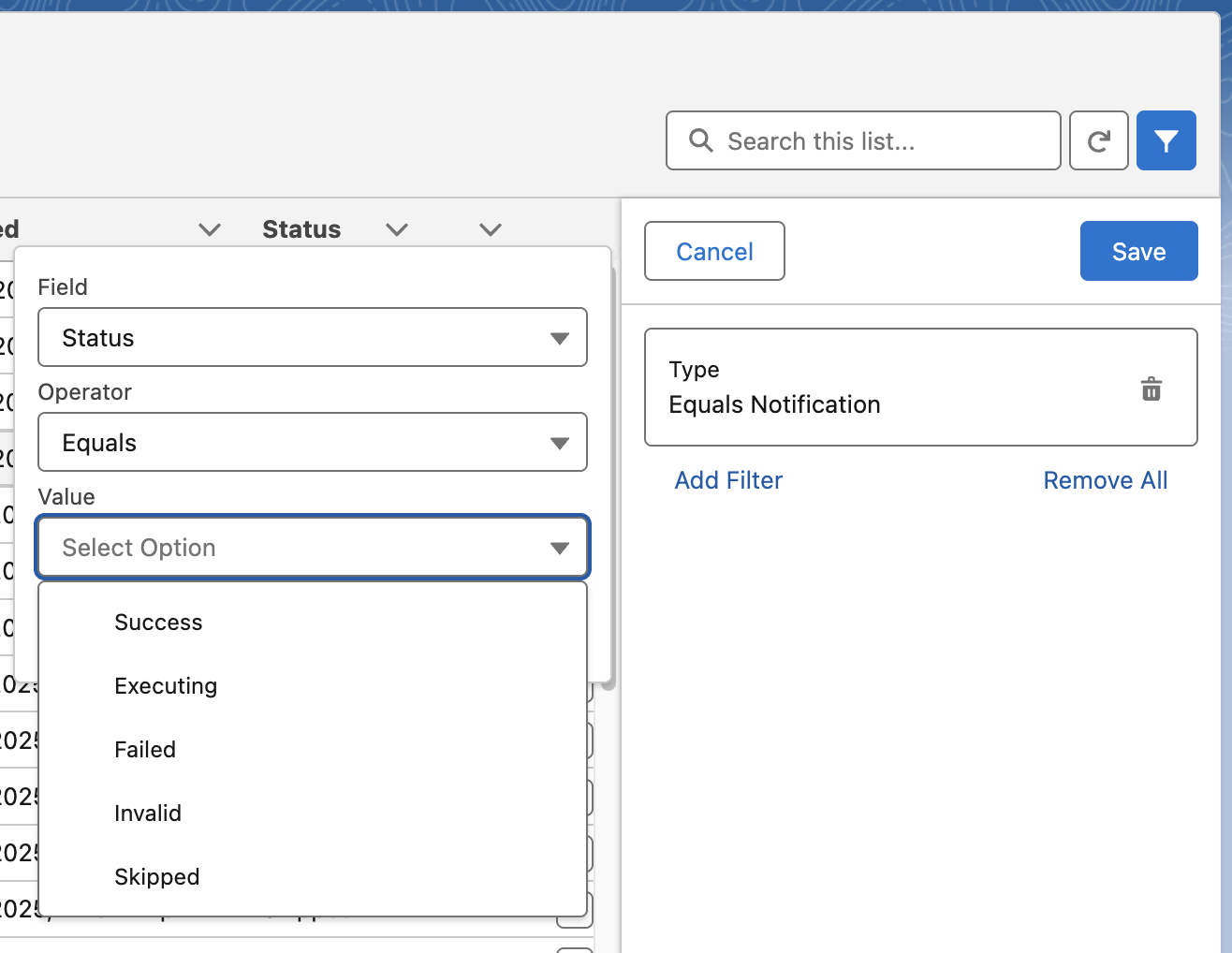
- Use the filter icon to add custom filters, such as filtering by integration or date range.

Notification detail view#
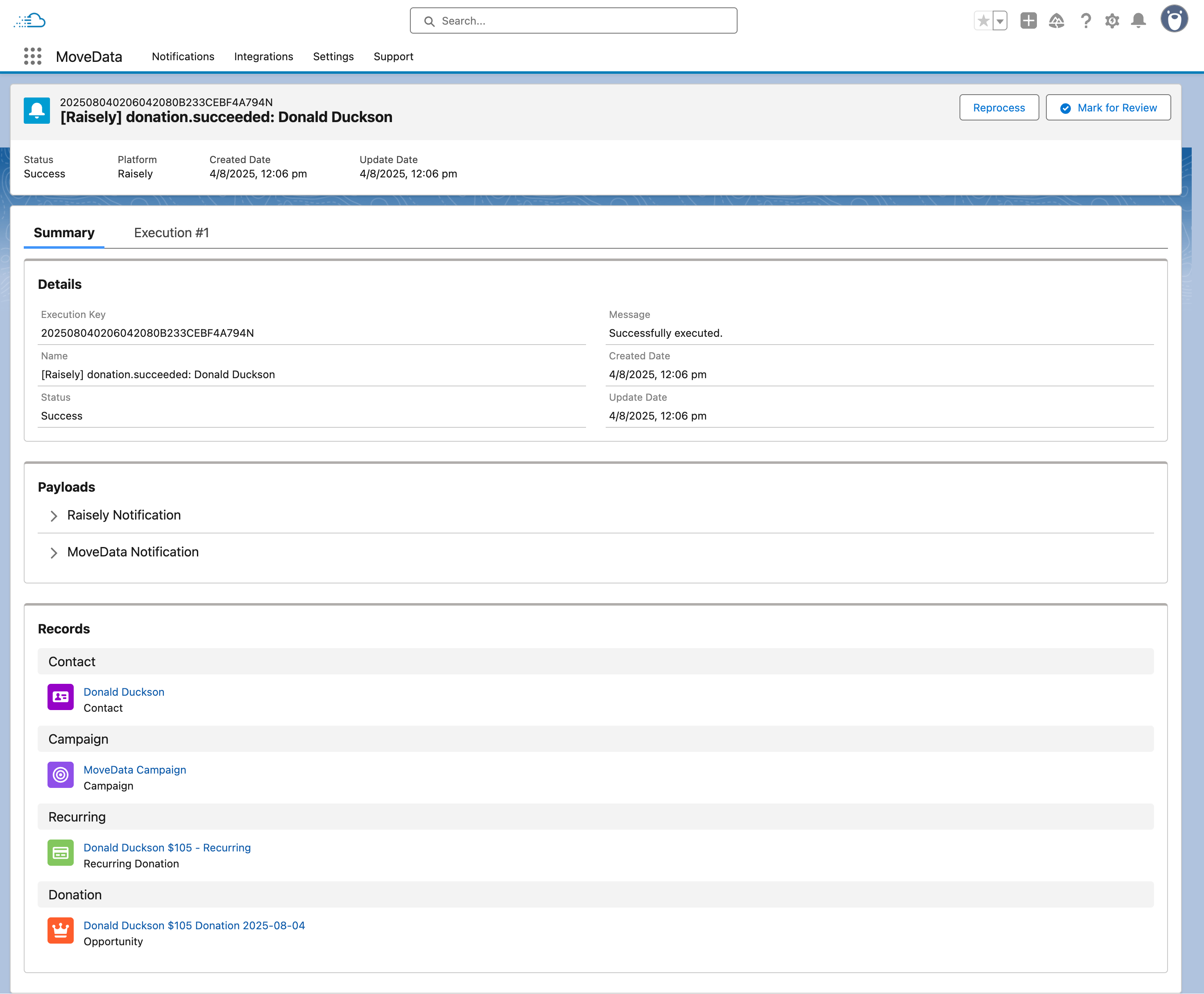
Click any notification to open its detail view. The detail view has two main areas: the Summary tab and the Execution tab.
Summary#
The Summary tab contains three sections:
- Details — status, error messages, the integration, notification type, schema version, and timestamps.
- Payloads — the raw data that MoveData received from the platform. Useful when you need to verify what data was sent.
- Records — the Salesforce records that MoveData created or updated while processing this notification.
Execution#
The Execution tab shows the step-by-step processing log. For more detail, see Viewing execution logs.
Common patterns#
Successful processing#
A notification with Success status typically shows related records on the Records tab and a clean execution log with no errors. This is the outcome you want to see for most notifications.
Normal skips#
Notifications are commonly skipped when:
- A filter condition excluded the notification from processing.
- A configuration rule determined the notification did not need to be processed.
These skips are by design and are normal behaviour.
Failed notifications that need attention#
A Failed notification usually means one of the following:
- A required field was missing from the incoming data.
- A Salesforce validation rule blocked the record creation.
- The MoveData Authorised User does not have the correct permissions.
Check the error message on the Summary tab and the execution log on the Execution tab to diagnose the issue. Then follow the steps in How to reprocess failed notifications to retry.