Setting up GiveWP
This guide walks you through connecting your GiveWP WordPress donation plugin to MoveData. Once connected, donation, donor, and subscription data flows into Salesforce in real time.
| Field | Detail |
|---|---|
| Product | GiveWP |
| Method | Push (Webhooks) |
| Frequency | Real-time |
Supported extensions#
This integration requires the Fundraising and Donations extension.
Before you begin#
- You need access to the MoveData app in Salesforce.
- You need administrator access to your WordPress site with the GiveWP plugin installed and activated.
- Your WordPress site must be publicly accessible. Sites behind firewalls or running on localhost cannot receive webhooks.
Warning
GiveWP requires both API credentials and webhook registration. The API credentials allow MoveData to query your GiveWP data, while the webhook sends new events to MoveData in real time. You must complete both parts for the integration to work.
Part 1: Create the integration in MoveData#
Step 1: Open the Integrations tab#
In Salesforce, open the MoveData app and click the Integrations tab.
Step 2: Start a new integration#
Click New Integration.
Step 3: Select GiveWP#
Choose GiveWP from the list of available platforms.
Step 4: Name your integration#
Enter a descriptive name for your integration (for example, "GiveWP — Main Site") and click Save.
Step 5: Open GiveWP API settings#
In a separate browser tab, log in to your WordPress Admin panel. Navigate to GiveWP > Tools > API.
Step 6: Generate API credentials#
If you have not already generated an API key, click the button to generate a new key with appropriate permissions. Record your API Public Key and API Token.
Note
Both the API Public Key and API Token are 32-character hexadecimal strings. Copy them exactly as displayed — do not add spaces or modify the values.
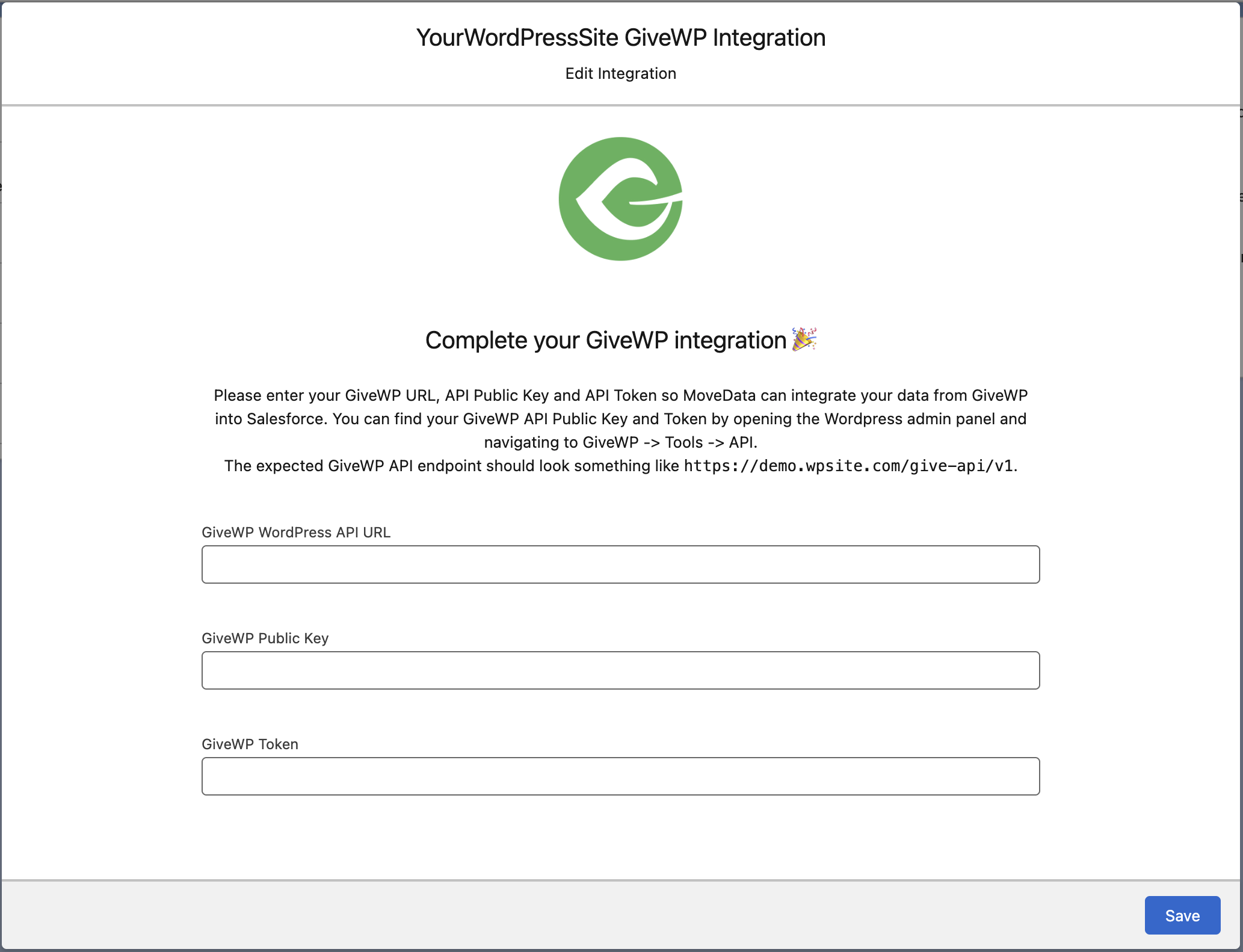
Step 7: Enter credentials in MoveData#
Return to Salesforce and enter the following credentials on the integration detail page:
| Field | Value |
|---|---|
| GiveWP WordPress API URL | Your GiveWP API endpoint (for example, https://your-site.com/give-api/v1) |
| GiveWP API Public Key | The 32-character hexadecimal public key from GiveWP |
| GiveWP API Token | The 32-character hexadecimal token from GiveWP |
Click Save.
Part 2: Register webhooks in GiveWP#
Step 1: Open your GiveWP integration#
In the MoveData app, click the Integrations tab, then open the GiveWP integration you created in Part 1.
Step 2: Copy the integration URL#
Locate the MoveData Integration URL on the integration detail page and copy it.
Step 3: Open webhook settings in GiveWP#
In WordPress Admin, navigate to GiveWP > Tools > Webhooks.
Step 4: Create a new webhook endpoint#
Click the button to create a new endpoint. Paste the MoveData integration URL into the webhook URL field. Select all available events, then save the webhook.
Step 5: Verify the connection#
Return to MoveData and open the Notifications tab. You should see incoming events confirming the connection is active.
Warning
If no events appear, double-check the following:
- Your WordPress site is publicly accessible (not behind a firewall or running on localhost).
- You copied the full MoveData integration URL without any trailing spaces.
- The webhook is enabled in GiveWP.
GiveWP events#
Once connected, GiveWP sends the following events to MoveData via webhooks. MoveData processes each event and creates or updates the corresponding Salesforce records.
| Object | Events | Notes |
|---|---|---|
| Donor | Created, Updated | Contact information, addresses, and donation history |
| Donation | Created, Status Changed | Only donations with status "publish" (completed) are processed |
| Subscription | Created, Modified | Only subscriptions with status "active" are processed |
Note
MoveData processes only the events listed above. Donations with statuses other than "publish" and subscriptions with statuses other than "active" are silently ignored.
Salesforce records created#
MoveData creates different Salesforce records depending on your data model.
| GiveWP data | Nonprofit Success Pack (NPSP) | Nonprofit Cloud |
|---|---|---|
| Donor | Contact | Person Account |
| Company | Account | Account |
| Campaign | Campaign | Campaign |
| Donation | Opportunity | Gift Transaction |
| Subscription | Recurring Donation | Gift Commitment |
Campaign hierarchy#
MoveData organises GiveWP campaigns into a two-level hierarchy:
- Tier 1: Platform campaign — a top-level campaign named "GiveWP".
- Tier 2: Form campaign — a child campaign based on the GiveWP donation form title.
Organisation and contact handling#
MoveData determines whether to create a personal or organisational record based on the donation data:
- Individual donations create Contact records (NPSP) or Person Account records (Nonprofit Cloud).
- Organisational donations create an Organisation Account with an associated Contact record when a company name is detected.
MoveData prioritises the donor profile address over the billing address when both are available.
Payment gateway support#
MoveData automatically detects the payment gateway used for each donation by reading the paymentGateway value from the GiveWP webhook (for example, stripe_payment_element or paypal-commerce).
Gateway-specific identifiers — such as Stripe Payment Intent IDs, PayPal transaction IDs, and subscription identifiers — are passed through as custom variables in MoveData. You can access these in your extension flows and map them to Salesforce fields using business rules.
The following GiveWP custom fields are available for gateway-specific data:
| Custom field | Description | Available when |
|---|---|---|
paymentGateway |
Gateway identifier (e.g., stripe_payment_element, paypal-commerce) |
All donations |
transactionId |
Gateway transaction identifier | All donations |
stripePaymentIntentId |
Stripe Payment Intent ID | Stripe donations only |
stripeSubscriptionId |
Stripe subscription identifier | Stripe recurring only |
paypalSubscriptionId |
PayPal subscription profile ID | PayPal recurring only |
paymentMode |
Payment mode (e.g., live or test) |
All donations |
These fields are listed in the Custom field reference section below. For details on how to map custom variables to Salesforce fields, see Store Platform Data on Salesforce Records.
Custom field reference#
GiveWP provides several categories of custom fields that MoveData maps into Salesforce.
Contact custom fields
| Field | Description |
|---|---|
givewpDonorId |
GiveWP internal donor identifier |
address2 |
Secondary address line |
Campaign custom fields
| Field | Description |
|---|---|
slug |
URL slug for the donation form |
content |
Form description content |
thumbnail |
Form thumbnail image URL |
donationCount |
Total number of donations received through the form |
Donation custom fields
| Field | Description |
|---|---|
paymentGateway |
Payment gateway used for the transaction |
paymentMode |
Payment mode (for example, live or test) |
transactionId |
Gateway transaction identifier |
stripePaymentIntentId |
Stripe Payment Intent ID (Stripe only) |
Recurring donation custom fields
| Field | Description |
|---|---|
paymentGateway |
Payment gateway used for the subscription |
stripeSubscriptionId |
Stripe subscription identifier (Stripe only) |
paypalSubscriptionId |
PayPal subscription profile ID (PayPal only) |
initialAmount |
Initial donation amount |
frequency |
Donation frequency (for example, monthly) |
billTimes |
Number of times to bill (0 = indefinite) |
Custom form fields
Any custom fields you add to your GiveWP donation forms are automatically mapped as custom variables in MoveData.
For example, a field called make_a_business_donation becomes available as custom.makeABusinessDonation.
You can use these variables in your extension flows and field mappings.
Bulk data import#
MoveData only processes data from the time your integration is connected. If you need historical data imported into Salesforce, MoveData offers a professional import service. For details on how this works, pricing, and how to request an import, see Data imports.
Troubleshooting#
No data appearing after setup
If no notifications appear in MoveData after completing both parts of the setup:
- Confirm your WordPress site is publicly accessible by visiting the site URL from an external network.
- Verify the API credentials are correct by checking the GiveWP > Tools > API page.
- Confirm the webhook is active in GiveWP > Tools > Webhooks.
- Check that the MoveData integration URL was copied correctly without trailing spaces.
Only some donations appearing
MoveData only processes donations with a status of "publish" (completed) and subscriptions with a status of "active". Donations in draft, pending, or failed status are not processed.
For more help reading error messages, see Reading and Understanding Error Messages.
Other resources#
- MoveData GiveWP Integration — overview of supported features and Salesforce record mapping
- GiveWP Documentation — official GiveWP plugin documentation
- GiveWP Developer Documentation — developer guides and API reference
- GiveWP API Reference — REST API endpoints for stats, forms, donors, donations, and subscriptions
- GiveWP Webhooks Add-on — webhook configuration and event documentation
- GiveWP Salesforce Add-on — GiveWP's native Salesforce integration (separate from MoveData)
- GiveWP Release Notices — plugin updates and changelog
- GiveWP on WordPress.org — plugin listing, reviews, and changelog