Architecture overview
MoveData is a cloud-native integration platform that connects fundraising platforms to Salesforce. It captures events from platforms like Raisely, JustGiving, and Funraisin, transforms them into a standardised format, and processes them into your Salesforce org.
One-way sync
MoveData is a one-way data sync. It moves data from fundraising platforms into Salesforce. It does not push data from Salesforce back to third-party platforms.
This article explains MoveData's architecture at a conceptual level. It is aimed at Salesforce administrators and developers who need to understand how the system works before configuring or troubleshooting it.
Full video transcript
[00:00:05] Hi, my name is James Kent, and today I'm going to take you through MoveData's architecture.
[00:00:10] MoveData operates as a modern cloud-native integration platform specifically architected to bridge the gap between fundraising platforms and Salesforce environments. The architecture leverages industry-leading cloud services to provide scalable, secure, and reliable processing capabilities.
[00:00:29] MoveData's architecture follows a sophisticated three-stage lifecycle that transforms every meaningful fundraising interaction into actionable Salesforce data. MoveData's three-stage lifecycle begins with data ingestion, which is the consumption of events that occur on fundraising platforms. This could be donations, registrations for events, product sales, or a number of different interactions that will take place on a fundraising platform.
[00:01:00] This information is then pushed through to a transformation engine. This is where MoveData will absorb all that information, potentially enrich it by communicating back to the fundraising platform, and create a standardised notification which we will then send through to Salesforce.
[00:01:19] Inside Salesforce, we execute using a native Salesforce application that we have written. This uses a suite of extensions written for the Nonprofit Success Pack, for the Nonprofit Cloud, or for just Salesforce Sales Cloud. It is here where we spend most of our time and where we do our implementation of business rules using Salesforce Lightning Flows.
[00:01:43] So how do we process a notification from a fundraising platform inside Salesforce? A notification is generated by the MoveData transformation engine and pushed into Salesforce, as we can see here with point one. That notification is interrogated. It comes in a standardised format and it's identified whether this is, in this example on the screen, a donation or a commerce transaction.
[00:02:12] Based on the type of schema that's been sent through, it will execute a specific pipeline. Pipelines are where the magic happens, and this is where we will implement our specific business rules that will execute in a specific order. We'll run through that shortly.
[00:02:30] Here's an example of a notification that's been sent through, and you can see the standard schema that's produced and dispatched through to Salesforce. Here we can see this schema is for a donation. That's a key flag that's picked up when that notification arrives and determines which way to route that notification for processing.
[00:02:52] All this information about where to route based on schema is contained within the MoveData schema map, which can be found under custom metadata in the Salesforce settings. The donation pipeline executes in a specific order. It will start with creating accounts. So if the notification contains any organisational information, it will create those as accounts.
[00:03:18] Next, it will create contacts. And the reason this follows after accounts is because often a contact will belong to an organisation. So we execute this pipeline based on dependencies. We create our contacts or update them, then we go through and create the appropriate campaigns.
[00:03:40] In most cases, a lot of these will already exist. But what this will enable us to do -- you can see in the diagram -- we've got many of these. We might have many campaigns that might be an event, into a team, into a fundraiser. There's a hierarchy to these things that will be contained within the schema. Our pipeline will execute those in order. Examples might be where a child campaign, such as a fundraiser campaign, needs to reference information from a team. So by doing those in order means we will create those in an order where we can reference the parent.
[00:04:18] Next we'll go to recurring. Recurring is a subscription for a recurring donation. So if someone is donating funds once a month, once a week, once every six months -- however it's configured -- this will be registered as effectively a subscription, a recurring subscription.
[00:04:38] Once that's created, if it's required, we will then move on to the donation phase. And in the donation phase, this is where we'll go through and create, in most cases, an opportunity. But in the Nonprofit Cloud, that can be a gift transaction. It can be any type of record, but we'll go through and record the financial information around that donation, what date it occurred on, any comments around that, potentially add additional information around gift acknowledgement, or soft crediting other people involved in the donations.
[00:05:13] And so this is how we execute through all these steps. Now, the reason the order of this is as it is is because for donations, they have a set sequence of dependencies. A contact will always have a dependency on an account if it's part of an organisation. A donation will always be part of a campaign. If a donation is part of a subscription or recurring donation, that recurring donation needs to be created first. So based on our experience, we've created this pipeline that will execute in a logical order.
[00:05:54] Now we're going to work through a single phase, and we're going to select working through a contact. In this example, it could be a donor and we want to create that as a contact in our Salesforce environment.
[00:06:06] So as I've said, the notifications come through, we've identified that this is linked to a donation schema, we've executed. If there's an account, we've moved into the contact phase. And what we can see here is a series of steps that we need to execute. Within this contact phase, we will execute a series of phases.
[00:06:26] And just like the pipeline has a distinct sequence, so do these phases because there are interdependencies between them. The first one, which has number five noted next to it, determines whether we want to create anything in the contact phase or not. For example, there may be fundraising events that occur on an external platform where the fundraiser or the donor already exists in Salesforce and we have absolutely no desire to ever overwrite that information.
[00:07:00] The filters phase here will contain logic around determining whether or not we want to proceed with creating or updating a contact record. And that may be driven by which platform the data has originated from, or it may be driven by specific attributes that come through as part of the notification.
[00:07:21] Phase number six, which we call the platform key, is a mechanism through which we bind an external platform contact with a contact inside Salesforce. This uses an external ID field that exists on a contact, and we can -- if there are multiple platforms, we can bind them all. For example, if you had two different platforms -- an example might be Raisely and Everyday Hero -- and the same person engages with fundraising activities on both of those, we can link both of those platforms to the one contact in Salesforce.
[00:07:49] The duplicate check is the search mechanism that will check either through an external ID or through other matching parameters provided in the flow. And what this will do is check Salesforce for existing matches for that contact. If there are existing matches, we will return the ID and all the information of that existing contact record and that record will be updated. If there's no match, we will create a new record.
[00:08:14] Based on that, we will determine which path to follow -- whether to create a new record or update an existing. And we will populate a data object in memory. Now, this is critical. So the important thing to note here is that we do not commit this to the database until everything has run through.
[00:08:36] The reason for this is that there's a large number of mapping flows and potentially validation flows that will run on this record. The last thing we want to do is commit it to the database prematurely before all of our business logic is applied. So all this logic, all these mapping flows, will execute against this object, will populate it in memory, and only at the end will we then tell the database to perform an upsert.
[00:09:04] The mapping phase is a complex phase. This is where all the business logic will exist to populate the fields within the contact record. This is based on custom fields that you may have, data transformations you may wish to make from the original notification format, or the inclusion of additional data through communication back to external platforms, through API calls to Salesforce, or through API calls to third-party services.
[00:09:30] Once all the mapping has occurred and we've got our in-memory object that we're happy with, we will tell the database to perform an upsert, which is either to update an existing record or create a new one.
[00:09:43] And then finally we have post-upsert. And the post-upsert is triggered after the record has been committed to the database. And this is really valuable because up until this point, we have not got an ID for that contact. So we can't link to it, we can't perform certain activities.
[00:10:11] For example, once this contact has been created as a post-upsert activity, we may want to create a custom record that includes newsletter information, or we may want to create a follow-up task because it's a new contact and we would like someone from our fundraising team to give them a call. The post-upsert allows you to work with the recently created or updated contact record in this scenario.
[00:10:44] Once all those phases have executed, we will move on to working with the campaigns and so on until all of those phases have been worked with and we have completed processing our notification.
[00:10:58] So let's take a look at how this works in practice. Here we're going to pick out an existing donation.
[00:11:11] We can see here that we've received a notification from Raisely. This will come through in Raisely-specific format. Now that three-step process that I've talked about, that notification has been sent through from Raisely, from the platform. It will hit our transformation engine. And here we have transformed that into a MoveData notification, into a standard format. This enables you to have notifications from many different platforms, but only write one set of flows or business rules.
[00:11:45] We have a look at the execution log. This is where we start getting into the phases that we've talked about. Here we can see there have been no account records that have been executed or created. What we can see here is the contact phase. Here we can take a look at the variables that are available to be used in the business logic within Salesforce Lightning Flows.
[00:12:14] Working through those phases that we talked about, we can see here that the object type is of type contact. We can see that we've constructed a platform key using a specific flow, and that platform key is prefixed with Raisely and has a unique identifier that is contained within the notification that's come through.
[00:12:36] Next we execute a duplicate check, and using this platform key that's been provided, we cannot find any existing match. From here, we will populate a record in memory and ask Salesforce to tell us, does this exist as a duplicate? What we can see here is the duplicate rules have run and we have not found any matches. MoveData will then create a new record.
[00:13:10] From here, it will execute all the mapping flows that exist that have been registered against MoveData using metadata. We'll cover that off in a bit. Those mapping flows will run, and we can see the object, the contact object, has been populated with a suite of values from those mapping flows.
[00:13:36] MoveData will perform an upsert against that per the phase steps that we worked through before, and once that record's created, a post-upsert will be executed. Once this is complete, it will then move on to the next step in the phase, which will be executing the campaigns.
[00:13:58] So how does MoveData know which flows we wish to execute? If we take a look in settings... Navigate to metadata. We can see the MoveData pipeline settings. This is where we register a pipeline step with a specific flow. This is critical to directing MoveData on how you would like your business logic to run.
[00:14:36] Inside these pipeline settings, we're going to scroll down to donation contact, and we can see a whole raft of entries that are created here. If I go to mapping extension here... We can see that we have a handler. This is the API name of a flow.
[00:14:57] It is of a type flow, so the engine knows it needs to execute a Salesforce Lightning Flow. This could be an Apex class if that's a path you wish to follow. A label. This is really critical. And this is covered off in our knowledge bases. Depending on whether you're working with commerce or donations, whatever pipeline you're working with, we have a reference guide of all the possible metadata types that you can have and when to apply them.
[00:15:26] Here we've got the name. This name can be any value that we'd like. It's just really a friendly name to help with understanding what the registration is. And then we have an order, and based on the numbering, if there are multiple flows registered, it will execute from one, two, three, four, five. It will execute upwards.
[00:15:49] If we go back to our execution log and scroll up... We can see that our mapping flow has executed, and it is executed with a flow to populate. This NPSP pack here is a MoveData-provided extension for integrating with the Nonprofit Success Pack. This out-of-the-box flow has executed. Then an additional flow, which is the one we were looking at before, has been registered and it's executed that flow. And there's an additional flow here as well that's also executing. Again, this will be in the metadata as an additional entry, which we can see.
[00:16:47] We can see here. And that gives you a bit of an insight into how metadata entries are used to direct MoveData.
Three-stage lifecycle#
Every piece of fundraising data passes through three stages before it becomes a Salesforce record.
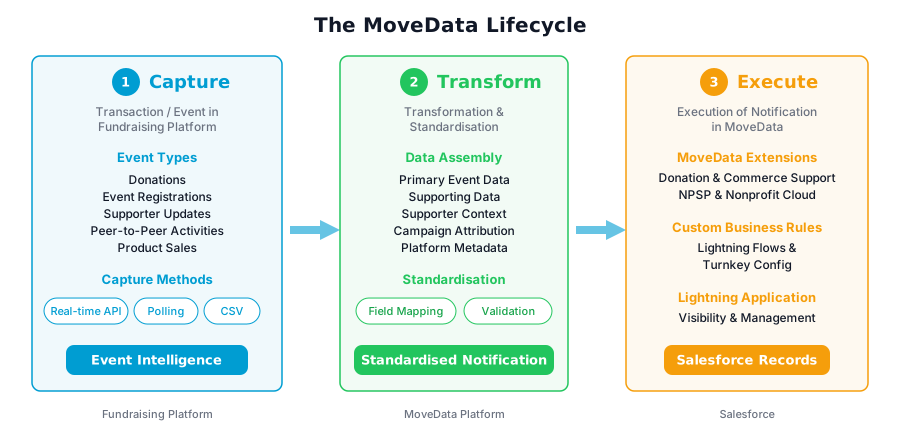
Stage 1: Data ingestion#
The first stage captures events from your fundraising platforms. An event is any meaningful interaction — a donation, an event registration, a profile update, or a product purchase.
MoveData supports three ingestion methods:
- Webhooks (real-time) — the fundraising platform sends data to MoveData immediately as events occur. Platforms like Raisely, JustGiving, and Grassrootz use this method.
- Polling (scheduled) — MoveData queries the platform's API at regular intervals to check for new or updated data. This method suits platforms with API rate limits or no webhook support.
- File upload (manual) — you export a CSV or Excel file from your fundraising platform and upload it to MoveData. Benevity and Charitable Giving use this approach.
All three methods feed data into the same processing pipeline. The ingestion method does not affect how the data is transformed or processed into Salesforce.
MoveData's ingestion layer runs on AWS infrastructure. For details on the cloud components, see Platform architecture.
Stage 2: Transformation#
Once MoveData captures an event, it transforms the raw platform data into a standardised format called a notification.
A notification is a self-contained data package. It includes everything needed to create or update records in Salesforce: donor details, transaction amounts, campaign attribution, recurring donation schedules, and any custom fields.
The transformation stage handles:
- Data assembly — combining related data points from the platform into a single notification. For example, a donation event may include donor contact details, payment information, and campaign data that the platform sends in separate structures.
- Field mapping — translating platform-specific field names and formats into MoveData's standardised schema. Each platform structures its data differently, and MoveData normalises these differences.
- Data validation — checking that required fields are present and values are in the expected format before attempting to process them into Salesforce.
- Standardisation — converting values like dates, currencies, and country codes into consistent formats that Salesforce can accept.
This standardisation layer is what allows you to connect multiple fundraising platforms while maintaining a single set of business rules in Salesforce. Adding a new platform does not require rebuilding your processing logic.
For details on the standardised data structures, see the donation schema and commerce schema reference documentation.
Stage 3: Salesforce execution#
In the final stage, MoveData processes each standardised notification into your Salesforce org. This is where records are created or updated.
MoveData uses a pipeline to process each notification through a series of ordered phases. For a typical donation, the pipeline follows this sequence:
- Account — find or create the organisation or household account.
- Contact — find or create the donor's contact record.
- Campaign — find or create the fundraising campaign.
- Recurring donation — manage recurring giving schedules, if applicable.
- Donation — create the opportunity (NPSP) or gift transaction (Nonprofit Cloud) record.
At each phase, MoveData checks for existing records using platform unique identifiers and Salesforce duplicate rules. If a matching record exists, MoveData updates it. If no match is found, MoveData creates a new record.
This processing runs inside Salesforce through MoveData's managed package. For details on the Salesforce-side components, see Salesforce architecture.
Extensions#
MoveData extensions provide the business logic that maps standardised notification data onto Salesforce records. Each extension is a separate managed package containing pre-built Salesforce Flows for a specific Salesforce data model:
- NPSP Fundraising and Donations — for organisations using the Nonprofit Success Pack.
- Nonprofit Cloud — for organisations using Salesforce Nonprofit Cloud.
- Commerce — for processing product purchases, event tickets, and merchandise.
Extensions use Salesforce Flows for all out-of-the-box business logic. As a managed package, you can inspect the processing logic but cannot modify the managed flows directly. Instead, you control behaviour through extension settings and by building your own custom flows to extend the processing logic.
Custom business rules#
You can add your own Salesforce Flows to customise how MoveData processes data. For guidance on building custom flows and configuring business rules, see Customising MoveData.
Common customisations include:
- Setting record types based on donation amount or source platform.
- Routing donations to specific campaigns based on custom logic.
- Skipping or cancelling processing for certain transaction types.
- Mapping platform-specific custom fields onto Salesforce records.
Error handling and monitoring#
MoveData includes built-in error handling at every stage of the lifecycle:
- Execution logs record every step of notification processing, including the data values at each pipeline phase.
- Error Notifications alert your team by email when a notification fails. Configure these in MoveData settings.
- Reprocess lets you retry failed notifications after resolving the underlying issue.
- Automatic retry handles transient failures (such as Salesforce lock contention) without manual intervention.
You can monitor processing from the Notifications tab in the MoveData Lightning application. Each notification shows its current status (Success, Failed, Skipped, or Processing) along with detailed execution logs.
Security and data flow#
MoveData processes data in transit. It does not store donor or transaction data at rest on its cloud infrastructure beyond the time needed for processing.
All communication between MoveData's cloud platform and Salesforce uses OAuth 2.0 authentication and encrypted HTTPS connections. The MoveData Authorised User in your Salesforce org controls the permission level for all record operations.
For full details, see Security overview.
Related articles#
- Platform architecture — cloud infrastructure and AWS components
- Salesforce architecture — managed package and Lightning application components
- How MoveData works — simplified overview for non-technical users
- Donation pipeline — detailed pipeline phase reference
- Key concepts and glossary — definitions of MoveData terminology
Other resources#
- MoveData website — product information and platform overview
- Salesforce AppExchange listing — managed package details and reviews