Apex CPU time limit exceeded
The "Apex CPU time limit exceeded" error occurs when a Salesforce transaction uses more processing time than Salesforce allows. This is a Salesforce governor limit, not a MoveData error.
Danger
This error is almost always caused by other automations in your Salesforce org. Flows, workflow rules, Process Builder processes, managed packages, and Apex triggers all share the same CPU time budget.
Error messages#
You may see one of these messages in the execution log:
Apex CPU time limit exceededSystem.LimitException: Apex CPU time limit exceeded
For help locating these messages, see Reading and understanding error messages.
Why this happens#
Salesforce enforces a CPU time limit on every transaction:
| Transaction type | CPU time limit |
|---|---|
| Synchronous (immediate) | 10,000 ms (10 seconds) |
| Asynchronous (background) | 60,000 ms (60 seconds) |
Every piece of Apex code, flow interview, workflow rule with formula criteria, and validation rule in the transaction counts towards this limit. When the combined CPU time exceeds the threshold, Salesforce terminates the transaction.
MoveData's CPU footprint#
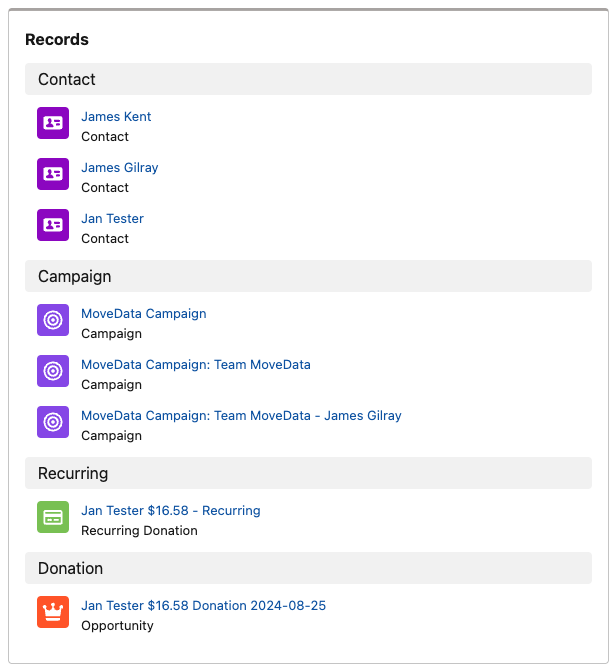
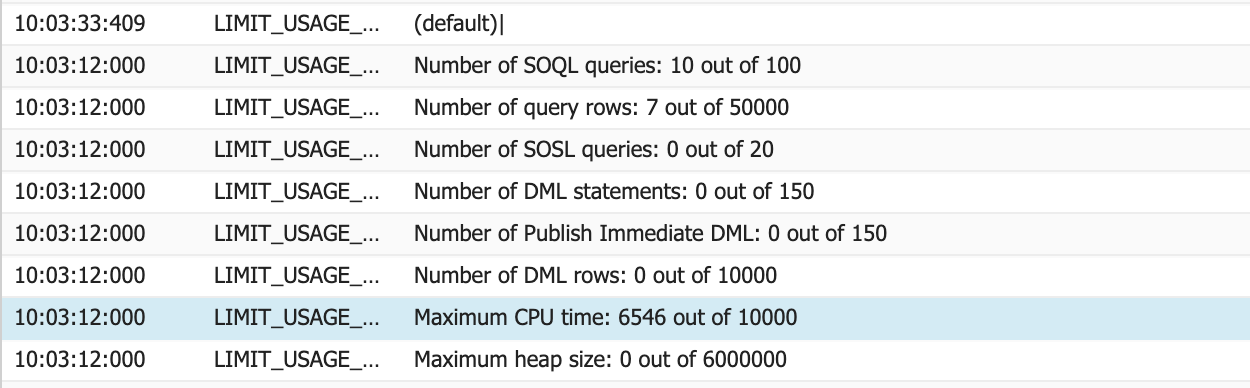
MoveData's processing is efficient. As a benchmark, the NPSP extension processing a complex transaction (3 contacts, 3 campaigns, a recurring donation with a child donation) uses:
- ~65% of the CPU limit when creating all records from scratch.
- ~45% of the CPU limit when records already exist.
This leaves headroom for other automations, but not unlimited headroom. If your org has many record-triggered flows, Process Builder processes, or Apex triggers, the combined total can exceed the limit.
How to diagnose#
Step 1: Identify the competing automations#
The error is caused by the total CPU consumption across all automations, not any single one. You need to identify what else runs when MoveData creates or updates records.
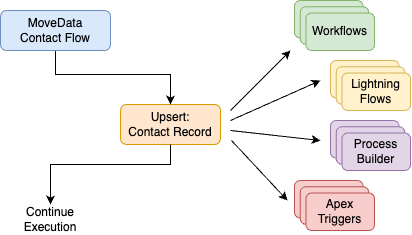
Check for automations on the objects MoveData creates or updates — including Contact, Account, Opportunity, Campaign, Campaign Member, and any custom objects. Any of these objects can be affected by record-triggered flows, Process Builder processes, workflow rules, Apex triggers, validation rules, and rollup summaries.
Step 2: Review Salesforce debug logs#
- In Salesforce, go to Setup.
- Type "Debug Logs" in the Quick Find box and select Debug Logs.
- Add a trace flag for your MoveData Authorised User.
- Reprocess the failed notification.
- Open the resulting debug log and search for
CUMULATIVE_LIMIT_USAGE.
The debug log shows a breakdown of CPU time by namespace and component. This reveals which automations consume the most time.
Reading the debug log
Look for these key entries in the debug log:
CUMULATIVE_LIMIT_USAGE— shows total CPU time used.FLOW_CREATE_INTERVIEW— shows each flow that ran during the transaction.CODE_UNIT— shows each Apex trigger or class that executed.WF_entries — show legacy workflow rule evaluations.
The namespace prefix (such as movedata__ or npsp__) tells you which package owns each component.
How to fix it#
Option 1: Reduce automation overhead#
- Retire legacy automations — migrate Workflow Rules and Process Builder processes to record-triggered Flows. Flows are more efficient than their predecessors.
- Consolidate flows — if multiple record-triggered flows run on the same object and event, combine them into a single flow. Each flow interview has overhead.
- Use entry conditions — add entry conditions to record-triggered flows so they only run when relevant fields change, not on every update.
- Use Fast Field Updates — where possible, configure record-triggered flows to run as "Fast Field Updates" (before-save) instead of after-save. Before-save flows use less CPU.
Option 2: Optimise third-party packages#
If a managed package (such as DLRS or NPSP) consumes significant CPU time, check its configuration. See Too many SOQL queries: 101 (DLRS) for an example of optimising DLRS.
Option 3: Run MoveData post-processing asynchronously#
MoveData can run its post-upsert jobs (Campaign Post and Donation Post flows) asynchronously. This moves part of the processing into a separate transaction with its own 60,000 ms CPU limit. See Run post-processing asynchronously for configuration steps.
Warning
Running post-processing asynchronously changes the timing of your data updates. Records created by MoveData will be saved first, and post-processing (such as campaign member creation) will happen shortly after in a separate transaction. Additionally, if an asynchronous MoveData flow fails, the failure will not be captured or reported in the MoveData app because it is running outside the main transaction. For this reason, we recommend trying Options 1 and 2 before enabling asynchronous post-processing.
Resolving this issue#
This error is caused by the cumulative CPU consumption of all automations in your Salesforce org — not by MoveData specifically. The flows, triggers, Process Builder processes, and workflow rules that contribute to the CPU limit are typically configured by your organisation or your Salesforce implementation partner.
MoveData support cannot diagnose or fix non-MoveData automations in your Salesforce environment. If you need help identifying and optimising these automations, we recommend engaging your Salesforce partner. If you do not have a Salesforce partner, contact support@movedata.io and we can make an introduction.
After fixing the issue#
- Reprocess the failed notification using the Reprocess button on the notification detail page.
- Check that the notification status changes to Success.
For full reprocessing instructions, see How to reprocess failed notifications.