Can't change Household Account on Recurring Donation
When MoveData processes a recurring donation, it may match a different contact or account than the one already on the recurring donation record. NPSP blocks this change if the recurring donation has closed opportunities, producing an error.
Error message#
You may see this error in your execution log:
You can't change the Household Account or Contact on a Recurring Donation that has Closed Opportunities
For help finding this error, see Reading and understanding error messages.
Why this happens#
Over time, data in your source fundraising platform can drift from the data in Salesforce. This often happens after manual edits in Salesforce — such as renaming a contact or merging records.
When MoveData receives a notification, it uses the source platform data to find the matching contact and account. If the matched contact or account differs from the one on the existing recurring donation, NPSP rejects the update.
Common scenarios#
Three situations typically cause this error.
1. Data parity issue#
The source platform has different details from the Salesforce contact on the recurring donation.
Example: The source platform sends "Jill Tester", but the recurring donation in Salesforce belongs to "Joe Tester". MoveData matches on the source data and finds (or creates) a different contact.
Fix:
- Open the failing notification and review the source data in the Payloads section.
- Compare the source data with the contact on the recurring donation in Salesforce.
- Update the Salesforce contact to align with the source platform data.
- Reprocess the notification.
2. Multiple duplicate contacts#
Salesforce contains duplicate contacts that match the source data. MoveData's duplicate rules return the first match with the highest confidence — which may not be the contact on the recurring donation.
Fix:
- Search Salesforce for contacts matching the source platform data.
- Open App Launcher and select Contact Merge.
- Merge the duplicate contacts, keeping the record that owns the recurring donation.
- Reprocess the notification.
3. Different account type#
The account on the recurring donation has changed from a household account to an organisation account, or between different organisation accounts. This can happen after manual account reassignment or a data migration.
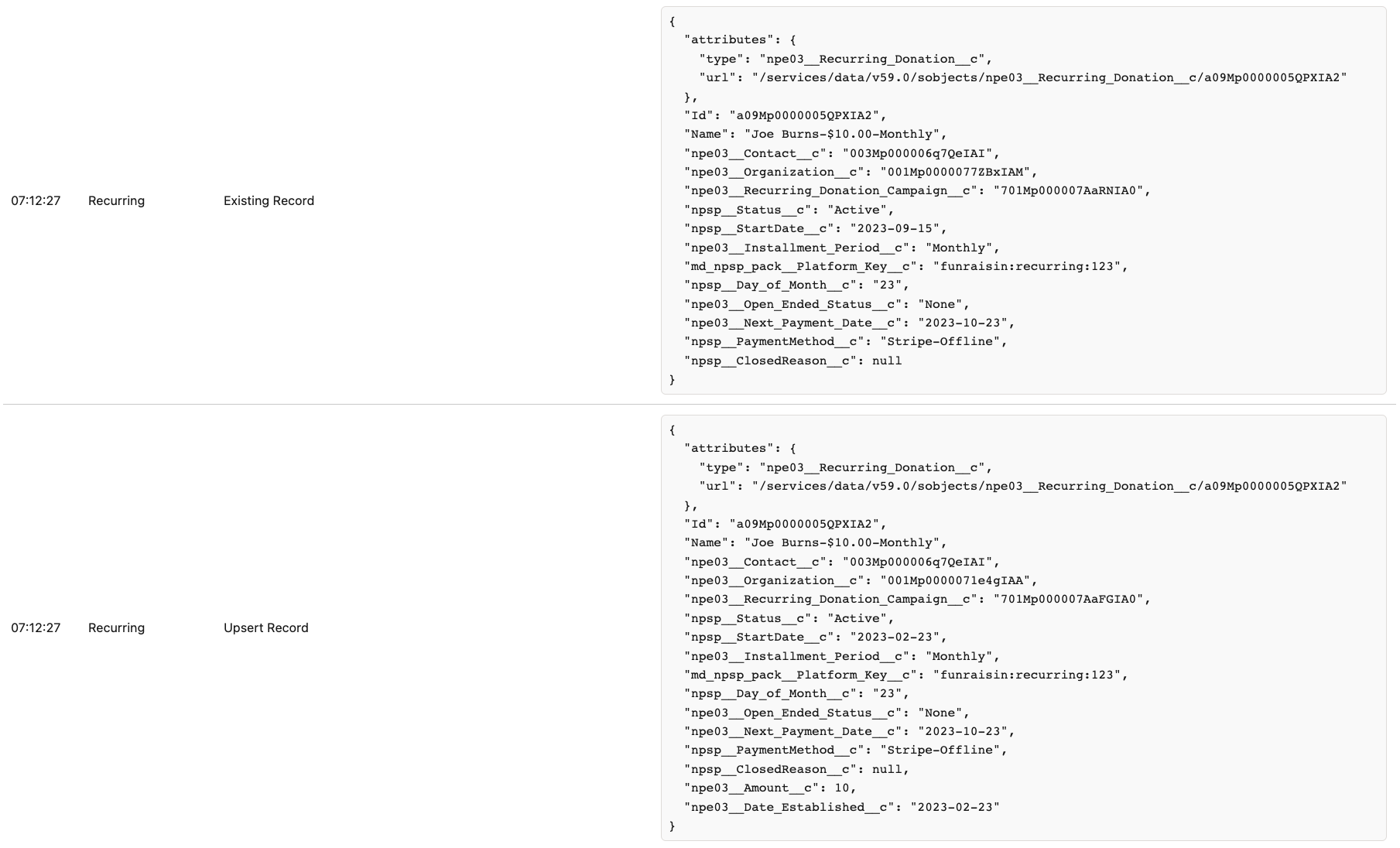
Fix:
- Open the recurring donation and check the Account field.
- Confirm the account type matches what the source platform expects (typically a household account).
- Reassign the recurring donation to the correct account if needed.
- Reprocess the notification.
General remediation steps#
If you are unsure which scenario applies, work through these checks:
- Ensure duplicate rules return the correct match. Your Salesforce duplicate and matching rules should match the same contact and account that appear on the recurring donation. See Duplicate rules for guidance.
- Remove duplicate records. Use Contact Merge in App Launcher to consolidate any duplicates.
- Align platform keys. Ensure the existing contact and account have the same identifying key as the notification. You can verify this in the execution log.
- Update the desired record. Change data on the contact or account so that duplicate detection returns a valid match for future notifications.
Alternative — match via platform key#
If adjusting duplicate rules is not practical, you can force MoveData to match a specific contact by adding a platform key directly. A platform key is a unique identifier that links a contact in Salesforce to a person on the source platform.
- Open the execution log for the failing notification.
- Find the generated platform key value in the log output.

- Navigate to the contact record that owns the recurring donation.
- Add Platform Key as a related list on the Contact Page Layout (if not already visible).
- Create a new platform key record on the contact using the value from step 2.

MoveData now matches via the platform key instead of duplicate rules, avoiding the error.
When to use this approach
Platform key matching is useful when you have complex duplicate rule configurations or when the source platform data consistently differs from your Salesforce records.
After fixing the issue#
After resolving the underlying data issue:
- Open the failing notification in the MoveData app.
- Click Reprocess.
- Check the notification status changes to Success.
For more on reprocessing, see How to reprocess failed notifications.