Convert Leads to Contacts
You can configure Salesforce duplicate rules so that MoveData matches incoming data against existing lead records. When a match is found, Salesforce automatically converts the lead into a contact, and MoveData continues processing against the resulting contact record.
MoveData uses standard Salesforce lead conversion — this is required because out-of-the-box extensions use Contacts or Person Contacts in contact phases.
Before you begin#
- You need access to Setup > Matching Rules and Setup > Duplicate Rules in Salesforce.
- Familiarise yourself with Duplicate rules.
Excluding MoveData from lead duplicate detection#
If you have lead duplicate detection rules but do not want MoveData to trigger lead conversion, exclude the MoveData Authorised User from your lead duplicate detection rule using conditions.
Important: how Salesforce handles lead conversion#
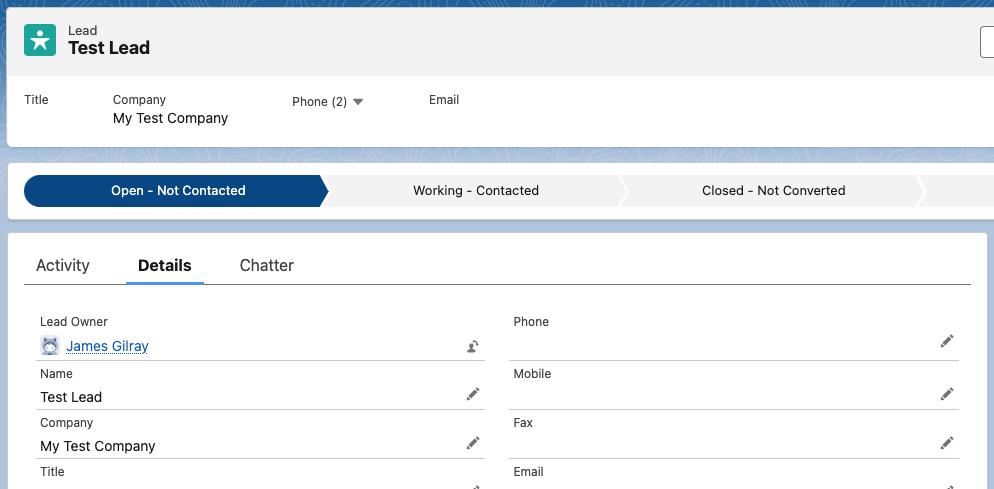
Salesforce requires a Company field on every lead record. When a lead is converted, Salesforce assigns the resulting contact to an organisation account based on this company value — not a household account.
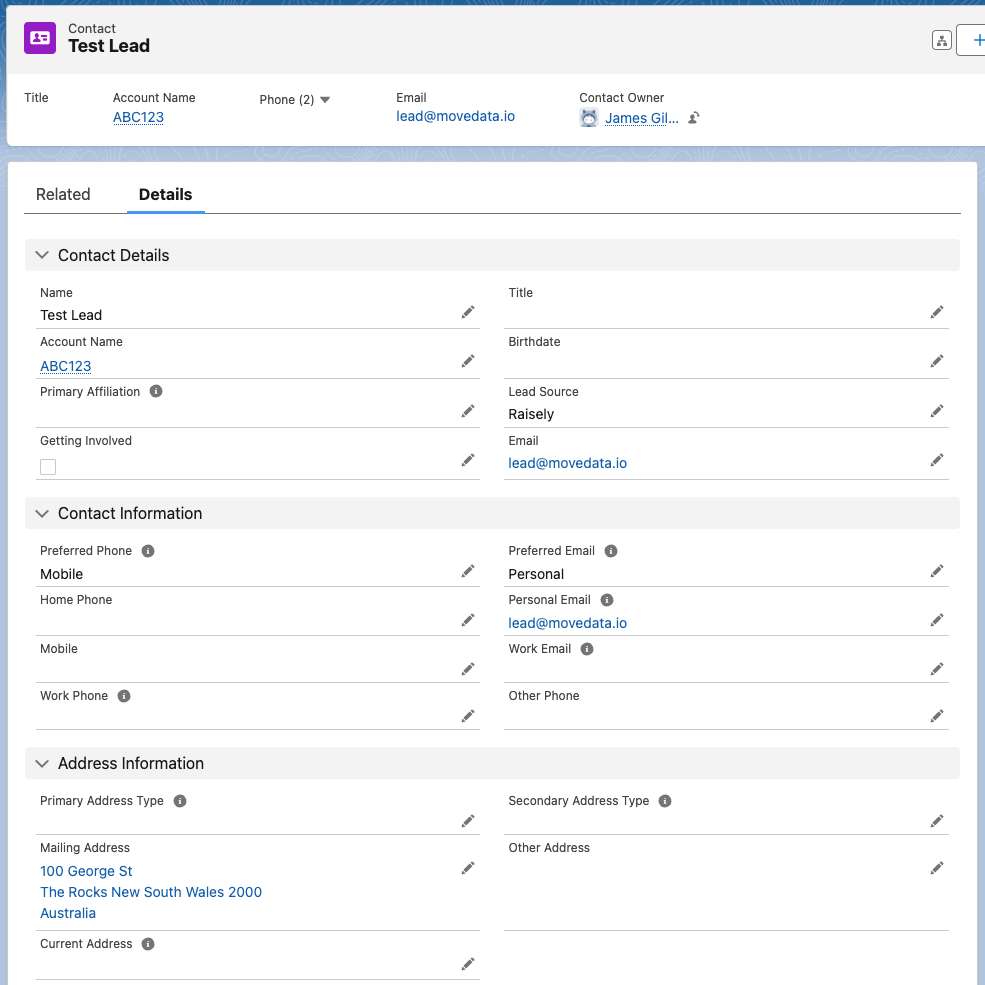
After conversion, the contact is associated with an organisation account:
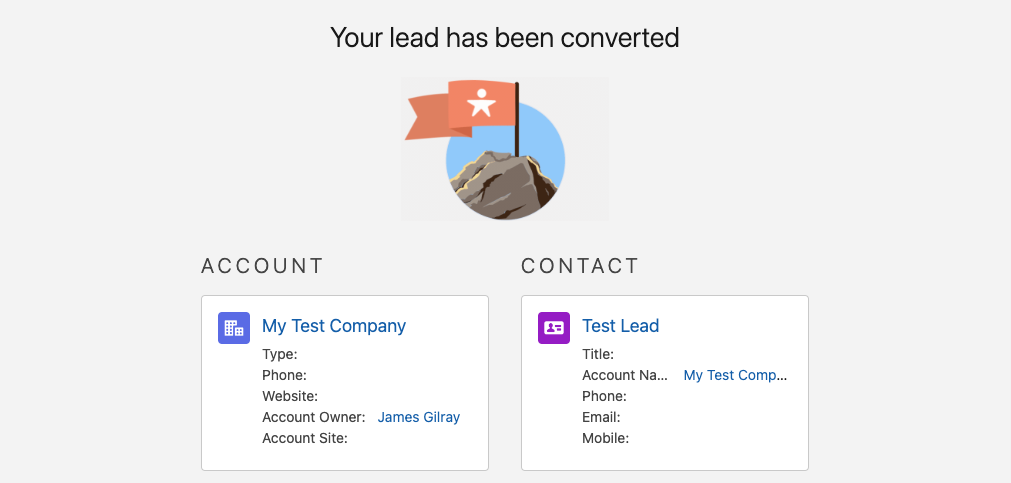
This is standard Salesforce behaviour, not MoveData functionality. MoveData cannot change the fact that the converted contact is associated with an organisation account instead of a household account — this is controlled entirely by Salesforce's lead conversion process. If you use NPSP household accounts and need the converted contact moved into a household, you will need custom business logic in Salesforce to handle this.
Salesforce Apex code used for lead conversion
LeadStatus convertStatus = [SELECT Id, MasterLabel FROM LeadStatus WHERE IsConverted = true LIMIT 1];

Database.LeadConvert lc = new Database.LeadConvert();
lc.setLeadId(leadId);
lc.setConvertedStatus(convertStatus.MasterLabel);
lc.setDoNotCreateOpportunity(true);
Database.LeadConvertResult lcr = Database.convertLead(lc);
Worked example#
Step 1 — Create a lead matching rule#
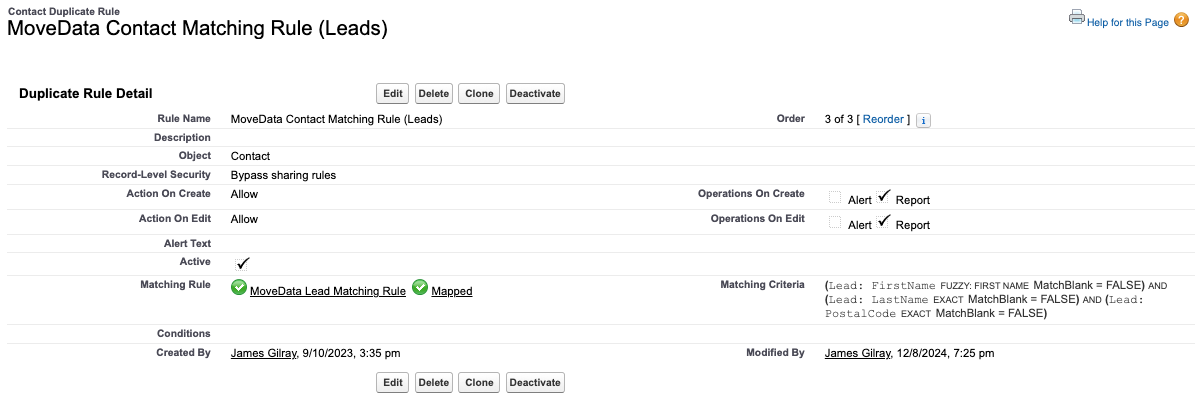
- Navigate to Setup > Matching Rules.
- Create a new matching rule for the Lead object.
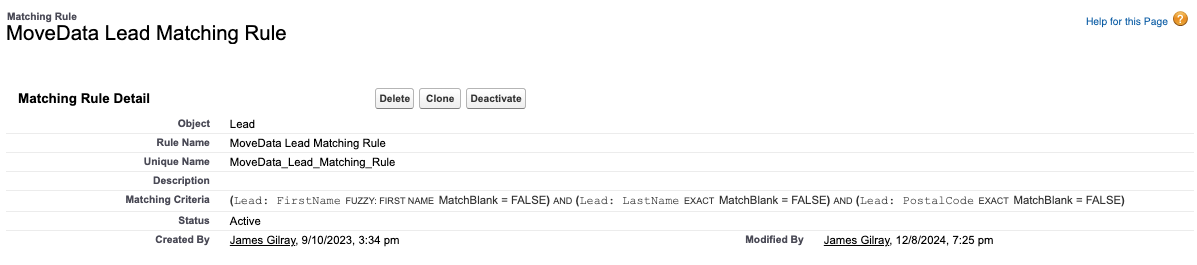
- Define your matching criteria. In this example, the rule matches on First Name, Last Name, and Postcode.
- Activate the matching rule.
Step 2 — Create a contact duplicate rule#
- Navigate to Setup > Duplicate Rules.
- Create a new duplicate rule for the Contact object.
- Reference the lead matching rule you created in Step 1.
- Set both Actions On Create and Actions On Edit to Allow.
- Set both Operations On Create and Operations On Edit to Report.
- Save and activate the duplicate rule.
Step 3 — Verify the conversion#
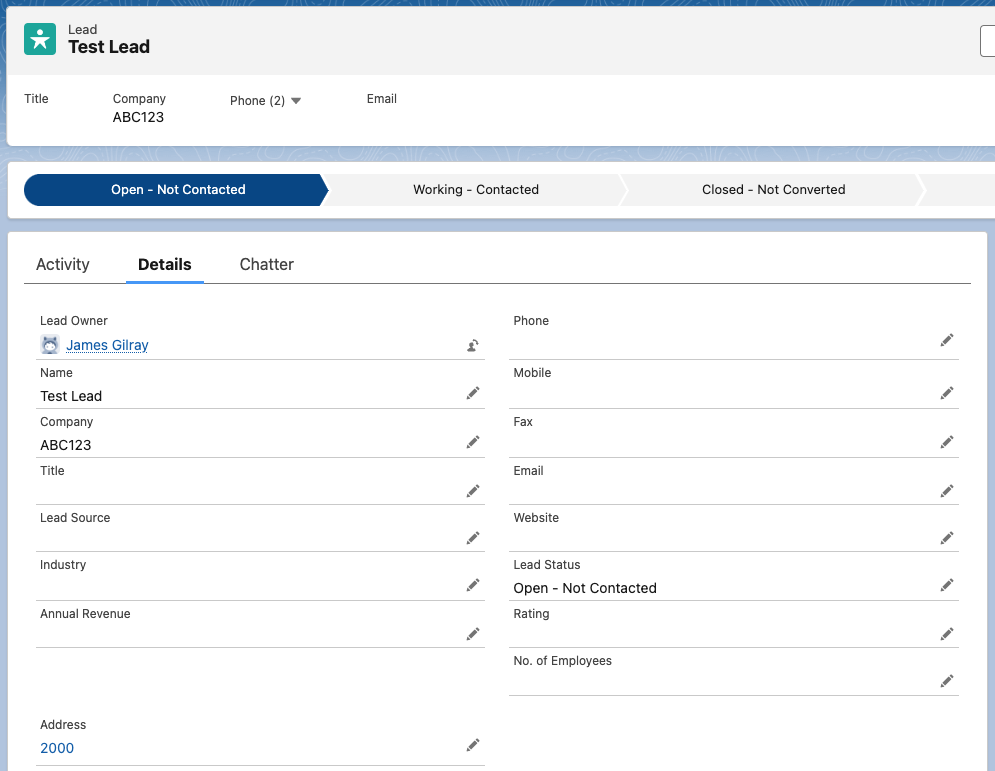
To test, create a lead in Salesforce that matches the criteria in your matching rule, then trigger a notification from your connected platform with equivalent data.
You should see:
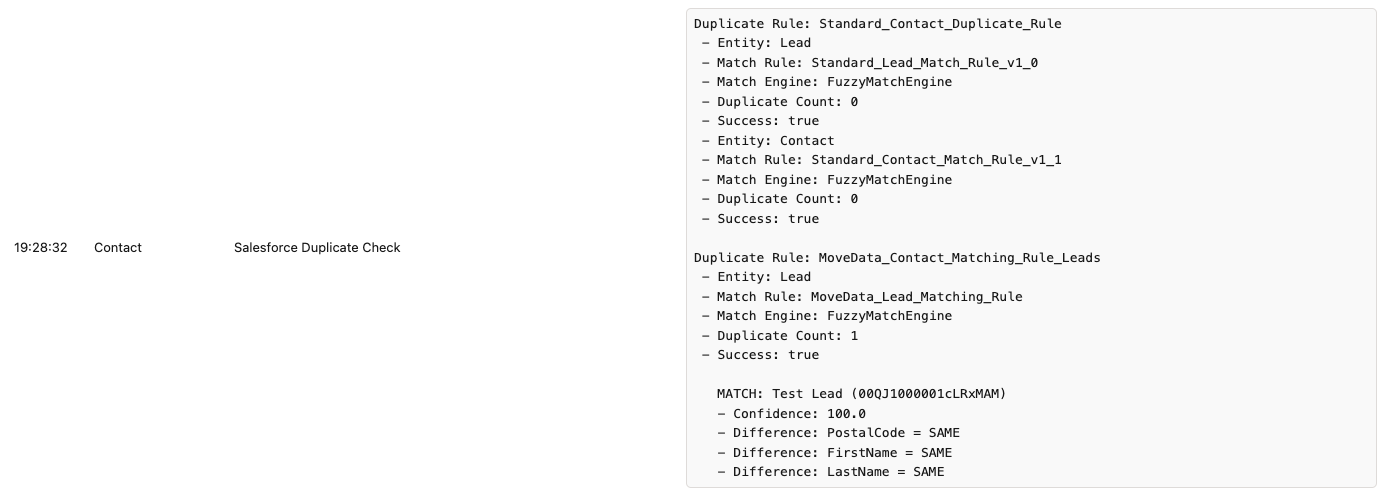
- The lead is detected as a match and converted into a contact.
- The MoveData execution log confirms the lead conversion.
- The resulting contact record is created from the converted lead.