Run Post-Processing Asynchronously
You can configure MoveData to run Campaign Post and Donation Post flows asynchronously. This moves these flows — and any associated extension flows — out of the main MoveData transaction and into a separate thread.
This provides SOQL relief because:
- Campaign Post and Donation Post flows are no longer subject to the SOQL limits of the core transaction.
- Non-MoveData triggers that fire when records are created or updated by these flows also run outside the core transaction's SOQL limits.
In practice, this helps when your processes create or update records based on Campaign, Campaign Member, or Opportunity records.
For more on SOQL limit errors, see Too many SOQL queries: 101.
Trade-offs#
Only enable asynchronous post-processing when strictly necessary. There are three important trade-offs:
| Trade-off | Impact |
|---|---|
| Errors are not captured by MoveData | If an asynchronous flow or trigger fails, MoveData will not receive the error and cannot alert you. Salesforce rolls back the whole asynchronous transaction, so any records the flow already created or updated are discarded. The notification still reports Success. |
| No execution log data | Asynchronous processes do not appear in MoveData execution logs, making debugging and troubleshooting more difficult. |
| No dependencies between flows | Subsequent MoveData flows cannot depend on changes made by an asynchronous flow, because those changes have not yet been committed during the MoveData execution. |
Implementation#
Step 1 — Create a configuration flow#
- Navigate to Setup > Process Automation > Flows.
- Create a new Autolaunched Flow (No Trigger).
- Set the flow label to
[MoveData-Extension] Donation: Configurationand the API name toMoveData_Donation_Configuration_Ext.
Step 2 — Add flow variables#
From the Toolbox, create the following three variables:
Keys (required)
| Property | Value |
|---|---|
| API Name | Keys |
| Data Type | Text |
| Allow multiple values (collection) | True |
| Available for input | False |
| Available for output | True |
CampaignPostUpsertAsync (set to true to enable async for campaigns)
| Property | Value |
|---|---|
| API Name | CampaignPostUpsertAsync |
| Data Type | Boolean |
| Allow multiple values (collection) | False |
| Available for input | False |
| Available for output | True |
DonationPostUpsertAsync (set to true to enable async for donations)
| Property | Value |
|---|---|
| API Name | DonationPostUpsertAsync |
| Data Type | Boolean |
| Allow multiple values (collection) | False |
| Available for input | False |
| Available for output | True |
Step 3 — Configure the assignments#
To run Campaign Post asynchronously, add the following assignment:
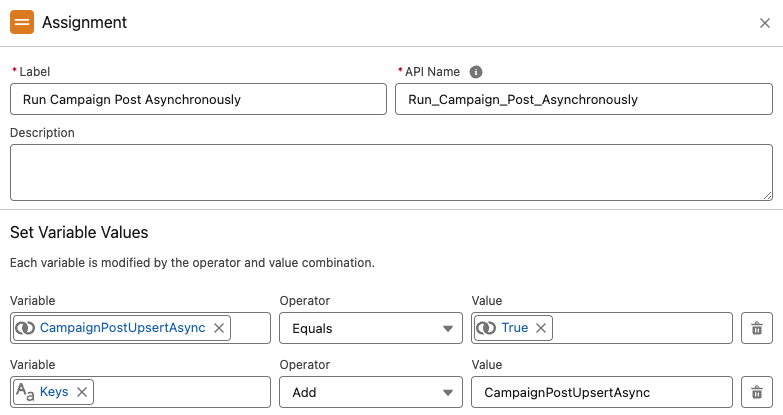
To run Donation Post asynchronously, add the following assignment:
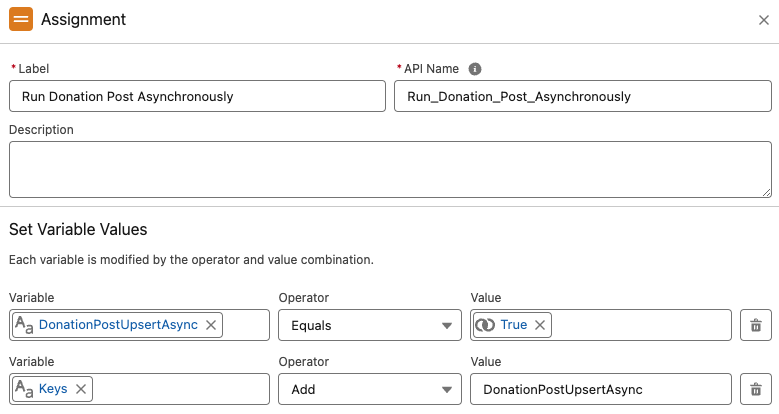
You can enable one or both. Save and activate the flow.
Step 4 — Register the configuration flow#
- Navigate to Setup > Custom Metadata Types.
- Find MoveData Pipeline Setting and click Manage Records.
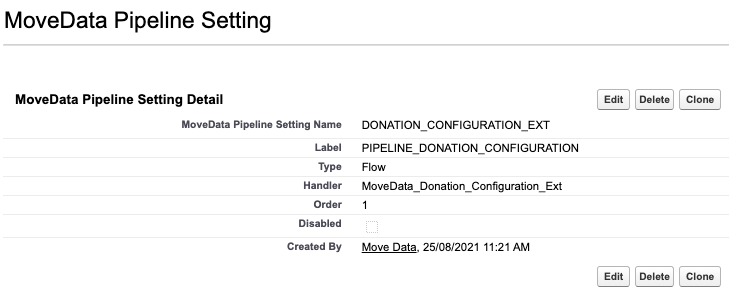
- Click New and enter the following values:
| Field | Value |
|---|---|
| Label | PIPELINE_DONATION_CONFIGURATION |
| MoveData Pipeline Setting Name | DONATION_CONFIGURATION_EXT |
| Type | Flow |
| Handler | MoveData_Donation_Configuration_Ext |
| Order | 1 |
| Disabled | False |
Step 5 — Verify#
Reprocess a previously failed notification to confirm that the SOQL limit issue has been resolved. Campaign and Donation Post flows will now execute in a separate thread after the main MoveData transaction completes.
After the run, check Setup > Apex Jobs for failed FutureHandler entries. MoveData cannot report asynchronous failures, so this is the only place they appear.