MoveData App (pre-1.167)
This guide applies only to organisations upgrading the MoveData App from a version earlier than v1.167. If your MoveData App is already at v1.167 or later, see Upgrading MoveData instead.
MoveData App v1.167 introduced support for Commerce, allowing you to process ticket sales, merchandise sales, raffle ticket sales, and similar data into Salesforce. Even if you do not use Commerce, newer versions of MoveData extensions may depend on v1.167 or later.
NPSP Fundraising & Donations Extension (pre-1.81)
If your NPSP Fundraising & Donations Extension is earlier than v1.81, you must complete that upgrade first and then return to this page.
Back up your data
Back up your Salesforce data before starting this upgrade. Go to Setup > Data Export to create an export. Perform the upgrade in a sandbox environment before upgrading production.
Step 1: Upgrade the MoveData App#
Install the most recent version of the MoveData App:
- Installation link: https://api.movedata.io/installer/app
Follow the prompts to install for All Users or Admins Only.
Step 2: Verify the Apex batch job#
When you upgrade, MoveData runs an Apex batch job called MoveDataBatchWorker to migrate data from extension-managed fields to app-managed fields.
You must confirm this job completes successfully before continuing.
- Go to Setup > Apex Jobs.
- Look for jobs named MoveDataBatchWorker.
- Depending on data volume, the job may run once or multiple times.
- The migration is complete when all
MoveDataBatchWorkerjobs show a status of Completed and no new job has started for at least five minutes.
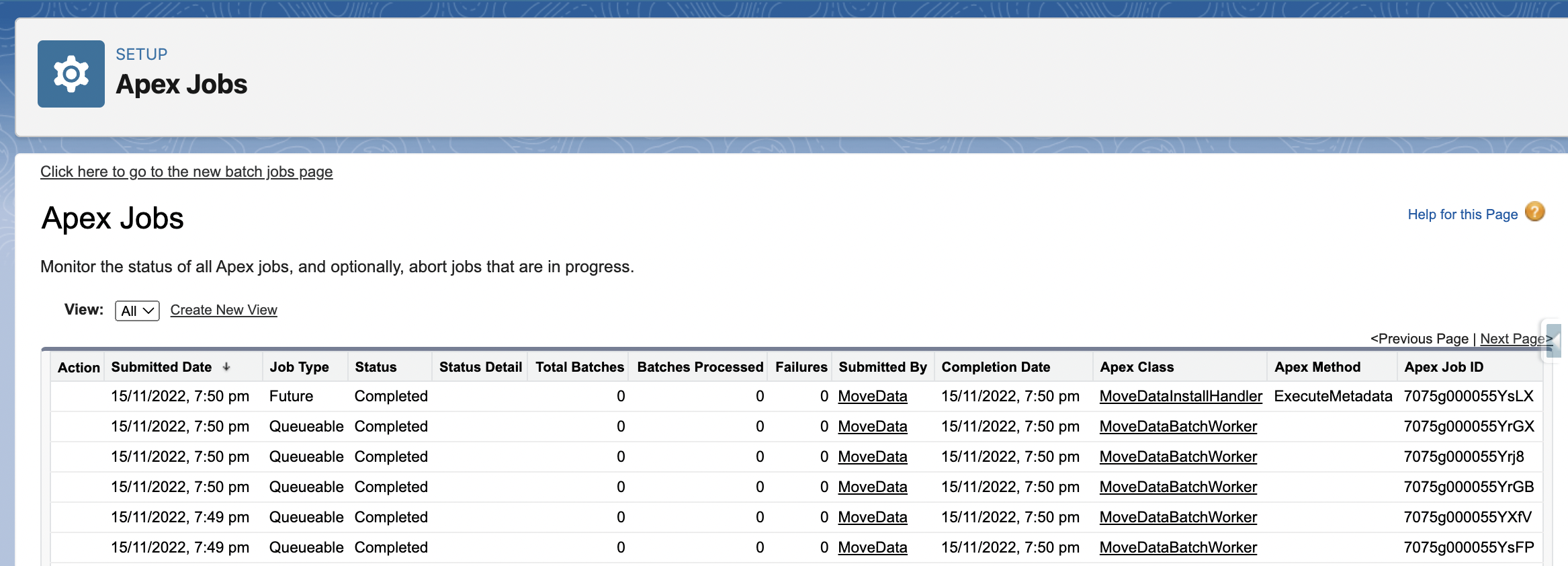
Error: "Not allowed to install or modify metadata via Apex"#
If you encounter this error, resolve it by running the install handler manually:
- Open the Developer Console in Salesforce.
- Select Debug > Open Execute Anonymous Window.
- Paste the following command and click Execute:
new movedata.MoveDataInstallHandler().onInstall(null);
The MoveDataBatchWorker job will then resume.
Return to Setup > Apex Jobs and confirm the job completes as described above.
Step 3: Run technical verification queries#
Run the following SOQL queries in the Developer Console to confirm the data migration completed cleanly. Each query should return the expected result.
| Check | SOQL query | Expected result |
|---|---|---|
| Account Platform Key | SELECT Id, md_npsp_pack__Platform_Key__c, md_npsp_pack__Platform__c, md_npsp_pack__Account__c FROM md_npsp_pack__Account_Platform_Key__c |
0 records |
| Account | SELECT Id, md_npsp_pack__Protect_Name__c, movedata__Protect_Name__c FROM Account |
Visual review: values should match |
| Campaign (Platform & Keys) | SELECT Id FROM Campaign WHERE md_npsp_pack__Platform__c <> NULL OR md_npsp_pack__Platform_Key__c <> NULL |
0 records |
| Campaign (Campaign Code) | SELECT Id FROM Campaign WHERE md_npsp_pack__Campaign_Code__c <> NULL |
0 records |
| Campaign (Protect Name) | SELECT COUNT(Id) FROM Campaign WHERE (md_npsp_pack__Protect_Name__c = TRUE AND movedata__Protect_Name__c <> TRUE) OR (md_npsp_pack__Protect_Name__c = FALSE AND movedata__Protect_Name__c <> FALSE) |
0 records |
| Campaign (Protect Campaign Parent) | SELECT COUNT(Id) FROM Campaign WHERE (md_npsp_pack__Protect_Campaign_Parent__c = TRUE AND movedata__Protect_Campaign_Parent__c <> TRUE) OR (md_npsp_pack__Protect_Campaign_Parent__c = FALSE AND movedata__Protect_Campaign_Parent__c <> FALSE) |
0 records |
| Opportunity | SELECT Id FROM Opportunity WHERE md_npsp_pack__Platform_Key__c <> NULL |
0 records |
Non-zero results
If any query returns unexpected results, do not continue with the upgrade. Contact MoveData support for assistance before proceeding.
Step 4: Upgrade the Fundraising & Donations Extension#
Install the most recent version of the Fundraising & Donations Extension:
- Installation link: https://api.movedata.io/installer/npsp-extension
For more information about extensions, see Understanding extensions.
Step 5: Update field sets#
Salesforce does not allow managed packages to update field sets automatically, so you must add the new fields manually.
To update a field set:
- Go to Setup > Object Manager > select the object (for example, Campaign).
- Click Field Sets and open the relevant field set.
- Drag the required field(s) into the field set.
- Click Save.
Add the following fields to each field set:
| Object | Field set | Fields to add |
|---|---|---|
| Account | [MoveData] Donation: Account Fieldset |
Protect Name |
| Opportunity | [MoveData] Opportunity Fieldset |
Platform Key |
| Campaign | [MoveData] Donation: Campaign Fieldset |
Campaign Code, Platform, Platform Key, Protect Name, Protect Campaign Parent |
Step 6: Update page layouts#
This step only applies if you use fields now marked as [Deprecated] on your page layouts. If so, replace each deprecated field with its updated equivalent.
| Object | Deprecated field | Replace with |
|---|---|---|
| Account | [Deprecated] Protect Name | Protect Name |
| Campaign | [Deprecated] Protect Name | Protect Name |
| Campaign | [Deprecated] Protect Campaign Parent | Protect Campaign Parent |
| Campaign | [Deprecated] Platform | Platform |
Step 7: Review extension flows#
If you have customised any MoveData extension flows or field sets that reference deprecated fields, update them to use the new field equivalents.
| Object | Deprecated field | New field |
|---|---|---|
| Account | [Deprecated] Protect Name | Protect Name |
| Campaign | [Deprecated] Protect Name | Protect Name |
| Campaign | [Deprecated] Protect Campaign Parent | Protect Campaign Parent |
| Campaign | [Deprecated] Platform | Platform |
| Campaign | [Deprecated] Platform Key | Platform Key |
| Campaign | [Deprecated] Campaign Code | Campaign Code |
| Opportunity | [Deprecated] Platform Key | Platform Key |
Need help?#
If you cannot perform this upgrade yourself, contact MoveData support.