Mapping Funraisin pages and DIY campaigns to Salesforce
Funraisin fundraising pages and DIY campaigns do not always belong to a formal Funraisin event. This article explains where MoveData places these records in Salesforce by default, and the options available if you need them to map to a particular Salesforce campaign instead.
Default behaviour#
MoveData builds your Salesforce campaign hierarchy from the Funraisin Event ID. When an Event ID exists, MoveData uses the event as the top-level campaign and nests team and individual fundraiser campaigns beneath it.
Funraisin pages and DIY records often have no Event ID. When that is the case, each page or DIY fundraiser still gets its own Salesforce campaign, but it rolls up under the generic Funraisin parent campaign instead of under an event campaign.

If you want these records to roll up to specific Salesforce campaigns instead, use one of the options below.
Funraisin pages#
If you need a page to link to a particular Salesforce campaign, you can tell MoveData which campaign to use directly from Funraisin:
-
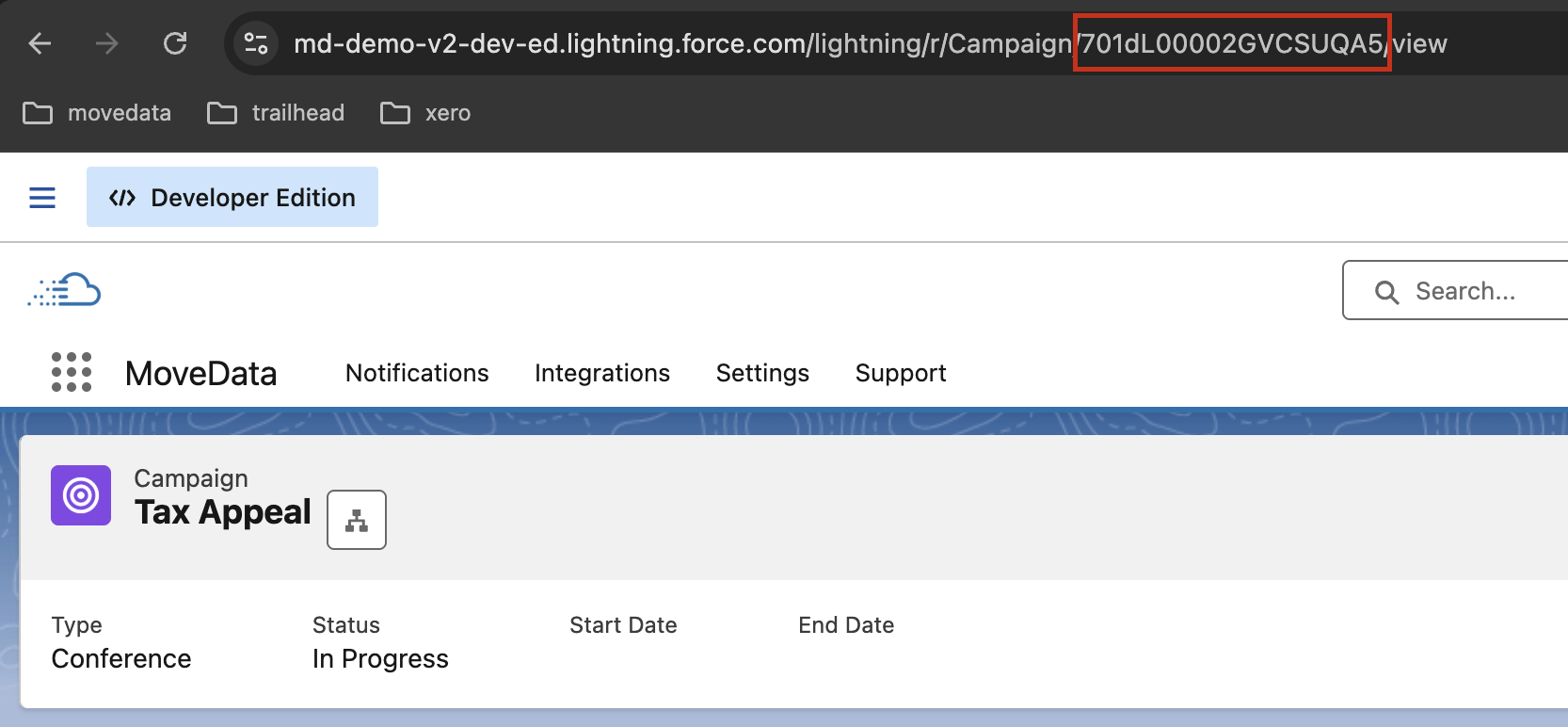
In Salesforce, open the campaign you want the page to map to and copy its Campaign ID.
-
In Funraisin, navigate to your fundraising page → Page Settings → External CRM ID, and enter the Salesforce Campaign ID you copied.

-
Add custom logic to your integration that uses the External CRM ID value to locate and match the existing Salesforce campaign. See Use Business Rules to Select a Different Campaign for the general override pattern.
Once this logic is in place, donations and activity on that page are attributed to the Salesforce campaign you specified.
Which field MoveData reads#
MoveData receives Funraisin's CRM ID fields as campaign custom fields on the notification, prefixed with Funraisin_. The Salesforce Campaign ID you enter in the page's External CRM ID field surfaces as the field below:
| Funraisin field | Funraisin admin label | Holds | Example |
|---|---|---|---|
Funraisin_CrmPageId |
External CRM ID | Salesforce Campaign ID for a page | 701Ob00000Xj4CcIAJ |
Note
This logic will need to be implemented in the Campaign Record Match EXT flow — a custom flow you register to override MoveData's default campaign matching. See Writing extension flows for how extension flows work, and Use Business Rules to Select a Different Campaign for a worked example for how to build and register it.
See the custom field reference in the setup guide for the full list of Funraisin fields.
Funraisin DIY campaigns#
If you need a DIY campaign to link to a particular Salesforce campaign, you can tell MoveData which campaign to use directly from Funraisin:
-
In Salesforce, open the campaign you want the DIY campaign to map to and copy its Campaign ID.
-
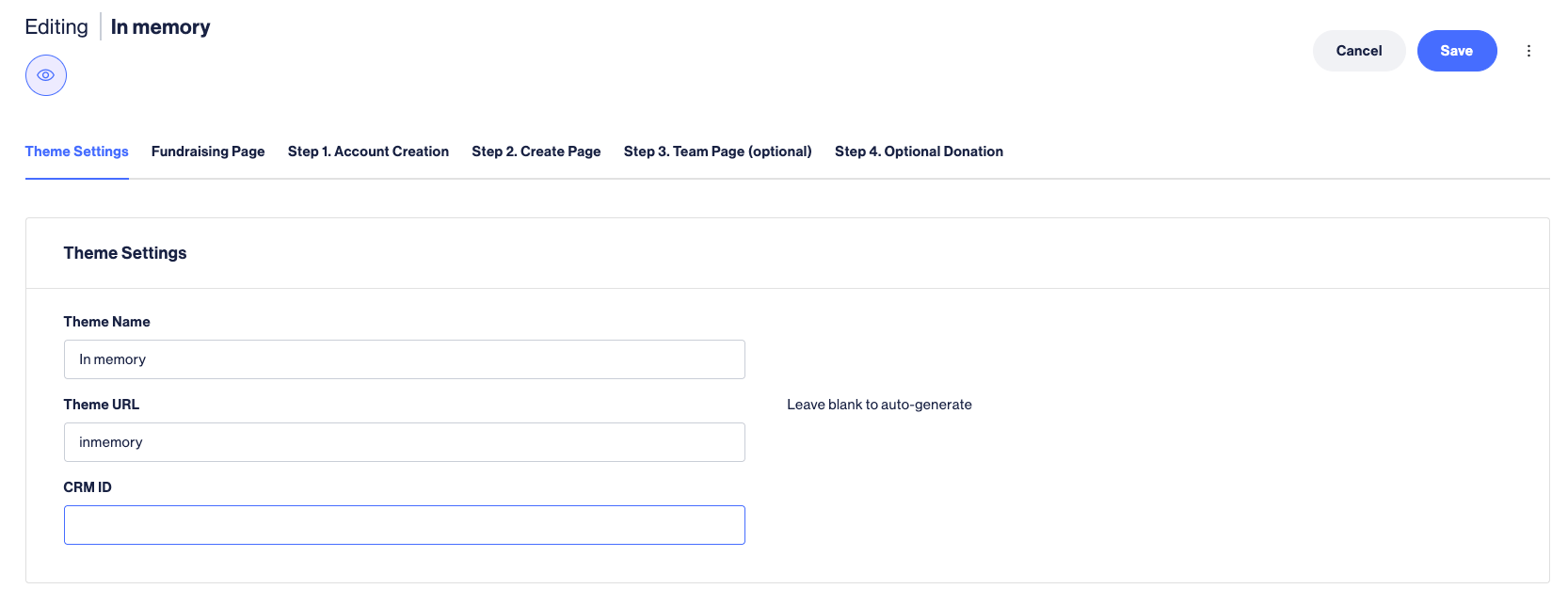
In Funraisin, navigate to DIY Fundraising → edit the DIY campaign → Theme Settings → CRM ID, and enter the Salesforce Campaign ID you copied.
-
Add custom logic to your integration that uses the CRM ID value to locate and match the existing Salesforce campaign. See Use Business Rules to Select a Different Campaign for the general override pattern.
Which field MoveData reads#
MoveData receives Funraisin's CRM ID fields as campaign custom fields on the notification, prefixed with Funraisin_. The Salesforce Campaign ID you enter in the DIY campaign's CRM ID field surfaces as the field below:
| Funraisin field | Funraisin admin label | Holds | Example |
|---|---|---|---|
Funraisin_crm_category_id |
CRM ID | Salesforce Campaign ID for a DIY campaign | 7014a000000A2LnAAK |
Note
This logic will need to be implemented in the Campaign Record Match EXT flow — a custom flow you register to override MoveData's default campaign matching. See Writing extension flows for how extension flows work, and Use Business Rules to Select a Different Campaign for a worked example for how to build and register it.
See the custom field reference in the setup guide for the full list of Funraisin fields.