Setting up TapRaise
This guide walks you through connecting your TapRaise face-to-face fundraising platform to MoveData. Once connected, pledge and transaction data flows into Salesforce on a scheduled polling cycle.
| Field | Detail |
|---|---|
| Product | TapRaise |
| Method | Pull (Polling) |
| Frequency | Every 12 hours |
Supported extensions#
This integration requires the Fundraising and Donations extension.
Warning
TapRaise is only compatible with the Nonprofit Success Pack (NPSP) or Nonprofit Cloud data models. MoveData no longer offers integration with the Dutch Salesforce managed package Converse.
Before you begin#
- You need access to the MoveData app in Salesforce.
- You need API credentials from TapRaise (see below).
- You should have the Fundraising and Donations extension installed with either NPSP or Nonprofit Cloud configured.
Setting up the integration#
Step 1: Request credentials from TapRaise#
Contact TapRaise to obtain your API credentials. You need the following three items:
| Credential | Description |
|---|---|
| Private Key Certificate | An RSA private key in PKCS#8 format. The certificate must include the full -----BEGIN PRIVATE KEY----- and -----END PRIVATE KEY----- markers. |
| Private Key ID | A 40-character identifier for the private key. |
| Service Account Email | The TapRaise service account email address associated with your API access. |
Note
TapRaise uses RSA private key certificate authentication, which is more complex than typical API key authentication. Keep your private key certificate secure and do not share it outside your organisation.
Step 2: Open the Integrations tab#
In Salesforce, open the MoveData app and click the Integrations tab.
Step 3: Start a new integration#
Click New Integration.
Step 4: Select TapRaise#
Choose TapRaise from the list of available platforms.
Step 5: Name your integration#
Enter a descriptive name for your integration (for example, "TapRaise — Netherlands") and click Save.
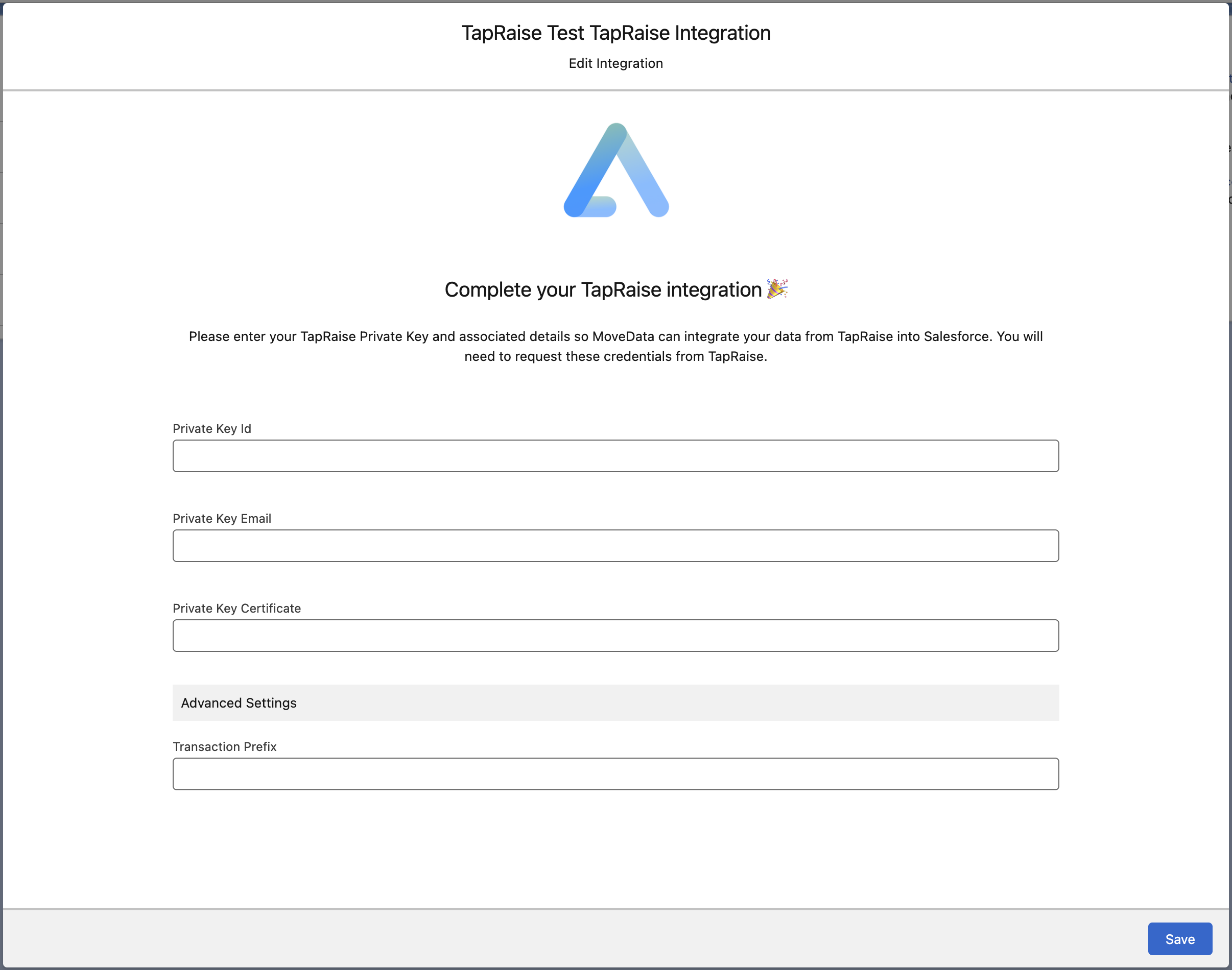
Step 6: Enter your credentials#
On the integration detail page, enter the following:
| Field | Value |
|---|---|
| Private Key ID | Your 40-character private key identifier |
| Private Key Email | Your TapRaise service account email address |
| Private Key Certificate | Your full RSA private key certificate, including the BEGIN and END markers |
Danger
Paste the private key certificate exactly as provided, including the -----BEGIN PRIVATE KEY----- and -----END PRIVATE KEY----- lines.
Missing or modified markers will cause authentication to fail.
Step 7: Configure integration settings#
Review the integration settings below and adjust any options as needed. Click Save.
Step 8: Verify the connection#
After saving, MoveData begins polling TapRaise on the configured schedule (default: every 12 hours). Check the Notifications tab in MoveData after the first polling cycle to confirm the integration is processing correctly.
Success
If you want to trigger an immediate poll rather than waiting for the next scheduled cycle, contact the MoveData team at support@movedata.io.
Salesforce records created#
MoveData creates different Salesforce records depending on your data model.
| TapRaise data | Nonprofit Success Pack (NPSP) | Nonprofit Cloud |
|---|---|---|
| Supporter | Contact | Person Account |
| Campaign | Campaign | Campaign |
| Pledge | Recurring Donation | Gift Commitment |
| Transaction | Opportunity | Gift Transaction |
Campaign structure#
All TapRaise data is organised under a single campaign:
| Field | Value |
|---|---|
| Campaign name | TapRaise |
| Campaign key | tapraise |
| Campaign type | Campaign |
Integration settings#
You can adjust these settings on the integration detail page in MoveData.
| Setting | Description |
|---|---|
| Transaction Prefix | A prefix added to each platform key. Use this when you have multiple TapRaise integrations (for example, different TapRaise environments or organisations) to prevent key collisions between them. |
Note
If you only have a single TapRaise integration, you can leave the Transaction Prefix empty. If you add a second TapRaise integration later, set a unique prefix on each to avoid duplicate key errors.
Custom field reference#
TapRaise provides detailed custom fields across several categories, including field team intelligence data unique to face-to-face fundraising.
Success
TapRaise data may include Dutch-language values in fields such as transaction descriptions (for example, "Bedankt voor uw donatie"). These values are stored as-is in Salesforce.
Contact custom fields
| Field | Description |
|---|---|
initials |
Supporter's initials |
mobilePhone |
Mobile phone number |
phone |
Landline phone number |
houseNumber |
House number (common in Dutch address formats) |
houseNumberExtension |
House number extension (for example, "A" or "bis") |
Campaign custom fields
| Field | Description |
|---|---|
key |
Campaign key identifier |
name |
Campaign name |
type |
Campaign type |
Recurring donation custom fields
| Field | Description |
|---|---|
iban |
International Bank Account Number for SEPA Direct Debit |
status |
Pledge status: lead, active, or fulfilled |
frequency |
Donation frequency: monthly, quarterly, yearly, or once |
Donation custom fields
| Field | Description |
|---|---|
name |
Transaction account name |
description |
Transaction description (may be in Dutch) |
iban |
International Bank Account Number used for the transaction |
processor |
Payment processor identifier (for example, cm for ConvertingMoney) |
method |
Payment method (for example, idealqr or sepa) |
Field team intelligence
TapRaise captures detailed recruiter and agency data not found in other integrations. These fields provide visibility into how each pledge was acquired:
| Field | Description |
|---|---|
recruiterIdentifier |
Unique identifier for the recruiter who acquired the pledge |
externalSourceIdentifier |
External source identifier for the recruiting agency |
recruitmentType |
Type of recruitment: street (street fundraising) or d2d (door-to-door) |
recruitingLocation |
Physical location where the pledge was acquired |
recruitingOrganization |
Name of the recruiting agency or organisation |
calls |
JSON-formatted call centre verification data, including call outcomes and timestamps |
Bulk data import#
MoveData only processes data from the time your integration is connected. If you need historical data imported into Salesforce, MoveData offers a professional import service. For details on how this works, pricing, and how to request an import, see Data imports.
Troubleshooting#
Authentication failures
If MoveData cannot connect to TapRaise:
- Verify the Private Key Certificate includes the full
-----BEGIN PRIVATE KEY-----and-----END PRIVATE KEY-----markers. - Confirm the Private Key ID is exactly 40 characters long.
- Check that the Service Account Email matches the email provided by TapRaise.
- Ensure the private key is in PKCS#8 format, not an older format such as PKCS#1.
No data after first polling cycle
MoveData polls TapRaise on a scheduled cycle (default: every 12 hours). If no notifications appear after the first cycle:
- Confirm the credentials are correct by reviewing the integration detail page.
- Check the Executions tab in MoveData for any error messages from the polling attempt.
- Verify with TapRaise that your service account has the correct permissions and that data is available in their system.
Transaction prefix collisions
If you have multiple TapRaise integrations and see duplicate key errors, set a unique Transaction Prefix on each integration to prevent collisions.
For more help reading error messages, see Reading and Understanding Error Messages.
Other resources#
- MoveData TapRaise Integration — overview of supported features and Salesforce record mapping
- TapRaise — TapRaise's main platform for face-to-face fundraising
- MoveData Support — for setup assistance and technical support