Flow command reference
Flow commands are special behaviours that you trigger by setting a value in an output-enabled variable with a specific name. When MoveData encounters one of these variables during flow execution, it changes how the current phase or notification is processed.
Command summary#
| Command | Variable name | Type | Effect |
|---|---|---|---|
| Cancel | Cancel |
Boolean | Cancels processing of the entire notification. No records are created. The notification status remains Success. |
| Break | Break |
Boolean | Stops the current phase, skips remaining record match entries and the mapping action. |
| Continue | Continue |
Boolean | Skips the remaining actions in the current phase but allows child phases to continue processing. |
| PostUpsert | PostUpsert |
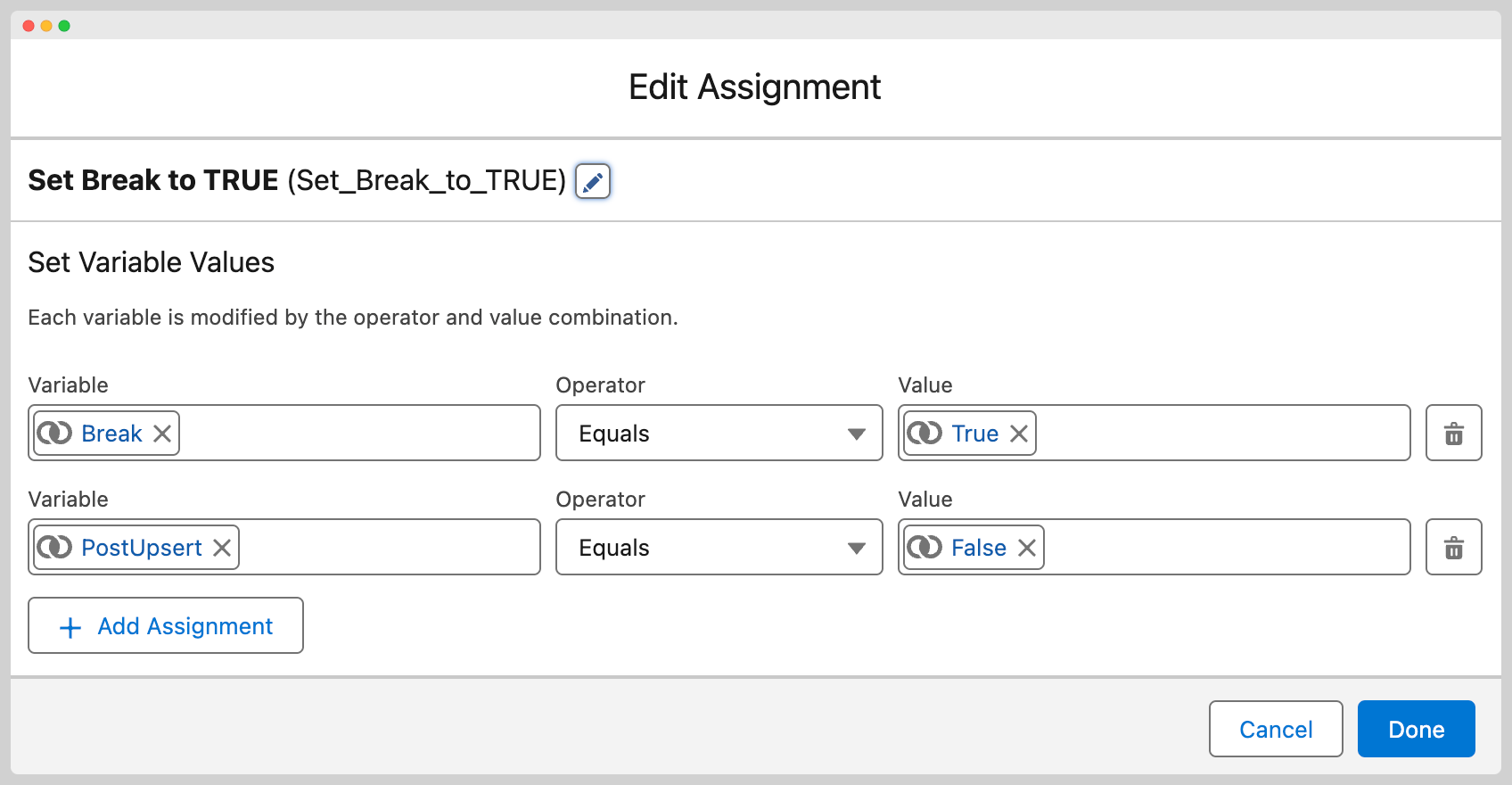
Boolean | When used with Break or Continue, forces the post-upsert action to run despite the phase being interrupted. |
Cancel#
| Diagram | Flow | Flow Detail |
|---|---|---|
 |
 |
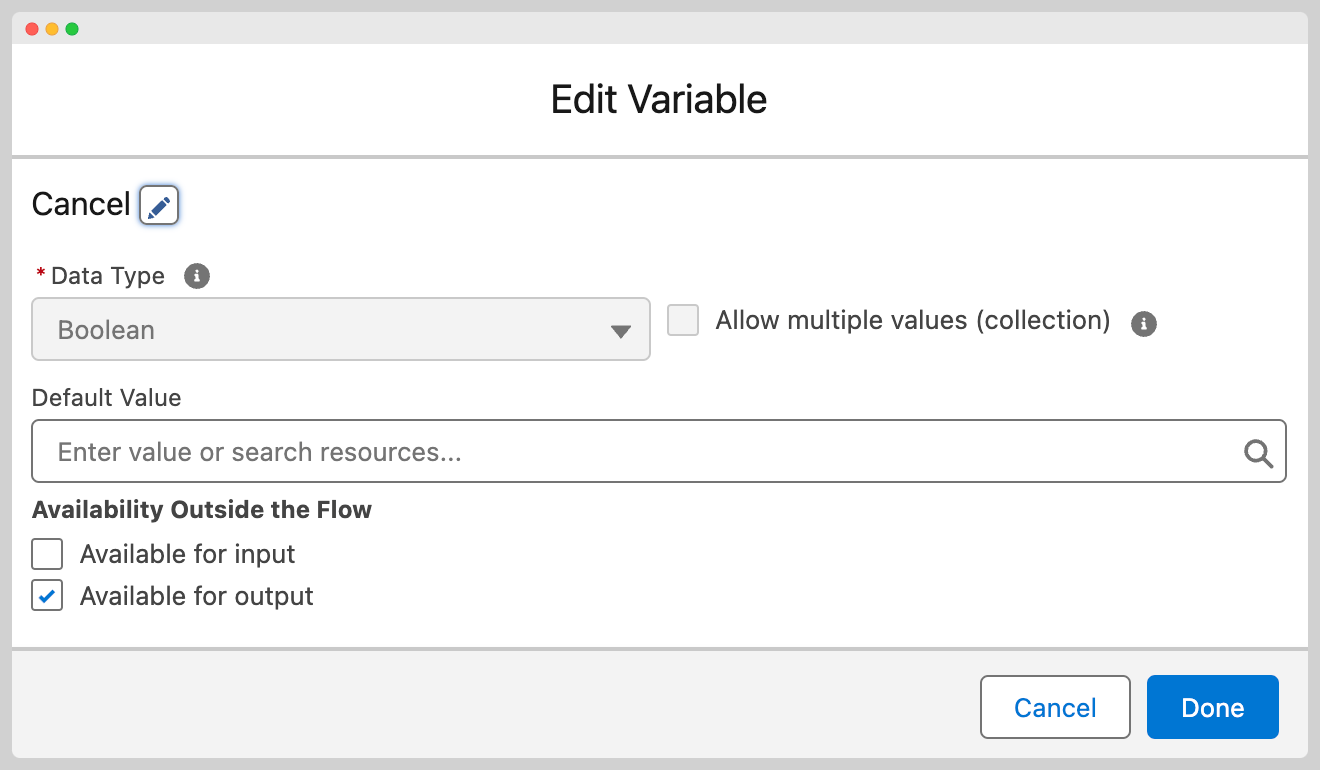 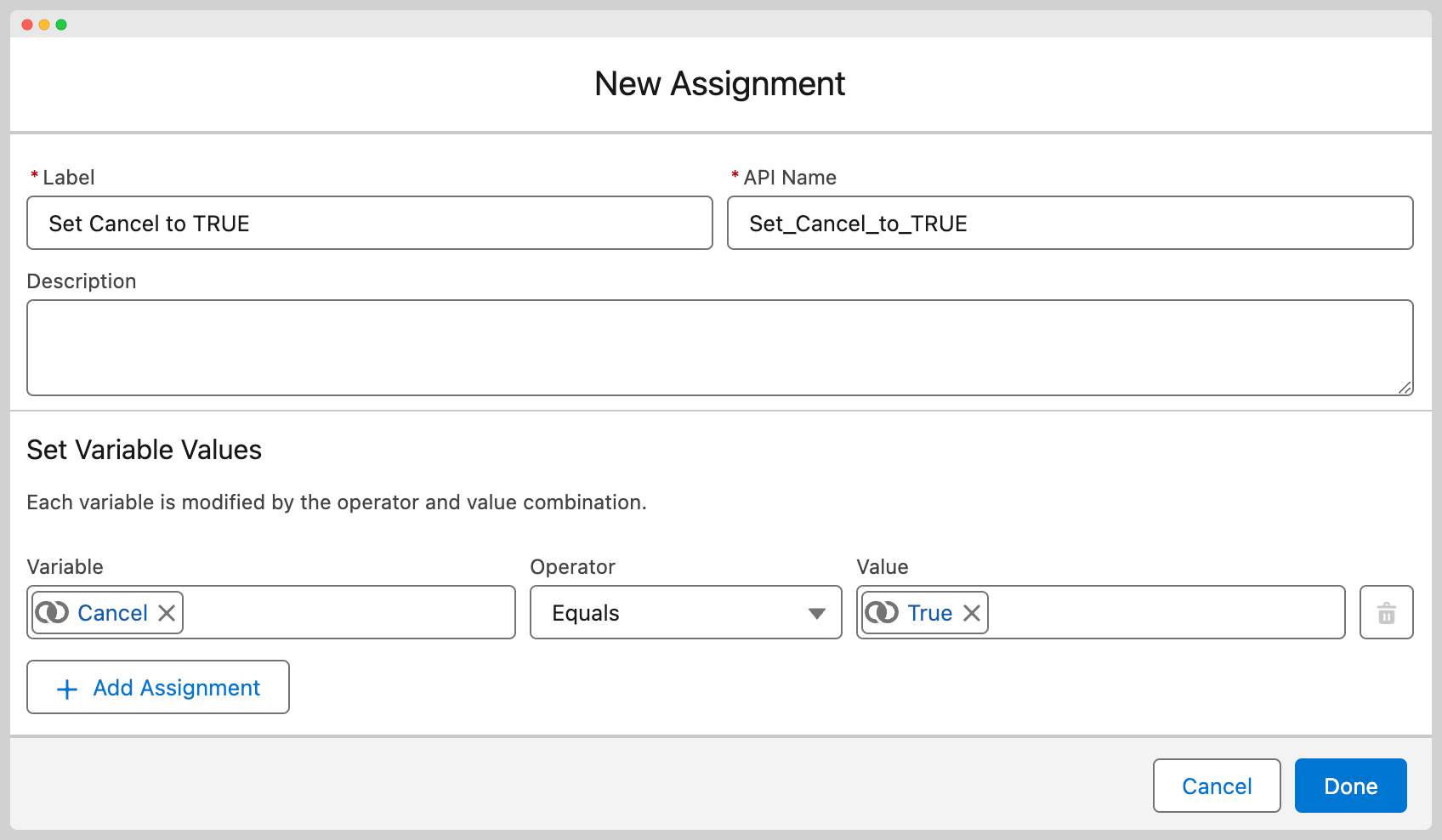 |
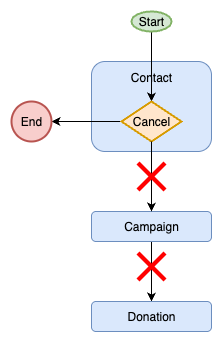
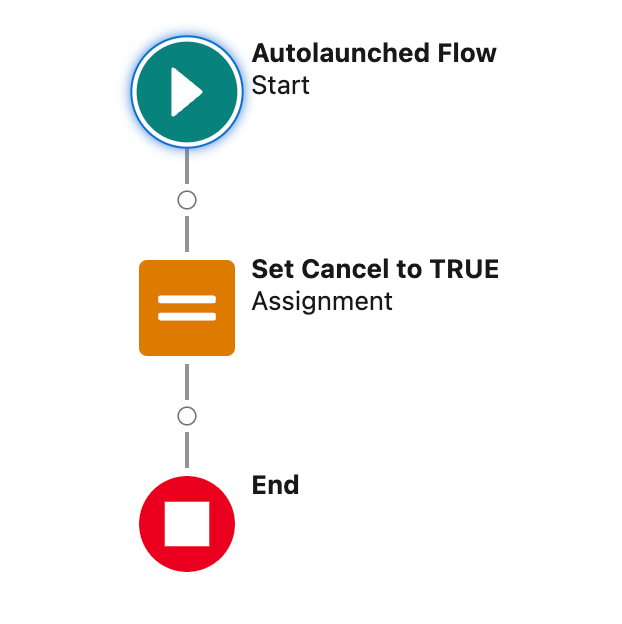
If you need to cancel the processing of a notification entirely, create an output-enabled Boolean variable named Cancel and set it to {!$GlobalConstant.True}. No records are created from the notification, but the notification status remains Success.
When to use Cancel#
- A required value is missing from the source platform data.
- A business rule determines the notification should not be processed.
- A validation check fails and you want to prevent any records from being created.
Break#
| Diagram | Flow | Flow Detail |
|---|---|---|
 |
 |
  |
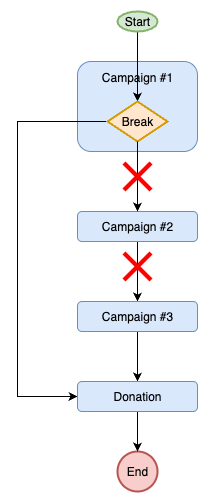
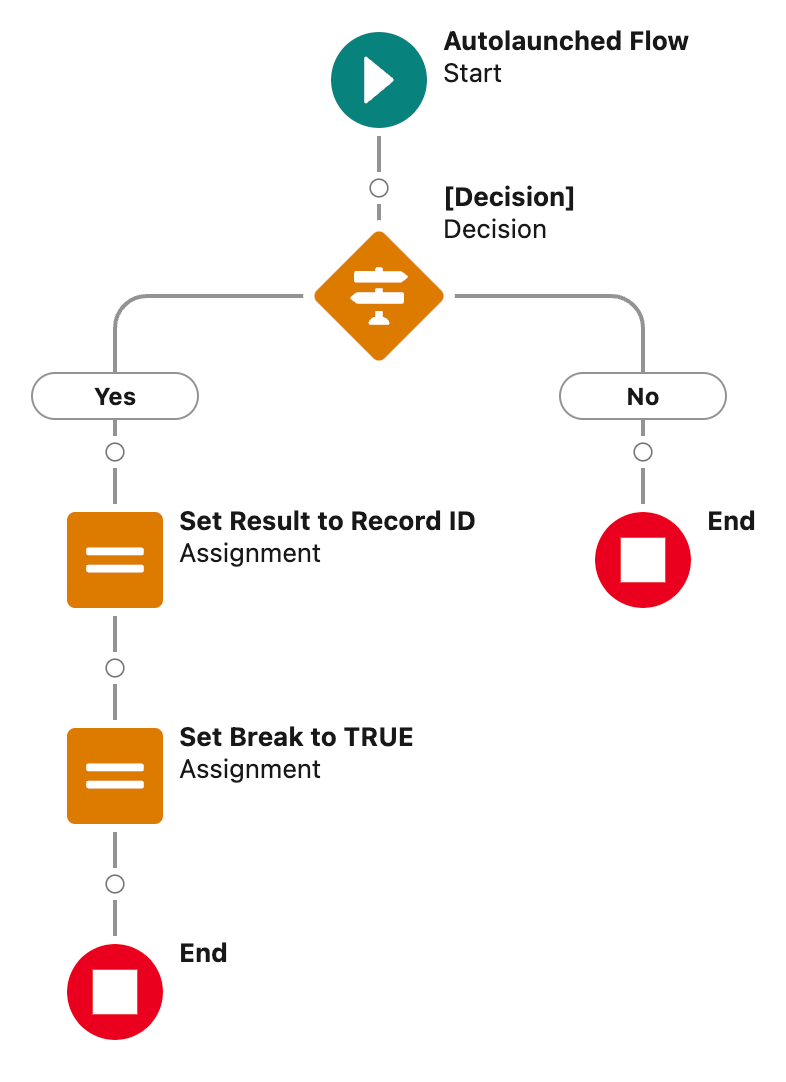
The Break command stops the current phase from continuing. It is most commonly used during the Record Match action when finding the record for a phase.
A common example is enabling a developer to select a record and skip any further entries in the phase (as there can be multiple campaigns) and to ensure the Mapping action does not run and overwrite the values on the determined record.
When to use Break#
- You have matched a record during record match and do not want subsequent match flows to run.
- You want to preserve existing field values on a matched record by preventing the mapping action from executing.
Example#
A campaign phase has multiple record match flows registered with different sort orders.
If the first match flow finds the correct campaign, setting Break to true prevents the remaining match flows from running and skips the mapping action entirely.
Continue#
| Diagram | Flow | Flow Detail |
|---|---|---|
 |
 |
  |
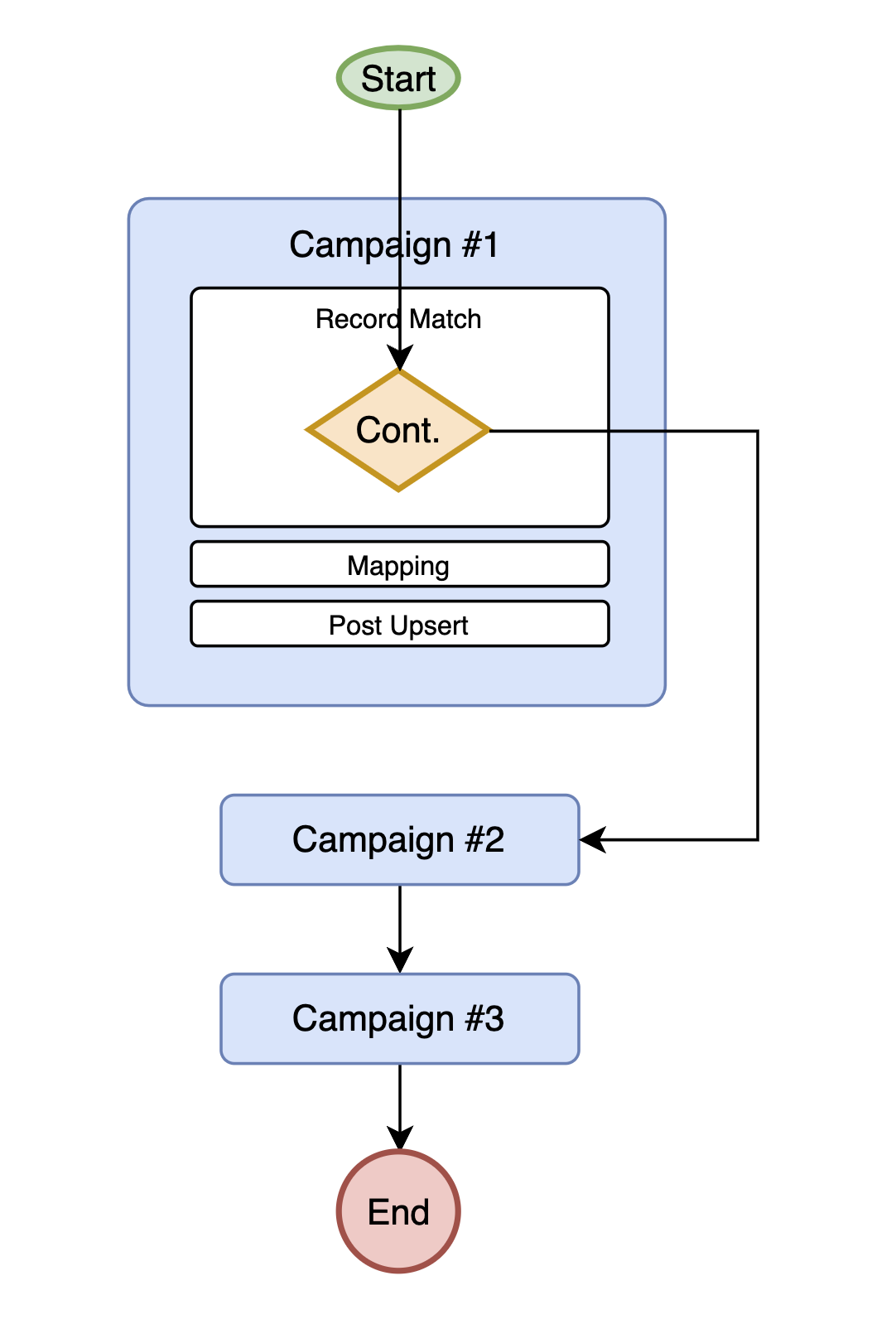
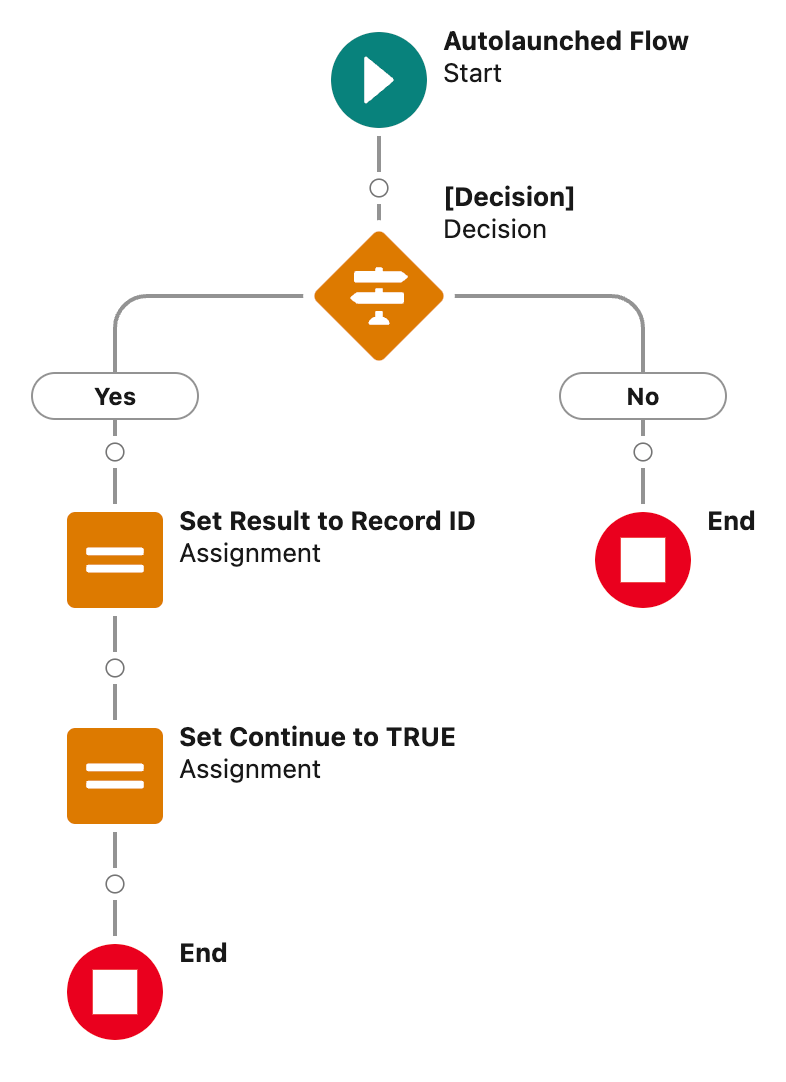
The Continue command directs MoveData to stop processing the current phase but allows child phases to continue.
A common use is when custom logic has been implemented in a campaign record match to override the top-level campaign with a different Salesforce campaign record, but you want the child campaigns to still be processed. By executing a Continue on the top-level campaign, it is protected from having its data overwritten by the mapping and following actions.
When to use Continue#
- You have overridden a record (such as a campaign) and want to protect it from the mapping action.
- You want child phases to process normally while skipping the current phase's remaining actions.
PostUpsert#
The PostUpsert command is only applicable when used together with the Break or Continue commands.
By default, when you use Break or Continue, the post-upsert action for the phase is skipped along with the other remaining actions.
If you need the post-upsert action to run despite the phase being interrupted, create an output-enabled Boolean variable named PostUpsert and set it to {!$GlobalConstant.True}.
When to use PostUpsert#
- You have used Break or Continue to protect a record from mapping, but you still need the post-upsert action to run (for example, to create campaign members or set up relationships).
Custom errors#
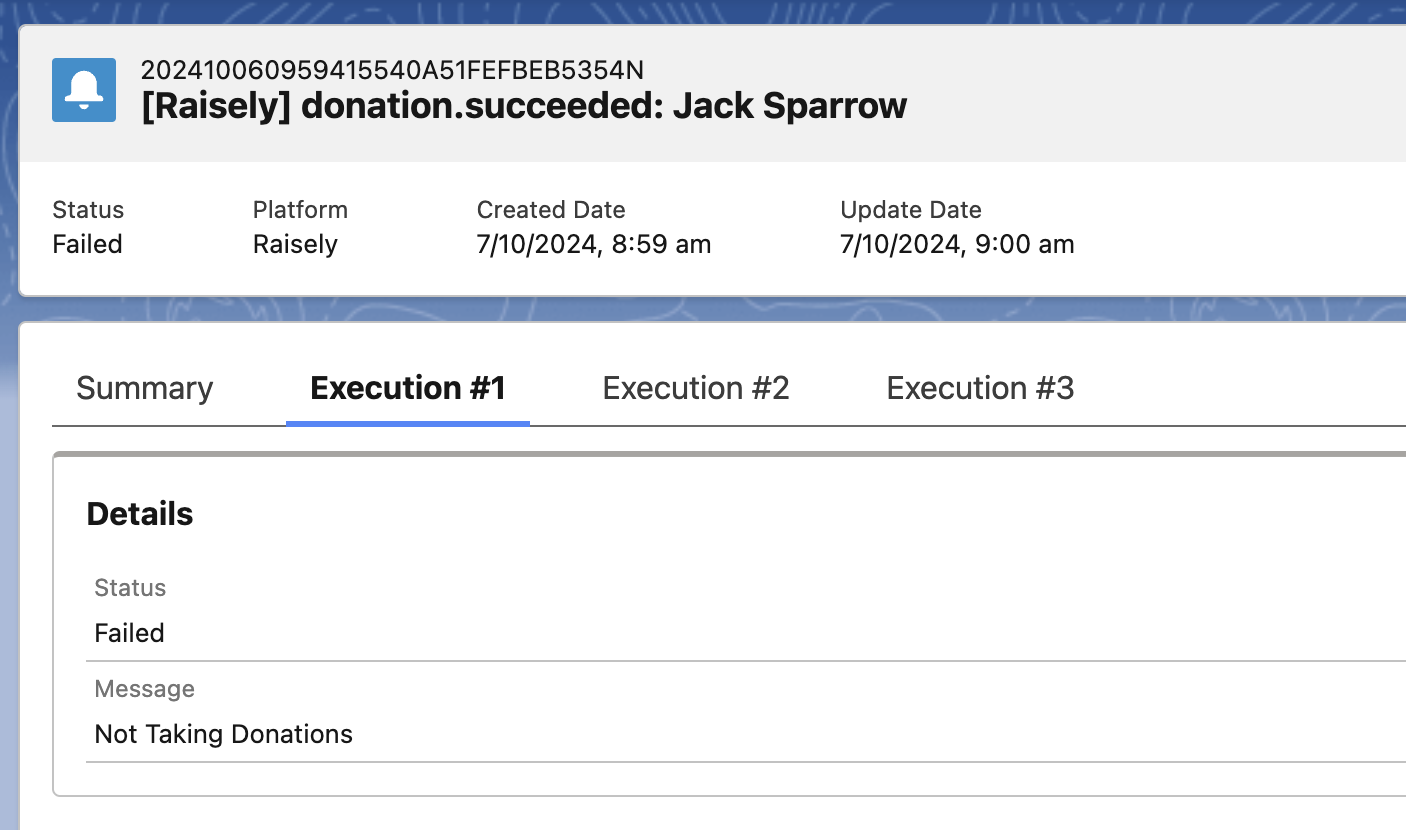
In addition to the commands above, MoveData supports raising custom errors from within a flow. When a flow finishes processing, MoveData checks for a special output variable called Errors. If it contains one or more messages, MoveData marks the notification as Failed and records the error messages in the execution log.
To set up custom errors:
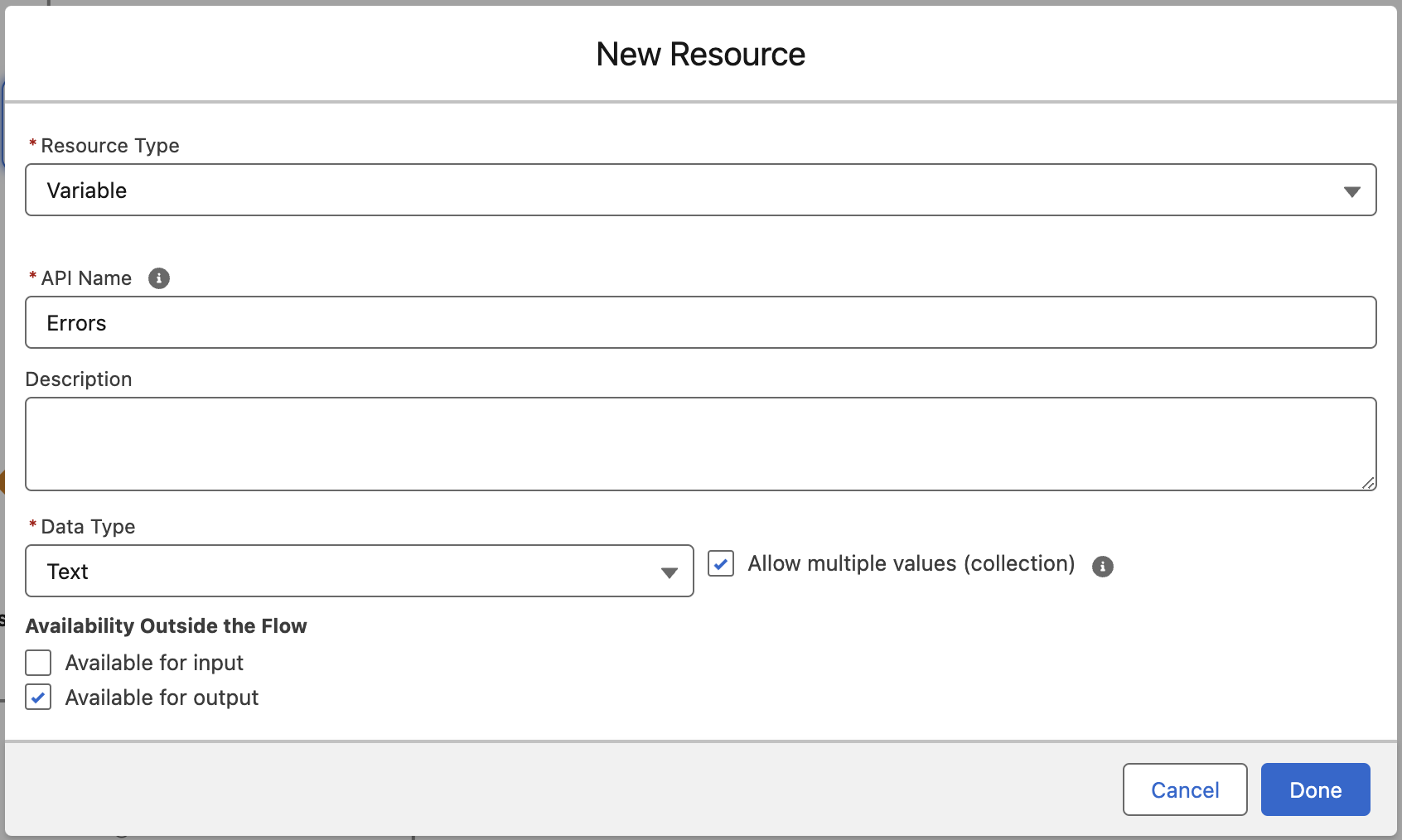
- Create a new variable named exactly
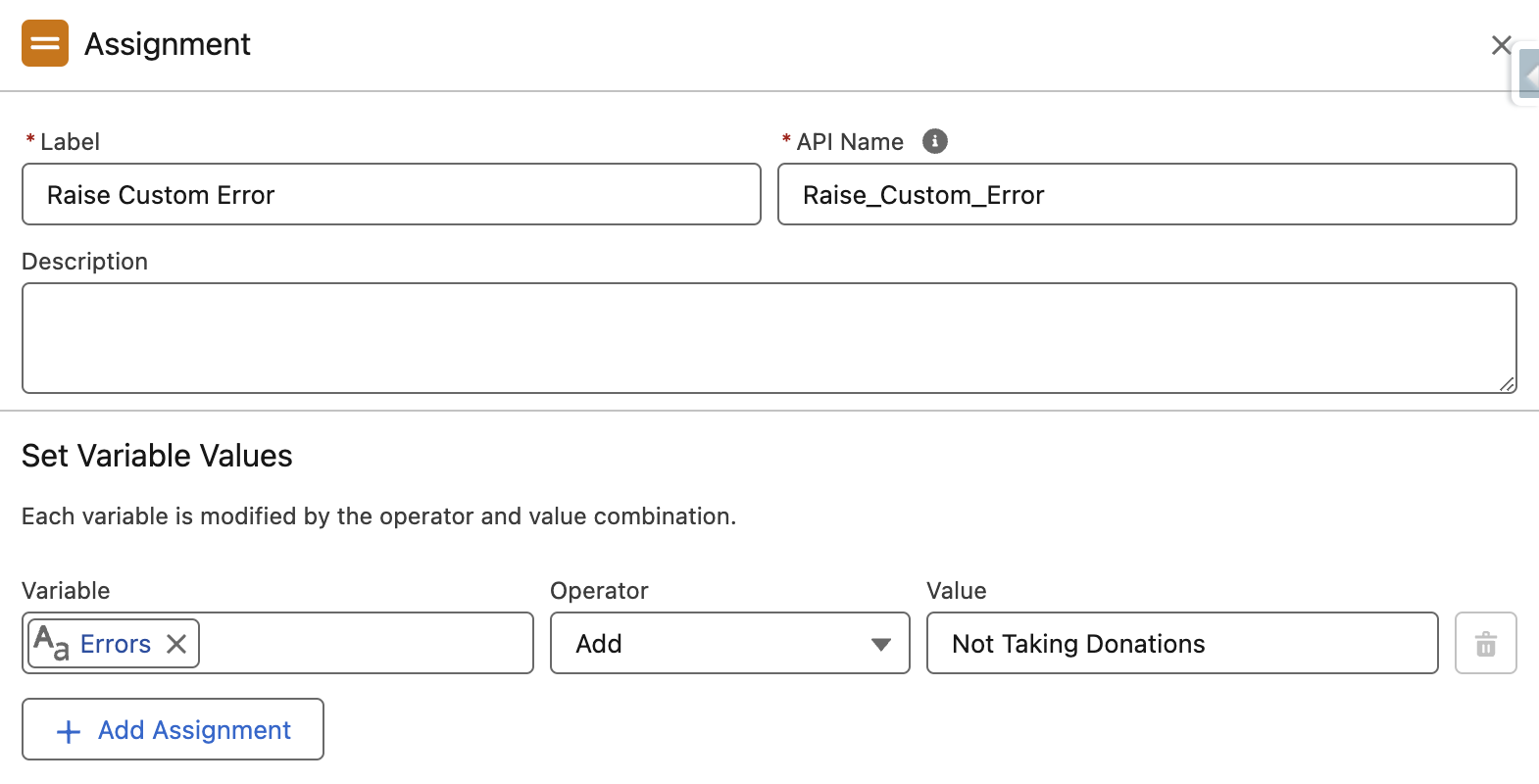
Errorswith Data Type set to Text, Allow Multiple Values (Collection) enabled, and Available for Output enabled. - Use an Assignment element to add error messages to the
Errorscollection (set the operator to Add). - Each message appears as a separate entry in the notification's execution log.
Warning
The variable must be named exactly Errors, must be a text collection, and must be marked as available for output. If any of these settings are incorrect, MoveData will not detect your custom errors.
When to use custom errors#
- A business rule determines the notification should fail — for example, a donation below a minimum threshold or a missing required field.
- You want the failure to be visible in the MoveData Notifications tab so someone can review and take action.
- You need to record a specific error message explaining why the notification was rejected.
Use Cancel when skipping a notification is expected behaviour. Use custom errors when the notification represents a genuine problem that someone should review.
How to use flow commands#
To use any flow command:
- Open the relevant flow in Salesforce Flow Builder.
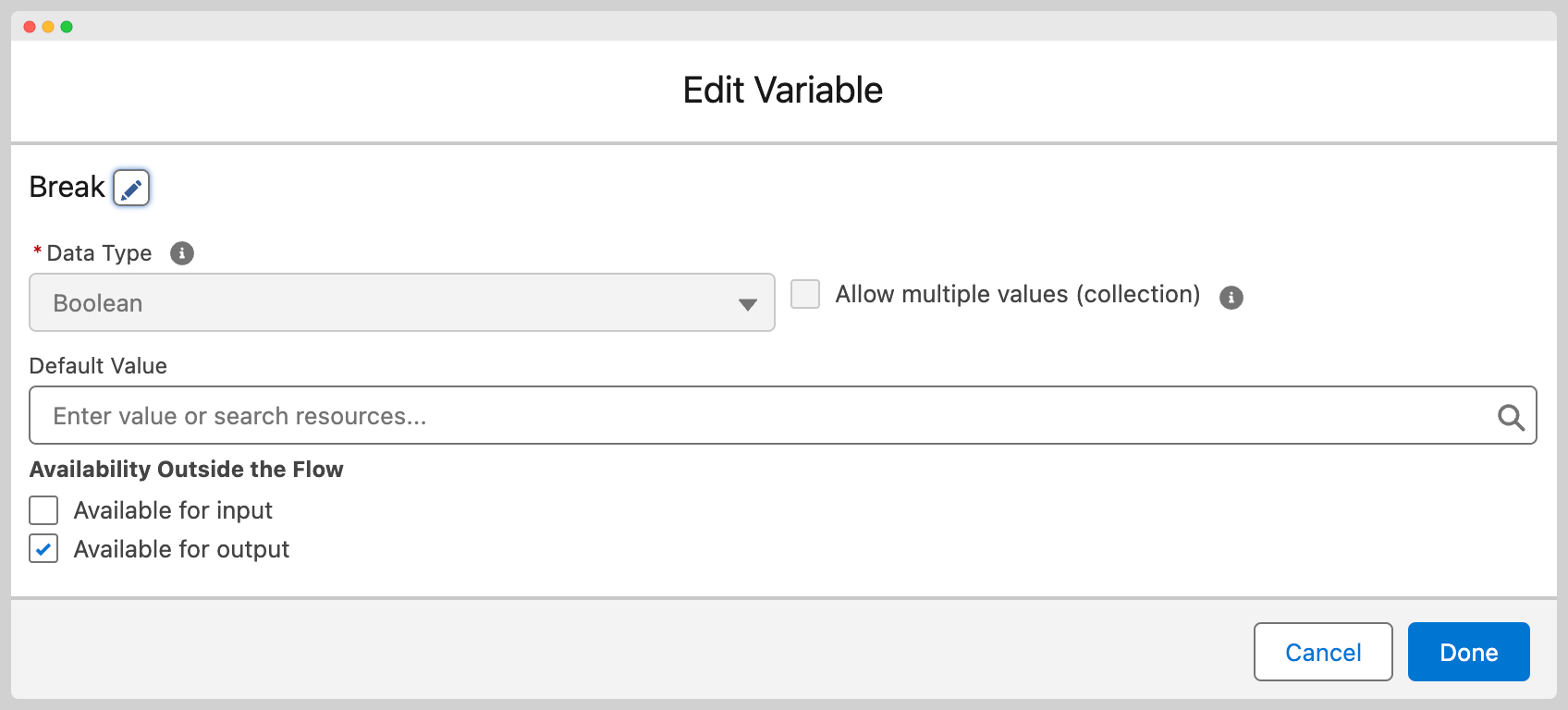
- Create a new variable with the exact name listed in the command summary above.
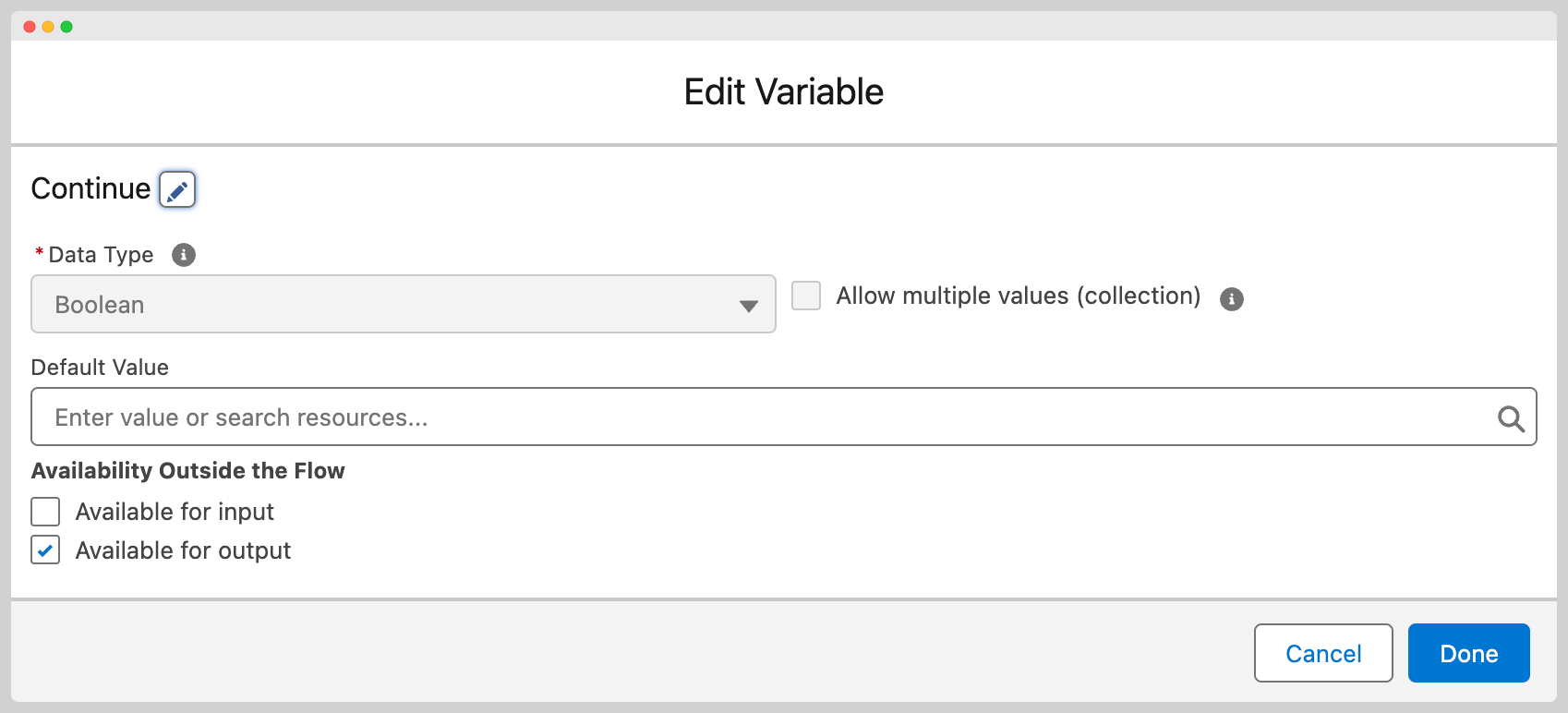
- Set the variable's Type to Boolean.
- Enable the variable as Available for output.
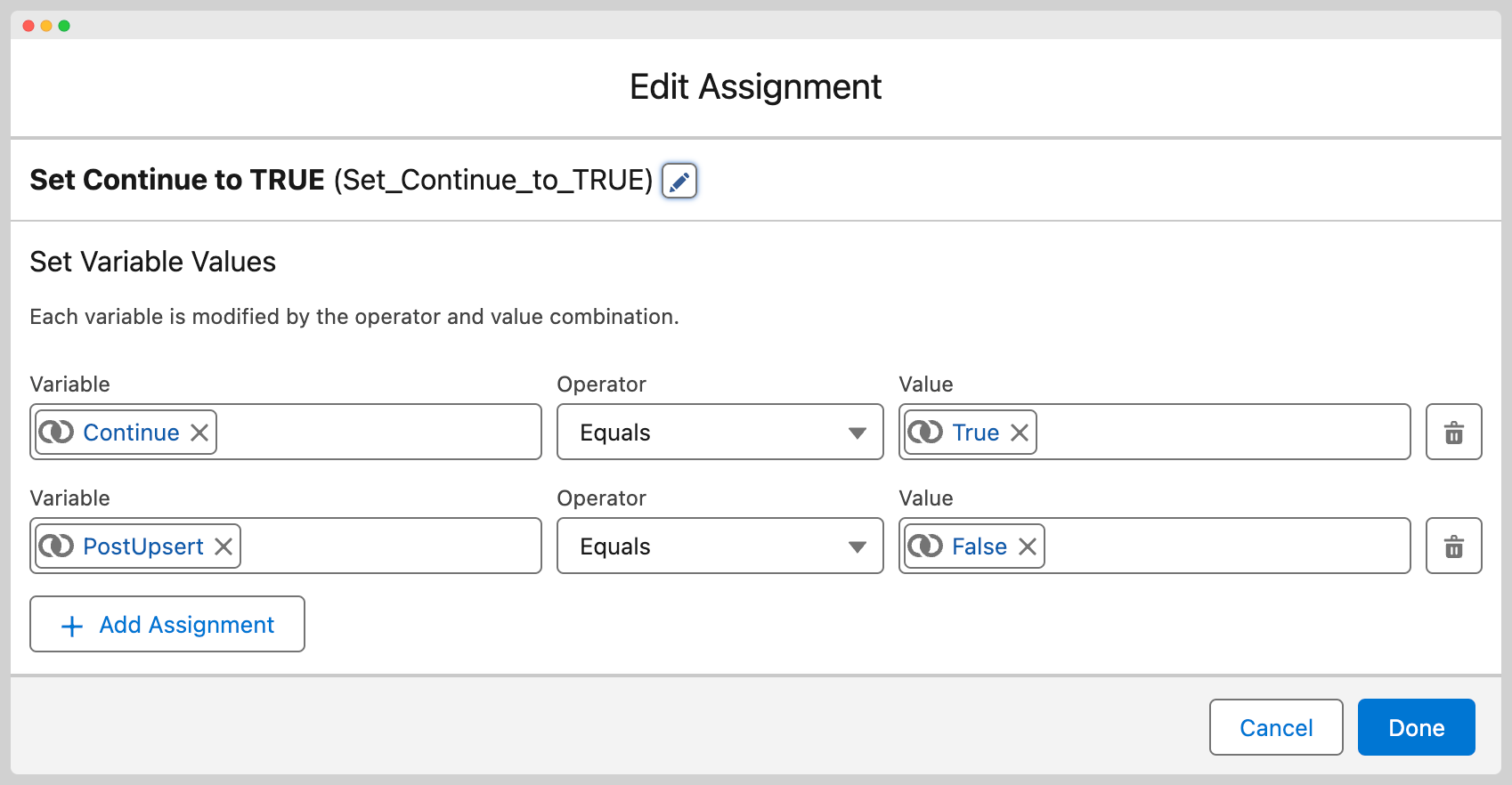
- Use an Assignment element to set the variable to
{!$GlobalConstant.True}at the appropriate point in your flow logic.
Variable names are case-sensitive
The variable name must match exactly as shown in the command summary table.
For example, Cancel is valid but cancel or CANCEL will not be recognised.
Other resources#
- Pipeline overview for an introduction to MoveData's processing pipeline.
- Donation pipeline for the donation-specific pipeline configuration.