Statuses for Recurring Donations
This article documents how MoveData maps Raisely subscription statuses to Salesforce recurring donation statuses. Understanding this mapping helps you interpret the state of your recurring donations in Salesforce and troubleshoot status discrepancies.
Overview#
When a donor makes a recurring donation in Raisely, the subscription status can change over time (for example, when a donor pauses or cancels their recurring gift). MoveData monitors these status changes and updates the corresponding Salesforce record.
Status Mapping#
NPSP (Nonprofit Success Pack)#
MoveData maps the Raisely subscription status to the Status field (npsp__Status__c) on the Recurring Donation object:
| Status in Raisely | Status in Salesforce | Description |
|---|---|---|
OK |
Active |
The subscription is active and processing normally. |
PAUSED |
Paused |
The donor has temporarily paused their recurring donation. |
CANCELLED |
Closed |
The donor has cancelled their recurring donation. |
FAILED |
Lapsed |
The payment has failed (for example, due to an expired card or insufficient funds). |
| Any other value | Active |
MoveData defaults to Active for unrecognised status values. |
Nonprofit Cloud#
MoveData maps the Raisely subscription status to the Status field (GiftCommitmentStatus) on the Gift Commitment object:
| Status in Raisely | Status in Salesforce | Description |
|---|---|---|
OK |
Active |
The commitment is active. |
PAUSED |
Paused |
The commitment is temporarily paused. |
CANCELLED |
Closed |
The commitment has been cancelled. |
FAILED |
Lapsed |
The payment has failed. |
| Any other value | Active |
Defaults to Active. |
Customising Status Handling#
If you need to set additional information based on the status (for example, recording a decline code on a custom field), you can add logic to your MoveData extension flows.
A common use case is writing the payment decline code to a custom field on the Recurring Donation record. To do this:
- Create a custom field on the Recurring Donation object (for example,
Decline_Code__c). - Add the field to the appropriate page layout.
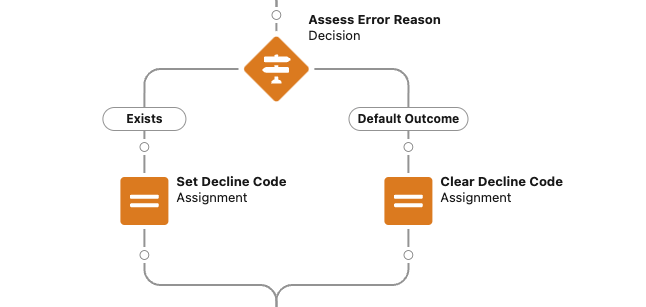
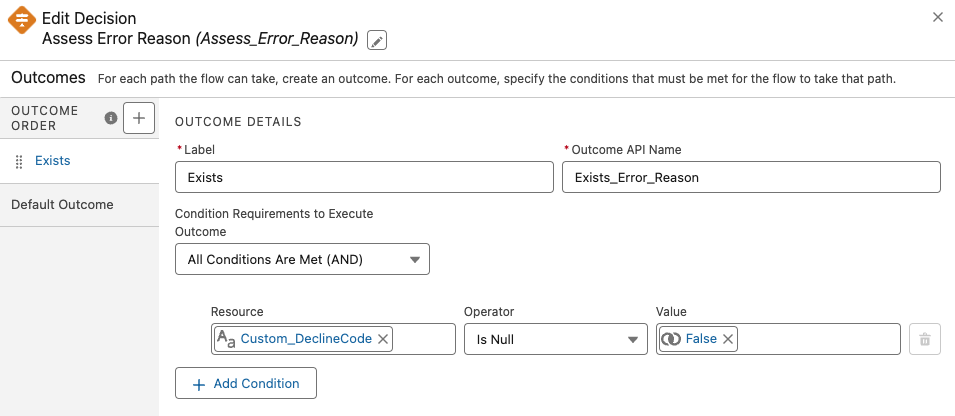
- Add a decision element in your MoveData flow to check for a failed status.
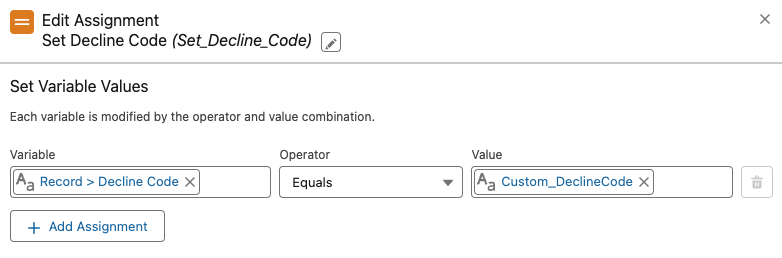
- Use an assignment element to write the decline code value to your custom field.
The following screenshots illustrate how to configure this in your MoveData extension flow:
For guidance on modifying flows, see Store Platform Data on Salesforce Records.
Pledged Opportunities#
When a recurring donation status changes in Raisely (for example, from Active to Paused), MoveData updates the Recurring Donation record in Salesforce immediately. However, pledged Opportunities linked to that recurring donation are not updated until the next donation event arrives from Raisely, because MoveData needs a donation record to trigger the logic that finds and updates the associated Opportunity.