Duplicate rules
MoveData relies on Salesforce Duplicate Rules to detect and manage duplicate records during data synchronisation. Getting these rules right is essential — misconfigured rules can block MoveData from creating records or allow unwanted duplicates into your org.
This guide explains how Duplicate Rules work with MoveData and walks you through configuring them correctly.
How MoveData detects duplicates#
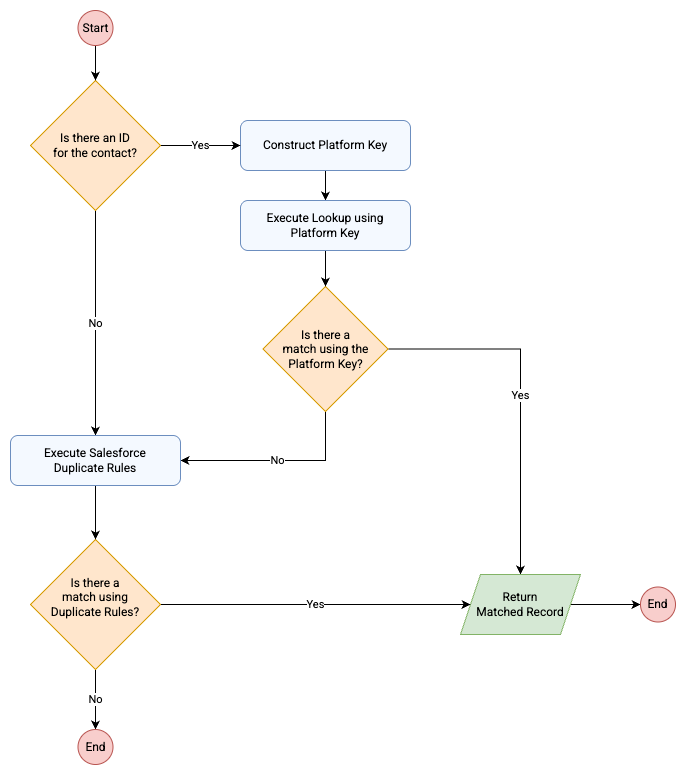
MoveData uses a two-stage matching process to identify whether an incoming record already exists in Salesforce.
Stage 1: Platform Unique Identifier Matching#
MoveData first checks the unique identifier from the source platform. Each fundraising platform assigns a unique ID to every record it sends. If MoveData finds a match on this ID, it updates the existing record rather than creating a new one.
Stage 2: Salesforce Duplicate Rules#
If no match is found in Stage 1, MoveData uses your Salesforce Duplicate Rules. These rules use criteria such as email address, name combinations, or other fields to identify potential duplicates.
Recommended duplicate rules for getting started
If you are setting up Salesforce duplicate rules for the first time with MoveData, we recommend the following matching criteria:
NPSP:
- Contacts: First Name (Fuzzy) AND Last Name (Exact) AND (Email (Exact) OR Personal Email (Exact))
- Accounts: Account Name (Exact)
Nonprofit Cloud:
- Person Accounts: First Name (Fuzzy) AND Last Name (Exact) AND Email (Exact)
- Accounts: Account Name (Exact)
Understanding rule types#
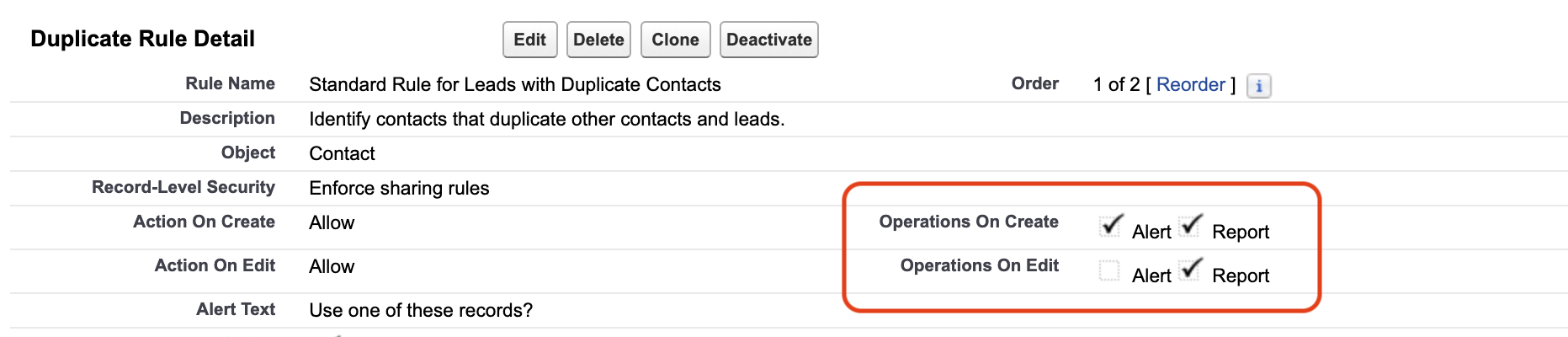
Salesforce offers two types of actions for operations on create and edit: Alert and Report. Each behaves differently when MoveData processes records.
Report rules#
Report rules flag to MoveData that a record already exists in Salesforce which matches the information coming from the connected platform. This allows MoveData to use that matching record instead of creating a duplicate one.
Warning
Report rules are required for MoveData to detect duplicates through Salesforce Duplicate Rules. Without them, MoveData cannot identify potential matches when Platform Key Matching does not find a record.
Alert rules#
Alert rules stop processing when they find duplicates. They block the record from being created or updated.
Danger
If an Alert rule applies to the MoveData Authorised User, it will block MoveData from processing records. This causes integration failures. You must exclude the MoveData Authorised User from all Alert rules.
Key concept: the MoveData Authorised User#
The MoveData Authorised User is the Salesforce user account that MoveData uses to create and update records. You can find this user in MoveData Settings.
For Duplicate Rules to work correctly with MoveData:
- Exclude the Authorised User from all Alert rules (so MoveData is not blocked).
- Include the Authorised User under all Report rules (so MoveData can still detect duplicates).
Configuration steps#
Preparation: Identify the Authorised User#
Before you edit any rules, you need to know the Authorised User's alias.
-
Open MoveData Settings and identify the Authorised User.
-
Navigate to Setup > Users in Salesforce.
-
Find the Authorised User in the list and record their Alias value (e.g.,
movedata).
Step 1: Review existing duplicate rules#
You need to understand your current rule configuration before making changes.
-
Navigate to Setup > Duplicate Management > Duplicate Rules in Salesforce.
-
Review all active rules in the list.
-
For each rule, identify whether it is an Alert rule or a Report rule.
-
Check the scope of each rule — which objects and matching criteria does it cover?
Note
Pay close attention to any custom rules your organisation has created. Standard Salesforce rules and custom rules both affect MoveData.
Step 2: Exclude MoveData from Alert rules#
Any active Alert rule that applies to the MoveData Authorised User will block integrations. You need to add an exclusion for each one.
- Click the name of an Alert rule to open it.
- Click Edit to modify the rule.
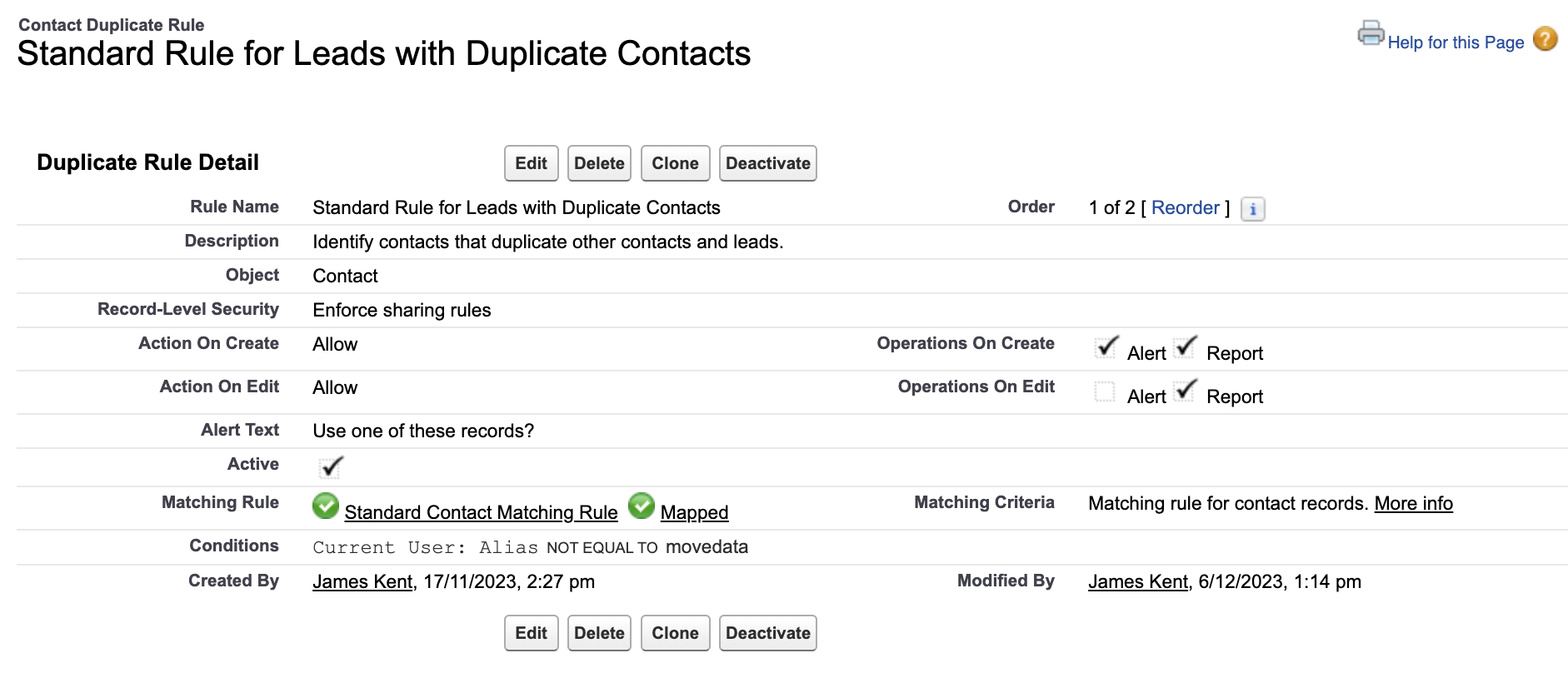
- Scroll to the Conditions section of the rule.
- Add a new condition: User: Alias not equal to the Authorised User's alias (e.g.,
movedata). - Click Save.
- Repeat for every active Alert rule.
Step 3: Configure Report rules#
MoveData needs Report rules to detect duplicates. If your org has only Alert rules, you need to create Report versions.
-
If a matching Report rule does not already exist, click the name of an existing Alert rule.
-
Click Clone to create a copy of the rule.
-
Change the rule action from Alert to Report.
-
Verify that the rule applies to the MoveData Authorised User (no exclusion for this user).
-
Click Save and Activate the new rule.

Success
Cloning an existing Alert rule ensures the matching criteria remain consistent. You only change the action type.
Testing your configuration#
After configuring your Duplicate Rules, verify that everything works as expected.
-
Create a record directly in Salesforce with a specific first name, last name, and email address.
-
Interact with your source fundraising platform to produce a record with the same first name, last name, and email address.
-
This will generate a notification in MoveData. Open the notification and check that it matched the Salesforce record you created in step 1.
-
Open the Execution Logs in MoveData to check that the rules fired correctly.
-
Review MoveData Notifications for any duplicate alerts or errors.
A successful test shows a "Duplicate found" entry under the Lookup group in the execution log, and the notification status should be Success. If MoveData creates a new record instead of matching, review your Report rule criteria to ensure they cover the fields your test record uses.
Troubleshooting#
Integration failures due to Alert rules
Symptom: MoveData fails to create or update records. Execution logs show errors related to duplicate detection.
Cause: An Alert rule is blocking the MoveData Authorised User.
Solution: Navigate to Setup > Duplicate Management > Duplicate Rules and verify that every active Alert rule excludes the MoveData Authorised User's alias.
Unexpected duplicate records
Symptom: MoveData creates new records instead of matching to existing ones.
Cause: Report rule criteria may be too narrow, or the matching rules do not cover the relevant fields.
Solution: Review your Report rule criteria and the associated Matching Rules. Ensure they cover the fields your source platform provides (e.g., email, name, phone).
Other resources#
- Salesforce Help: Duplicate Rules overview
- Salesforce Help: Matching Rules overview
- Salesforce Help: Manage Duplicate Rules
- Trailhead: Duplicate Management