Enabling commerce
Many organisations start with MoveData processing donations only, then add commerce processing later — for ticket sales, merchandise, raffles, or paid registrations — when their fundraising mix grows.
This article is the end-to-end checklist for turning commerce on in an existing MoveData installation: installing the extension, activating the Standard Pricebook, replicating settings and pipeline metadata, enabling commerce on each integration, and verifying everything works.
Nonprofit Cloud orgs
The scope below is the same for NPSP and Nonprofit Cloud, with one difference: Nonprofit Cloud orgs do not install a separate Commerce extension. The Nonprofit Cloud extension handles both donation and commerce processing in a single package, so you can skip Step 1. All other steps still apply.
Before you begin#
You need:
- MoveData installed and an integration already processing donations into Salesforce.
- Administrator access in Salesforce.
- Administrator access to your MoveData integration.
Step 1: Install the Commerce extension (NPSP only)#
NPSP orgs need the Commerce extension installed before MoveData can process commerce data. Install it from:
| Environment | Install link |
|---|---|
| Production or Developer Edition | Install Commerce extension |
| Sandbox or Scratch Org | Install Commerce extension (sandbox) |
After installing, assign the MoveData Commerce Extensions permission set to the MoveData Authorised User. See Commerce extension for the full install detail.
Skip this step if your org uses Nonprofit Cloud — commerce is already included in the Nonprofit Cloud extension.
Step 2: Activate the Standard Pricebook#
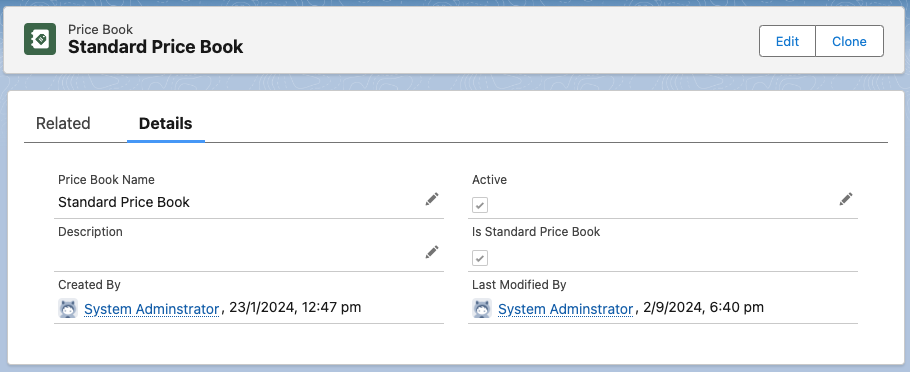
The commerce pipeline links Price Book Entries to the Standard Pricebook. If it is inactive, commerce processing will fail.
- From the App Launcher, open Price Books.
- Open the Standard Price Book.
- Confirm the Active field is set to
true. If it is not, edit the record and tick Active.
Step 3: Replicate Settings → Commerce#
The Commerce extension exposes its own settings page in the MoveData app. In most orgs you replicate your existing Fundraising & Donations settings into Commerce so commerce data is processed consistently with donations.
- From the App Launcher, open MoveData.
- Navigate to Settings > Commerce.
- Copy the values you currently use under Settings > Fundraising & Donations into the corresponding fields on the Commerce settings page. Save.
Note
The Settings → Commerce page only appears once the Commerce extension is installed (NPSP orgs) or the Nonprofit Cloud extension is installed (Nonprofit Cloud orgs).
Step 4: Replicate pipeline metadata entries#
If you have built any extension flows for the donation pipeline, you need to register equivalent records under the commerce pipeline. Extension flows themselves are shared — you do not clone the flow. You only clone the pipeline metadata entry that registers the flow.
For background on extension flows and pipeline metadata, see Writing extension flows.
- From Setup, open Custom Metadata Types, find MoveData Pipeline, and click Manage Records.
- For each existing
DONATION_*_EXTrecord, clone it. - Update the cloned record so that DONATION is replaced with COMMERCE in the Label and DeveloperName. The Handler stays the same — the same flow serves both pipelines.
The mapping between donation and commerce entries:
| Donation entry | Commerce entry | Notes |
|---|---|---|
PIPELINE_DONATION_ACCOUNT_* |
PIPELINE_COMMERCE_ACCOUNT_* |
Account stage |
PIPELINE_DONATION_CONTACT_* |
PIPELINE_COMMERCE_CONTACT_* |
Contact / Person Account stage |
PIPELINE_DONATION_CAMPAIGN_* |
PIPELINE_COMMERCE_CAMPAIGN_* |
Campaign stage |
PIPELINE_DONATION_DONATION_* |
PIPELINE_COMMERCE_ORDER_* |
Donation stage in the donation pipeline maps to Order stage in the commerce pipeline |
PIPELINE_DONATION_DONATION_POST |
PIPELINE_COMMERCE_ORDER_FINAL |
Post-upsert step |
PIPELINE_DONATION_RECURRING_* |
(no equivalent) | Commerce has no recurring concept — these entries do not need to be registered |
Worked example for a single record:
| Field | Donation entry | Commerce entry |
|---|---|---|
| Handler | MoveData_Donation_Contact_Mapping_Ext |
MoveData_Donation_Contact_Mapping_Ext |
| Type | Flow |
Flow |
| Label | PIPELINE_DONATION_CONTACT_MAPPING |
PIPELINE_COMMERCE_CONTACT_MAPPING |
| DeveloperName | DONATION_CONTACT_MAPPING_EXT |
COMMERCE_CONTACT_MAPPING_EXT |
| Order | 6 |
6 |
Repeat for every donation extension entry you have registered. Without a matching commerce entry, your existing flow logic will not run for commerce notifications.
The same replication pattern applies to fieldset registrations — see Writing extension flows: fieldset pipeline registration.
Step 5: Enable commerce on the integration#
Each integration that supports commerce has its own toggle on the Edit integration screen. Flip the relevant setting for your platform.
Raisely#
| Setting | Value | What it does |
|---|---|---|
| Processor Version | V2: Donation and Tickets |
V1 processes donations only; V2 also processes ticket sales and merchandise. |
| Fee Allocation Method | Donation Only / Order Only / Split 50/50 | For transactions that comprise both a sale and a donation, decides where the fee lands. Available with V2 only. |
| Aggregate Order Line Items | Combine Where Product is Same / Retain Individual | Whether identical line items merge (e.g. 2 × Adult) or stay separate (e.g. 1 × Adult, 1 × Adult). Use Retain Individual if you map contextual data onto each Opportunity Product. Available with V2 only. |
| Remove Discounts | (toggle) | Whether discounts appear as separate Opportunity Products. Available with V2 only. |
See Setting up Raisely for the full settings reference.
Funraisin#
| Setting | Value | What it does |
|---|---|---|
| Disable Product Sales | Disabled |
When Disabled, MoveData processes sales and raffle information. |
| Disable Registrations | Disabled |
When Disabled, MoveData processes event registration and ticket information. |
See Setting up Funraisin for the full settings reference.
Grassrootz#
| Setting | Value | What it does |
|---|---|---|
| Disable Ticket Sales | Disabled |
When Disabled, MoveData processes Grassrootz ticket sales as Opportunities with line items. |
Grassrootz defaults differ by integration age
New Grassrootz integrations have Disable Ticket Sales set to Disabled out of the box, so ticket sales process by default. Integrations created before ticket sales were supported have it set to Enabled to preserve existing behaviour — you need to flip it to Disabled to opt in.
See Setting up Grassrootz for the full settings reference.
Step 6: Verify#
- Trigger a test commerce transaction on your fundraising platform — a ticket purchase, a merchandise sale, or a raffle entry, depending on the platform.
- Open the Notifications tab in the MoveData app and confirm a new notification appears for the transaction and processes successfully.
- Open the notification and click through to the Salesforce Opportunity. Confirm the related Opportunity Products are present, and that the Product and Price Book Entry records were created.
For more on how commerce data is processed, see How the commerce pipeline works and Your data with Commerce.
Success
If a notification fails at the Catalogue, Order, or Order Item phase, the issue is almost always a missing prerequisite — extension not installed, permission set not assigned, Standard Pricebook inactive, or a missing pipeline metadata entry. Walk back through Steps 1–4 before debugging the data.
Historical commerce data#
MoveData only processes commerce transactions that occur after commerce is enabled on the integration. Transactions that happened before then are not backfilled automatically. If you need historical commerce data loaded into Salesforce, MoveData offers a professional data import service — see Data imports.
Flow customisation tips for commerce#
When you start writing commerce-specific logic, a few patterns come up repeatedly.
Branching on schema#
Many extension flows need to behave differently for donations versus commerce — for example, setting a different Opportunity Record Type for ticket sales than for donations. Because extension flows are shared across both pipelines, branch on the Schema variable inside the flow.
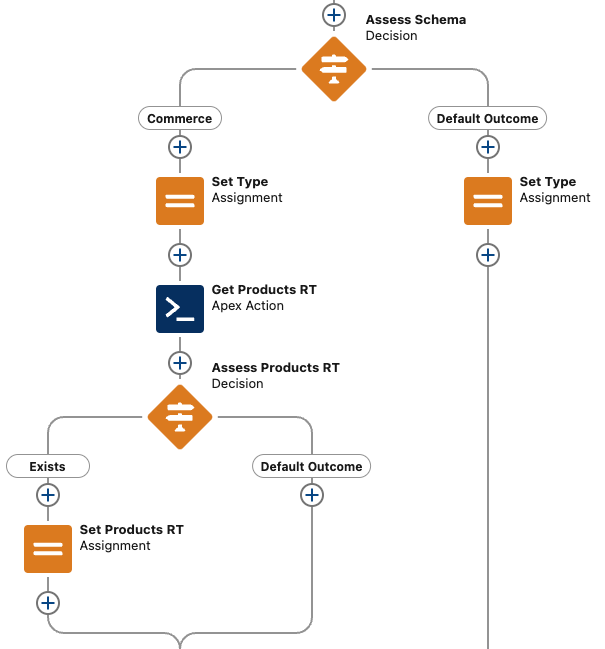
In the example above, the flow starts with an Assess Schema decision. The Commerce branch assigns the appropriate Type value, then uses an Apex Action (Get Products RT) to fetch the relevant Record Type by name — looking it up at runtime avoids hard-coding Salesforce IDs across orgs. A second decision (Assess Products RT) confirms the Record Type was returned before assigning it. The Default Outcome branch handles donations and sets the donation-side Type without the Record Type lookup.
Show Products on the Opportunity page layout#
By default the Products related list may not be visible on your Opportunity page layouts. Add the Products related list to the relevant page layouts so Opportunity Products appear when viewing a commerce Opportunity.
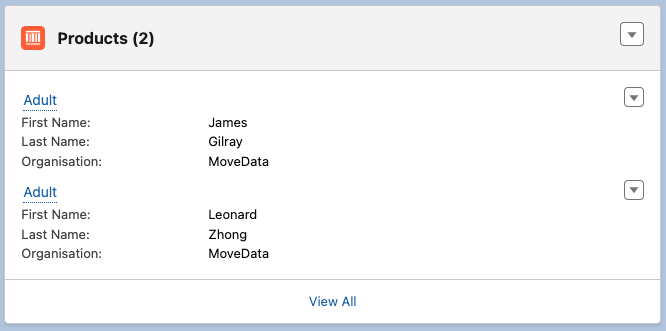
Once the related list is added, each line item on the sale appears under Products, with whichever fields you choose to show on the related list layout (in the example above: First Name, Last Name, and Organisation captured from the ticket holder).
Customise line item mapping#
Each item in a sale becomes an OpportunityLineItem. To map specific line item data to fields on Opportunity Product, build an extension flow registered against PIPELINE_COMMERCE_ORDERITEM_MAPPING. This runs alongside [MoveData] Commerce: Order Item - Mapping.
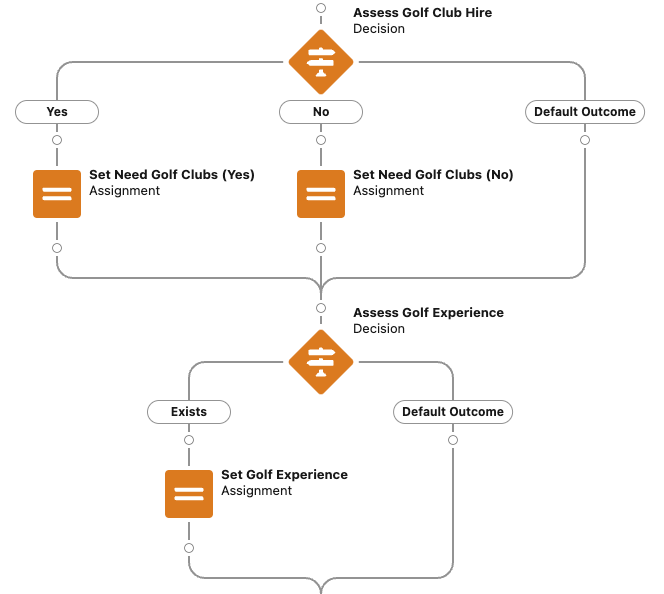
The example above is an Order Item mapping flow that takes ticket-specific question responses — Golf Club Hire and Golf Experience — and assigns them onto fields on the Opportunity Product. Each question is its own Decision, with Assignment elements off the relevant outcomes. The second decision uses an Exists outcome to skip the assignment when the question response is null, following the null-check pattern used throughout MoveData extension flows.
The same pattern applies to other commerce phases (Catalogue, Order) — see the metadata entries under Setup > Custom Metadata > MoveData Pipeline for the full list of commerce extension points.
For the full developer reference, see Writing extension flows.
Related articles#
- Commerce extension — what the Commerce extension is and how to install it (NPSP only)
- Nonprofit Cloud extension — for Nonprofit Cloud orgs, where commerce is included
- Commerce pipeline — what runs at each phase of the commerce pipeline
- How the commerce pipeline works
- Your data with Commerce
- Writing extension flows
- Setting up Raisely
- Setting up Funraisin
- Setting up Grassrootz