Viewing polling attempts
If your integration uses polling (such as JustGiving, Funraisin, Enthuse, or TapRaise), MoveData periodically checks the platform for new data. Each check creates a polling attempt record that you can view to confirm the integration is active and running on schedule.
For background on how polling works and how it compares to webhooks and file uploads, see Understanding notification frequency.
How to view polling attempts#
Polling attempts appear as notifications with a Type of Job. You can find them using either pre-built filter views or custom filters.
Using pre-built filter views#
MoveData provides ready-made views for batch job notifications.
- Open the MoveData app in Salesforce.
- Click the Notifications tab.
- Click the list view dropdown (next to All Notifications).
- Select Successful Batch Jobs or Failed Batch Jobs.
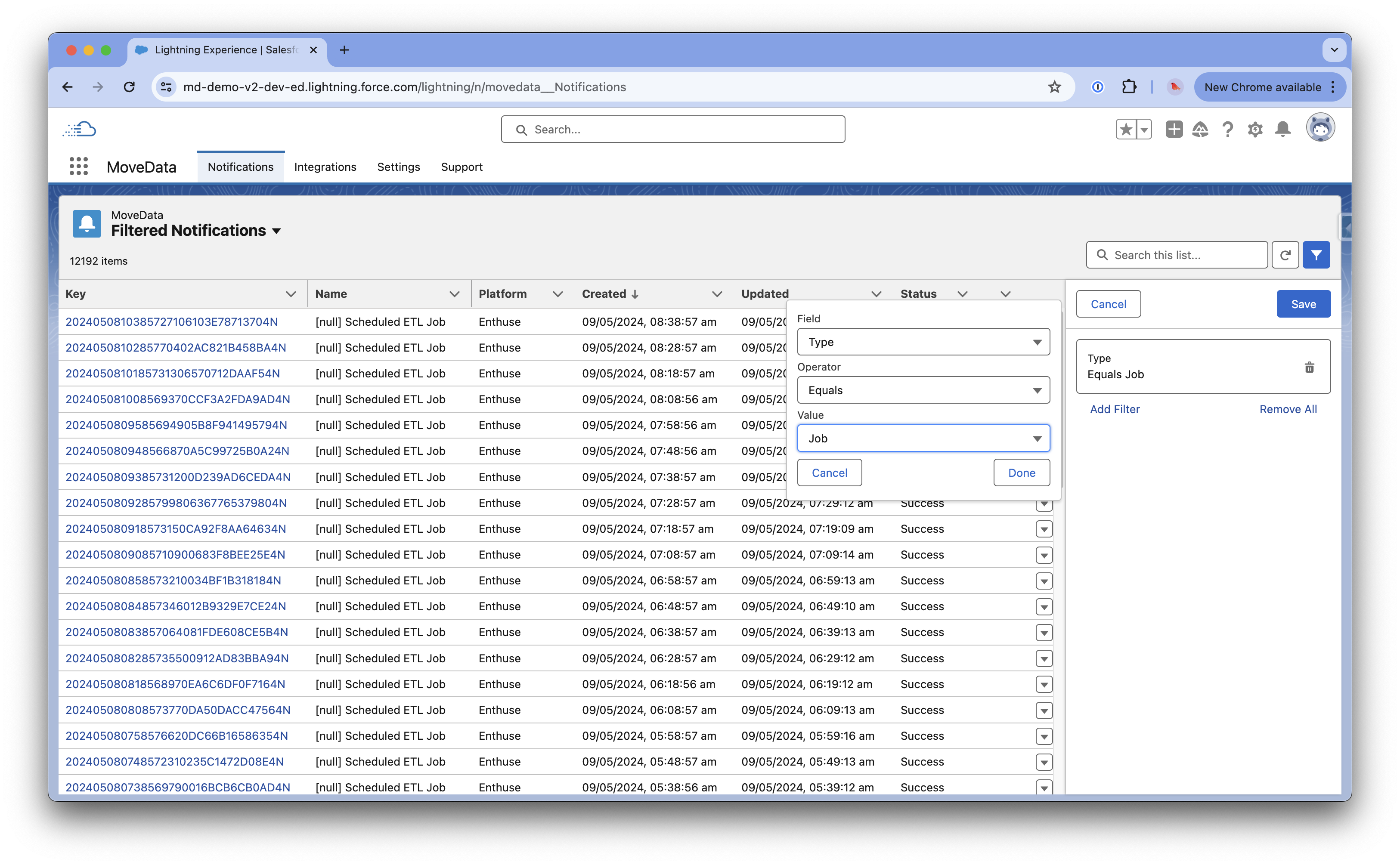
Using custom filters#
For more control, create a custom filter to show polling attempts for a specific integration.
- Open the Notifications tab in the MoveData app.
- Click the Filter icon in the top-right corner of the list.
- Add a filter with the criteria Type equals Job.
- Optionally, add a second filter for Platform equals [your platform name] to narrow results to a specific integration.
Reading polling attempt records#
Each polling attempt notification tells you whether MoveData successfully checked the platform for new data.
| Field | What it tells you |
|---|---|
| Status | Whether the poll succeeded (Success) or encountered a problem (Failed). |
| Platform | Which integration the poll ran for. |
| Created | When the poll was executed. |
| Name | A description of the polling event. |
Note
A Success status means MoveData successfully connected to the platform and checked for new data. It does not mean new data was found — it confirms the poll ran without errors.
Verifying your polling schedule#
Compare the Created timestamps of consecutive polling attempts to confirm polls are running at the expected interval.
MoveData determines the polling schedule for each integration according to best-practice design, coordinated with the source platform. The polling interval is not always user-configurable. Check the integration article for your specific platform in this knowledge base to understand its polling schedule.
Success
If there is a gap in polling attempts that is longer than expected, this may indicate a temporary connectivity issue between MoveData and the platform. Check whether a Failed batch job notification appears around the time of the gap.
Note
If MoveData cannot poll for any reason (for example, expired API credentials or platform downtime), it will automatically retry from the last successful connection once the issue is resolved. For instance, if your API credentials change and you update them in MoveData, the next poll will automatically pick up from where the last successful poll left off. No data is lost during the interruption.
Diagnosing polling failures#
If a polling attempt has a Failed status, open the notification to investigate.
- Click the failed Job notification to open its detail view.
- Select the Execution tab to view the execution log.
- Review the log entries for error messages that explain why the poll failed.
Common reasons for polling failures include:
- Invalid API credentials — the platform API key or credentials may have expired or been revoked.
- Platform downtime — the platform's API was temporarily unavailable.
- Rate limiting — MoveData exceeded the platform's API rate limits (rare with standard polling intervals).
For more on reading execution logs, see Viewing execution logs.