Salesforce Connected App usage restrictions
In September 2025, Salesforce changed how connected apps work. Uninstalled connected apps are now blocked by default for most users. This page explains how these changes affect MoveData and how to resolve related errors.
What changed#
Before September 2025, any Salesforce user could authorise a connected app during an OAuth flow. After the change, Salesforce blocks uninstalled connected apps unless the user has specific permissions.
A connected app is "installed" when a Salesforce admin explicitly adds it via Setup > Apps > Connected Apps > Manage Connected Apps.
Impact on existing customers#
If you installed MoveData before September 2025, you do not need to take any action. Your existing authorisation continues to work.
Danger
If you install MoveData as a connected app via Setup > Apps > Connected Apps > Manage Connected Apps, you must re-authorise afterwards. Navigate to MoveData > Settings > General > Authorise MoveData and click Authorise.
Impact on new customers#
New MoveData installations automatically register as an authorised connected app. No additional steps are required.
OAuth approval error#
If the Salesforce user authorising MoveData does not have permission to approve uninstalled connected apps, you will see the following error:
We can't authorize you because of an OAuth error. For more information, contact your Salesforce administrator. OAUTH_APPROVAL_ERROR_GENERIC: An unexpected error has occured during authentication. Please try again.
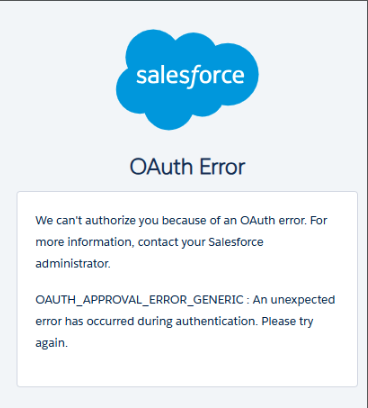
The browser URL contains:
error=invalid_client&error_description=app+must+be+installed+into+org
This error appears when you click Authorise in one of these locations:
- MoveData > Settings > General > Authorise MoveData
- The Setup Wizard during initial installation
Resolving the OAuth error#
Complete these three steps to authorise MoveData securely.
Step 1 — Enable the profile permission#
- Navigate to Setup > Users > Profiles.
- Open the profile assigned to the authorising user.
- Click System Permissions.
- Enable Approve Uninstalled Connected Apps.
- Click Save.
Step 2 — Authorise MoveData#
- Navigate to MoveData > Settings > General.
- Click Authorise.
- Log in as the desired user when prompted.
- Grant the requested permissions.
- Verify the authorised user appears on the Settings page.
Step 3 — Restore the profile (security best practice)#
- Return to the profile in Setup > Users > Profiles.
- Disable Approve Uninstalled Connected Apps.
- Click Save.
Warning
Only enable Approve Uninstalled Connected Apps temporarily for the duration of authorisation. Disable it afterwards to maintain your org's security posture.
New Salesforce permissions#
Salesforce introduced two new system permissions for connected app access:
| Permission | Purpose | Recommendation |
|---|---|---|
| Approve Uninstalled Connected Apps | Allows the user to authorise a specific uninstalled connected app during OAuth | Grant temporarily to the authorising user, then remove |
| Use Any API Client | Bypasses connected app restrictions entirely for the user | Grant sparingly to admin or developer profiles only |
Warning
Both permissions expand your org's attack surface. Grant them only to trusted admin or developer profiles, and only when needed.
Connected app OAuth policies#
Salesforce admins can control how users interact with installed connected apps through OAuth policies:
| Policy | Behaviour |
|---|---|
| All users may self-authorize | Any user can authorise the app during OAuth (default) |
| Admin approved users are pre-authorized | Only users with a specific profile or permission set can use the app |
| Blocked | No users can authorise the app |
You can view and change these policies in Setup > Apps > Connected Apps > Manage Connected Apps.
Other resources#
- Salesforce Help: Connected App usage restrictions
- Salesforce Admin Blog: Get ready for changes to Connected App usage restrictions